.avif)
Freevisuals

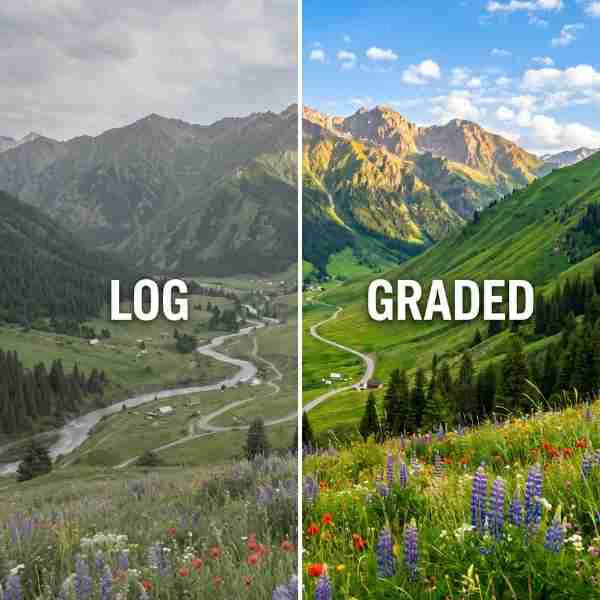
Download this Free Adobe After Effects Preset Transition template designed to simulate a camera focus shift moving from left to right. This template would
Download FREEGo Pro To DownloadDownload NOW!Download FREE
Free Camera Focus Left Right After Effects Transition is a ready-to-apply transition preset built for Adobe After Effects, giving editors a dependable starting point rather than requiring a custom build from scratch.
If you're building a broader project around this transition preset, browse our After Effects templates library for additional options to pair with it, and for music to underscore your project, Artlist and Epidemic Sound both carry a wide range of tracks well suited to most editing contexts.
Whether you're producing content on a regular publishing schedule or working on a single standalone project, Free Camera Focus Left Right After Effects Transition is built to slot into your existing Adobe After Effects workflow without requiring you to rebuild familiar steps from scratch, giving you one less decision to make from zero on your next edit. For a wider range of premium assets beyond what's freely available, Motion Array and Envato are also worth browsing.
Every element listed above is included directly in the download, ready to apply within Adobe After Effects without needing to source additional files or plugins separately in most cases. This matters for keeping your project setup simple, since a transition preset that depends on several separate, hard-to-find components tends to introduce far more friction into a workflow than one delivered as a single, self-contained package like Free Camera Focus Left Right After Effects Transition.
Delivered as a lightweight, self-contained file, Free Camera Focus Left Right After Effects Transition adds minimal overhead to your project regardless of your specific computer's processing power, meaning even editors working on more modest hardware can apply and preview it without significant slowdown, an important practical consideration alongside the purely creative benefits this transition preset provides for your regular Adobe After Effects workflow.
A well-built transition preset solves a genuinely recurring problem for editors, the same visual or technical decision showing up project after project, without needing to rebuild the underlying work from scratch every single time. Rather than manually recreating this specific look or effect by hand for every new video, having Free Camera Focus Left Right After Effects Transition available as a ready-to-apply transition preset turns what might otherwise be a repeated, time-consuming task into something closer to a single click, freeing up meaningful time for the parts of editing that genuinely benefit from fresh creative attention.
This matters more than it might initially seem for anyone producing content on a regular schedule. Small, repeated production tasks add up considerably over a busy month of editing, and a reliable transition preset like this one removes one of those recurring tasks from the list entirely, letting it become a dependable part of a broader, more efficient Adobe After Effects production pipeline rather than something reinvented from scratch on every single project.
Gives a project a polished way to move between distinct scenes or sections. Applying Free Camera Focus Left Right After Effects Transition consistently across this kind of content helps build a recognizable, considered visual identity rather than a one-off effect used in isolation.
Creators cutting between multiple locations or moments benefit from a transition that keeps pacing engaging. Since this transition preset is genuinely reusable, it's worth keeping in mind as a default option any time a similar project comes up in your regular Adobe After Effects workflow.
Event videographers can use this transition to move gracefully between key moments within a highlight reel. Editors working in this specific content category benefit from the time this transition preset saves compared to building a similar result manually for every new project.
Independent filmmakers can use this transition to signal a scene or time change within a narrative sequence. This use case in particular rewards the consistency a ready-made transition preset like this one makes genuinely practical across a larger body of work.
Fast-paced vertical content benefits from a transition that keeps editing feeling considered rather than abrupt. Considering how this transition preset fits alongside your other production choices for this specific content type helps ensure the final result feels cohesive rather than disconnected.
Head to the download page and grab the preset file.
Keep the downloaded file in a dedicated project assets folder, or place it in your default After Effects presets location.
Open the Effects & Presets panel in After Effects, then drag the downloaded file directly into the panel, or double-click it to load it automatically.
Select the footage, adjustment layer, or composition you want to apply the preset to.
Drag the preset from the Effects & Presets panel directly onto your selected layer.
With your layer selected, open the Effect Controls panel to fine-tune the preset's specific parameters.
Scrub through your timeline to confirm the effect reads well across your specific footage.
Reduce or increase the effect's strength through the Effect Controls panel until it feels balanced against your footage.
If you've made specific adjustments you want to reuse, save your customized version as its own new preset for future projects.
Once you're happy with the result, render and export using your project's standard delivery settings.
Following these steps in order, rather than skipping ahead to the customization stage before confirming the transition preset is correctly installed and appearing where expected within Adobe After Effects, avoids the most common source of frustration when working with any new asset for the first time. Once you've been through this process once with Free Camera Focus Left Right After Effects Transition, applying it to future projects becomes considerably faster, since the initial installation and familiarization step only needs to happen a single time.
One of the most valuable qualities a transition preset can offer is consistency, the ability to produce a broadly similar, reliable result across different footage, different lighting conditions, and different specific projects, rather than requiring significant readjustment every single time it's applied. Free Camera Focus Left Right After Effects Transition is built with this kind of consistency in mind, meaning creators who apply it across a whole body of work, a full channel, a full wedding season, a full campaign, can reasonably expect a cohesive result without needing to recalibrate from scratch for every individual piece.
This consistency has real practical value beyond simple convenience. A body of work that shares a consistent visual or technical treatment reads as more considered and professional to an audience than a collection of individually inconsistent pieces, even when the underlying content quality is otherwise comparable. Applying Free Camera Focus Left Right After Effects Transition deliberately and consistently, rather than only occasionally, is part of what turns a useful individual asset into a genuine contributor to an overall recognizable style.
Most of these mistakes share a common thread, moving too quickly through the application process without taking a moment to preview and confirm the result actually suits the specific footage or project at hand. Building a habit of a quick, deliberate preview before finalizing any use of Free Camera Focus Left Right After Effects Transition, rather than assuming the default settings will automatically work for every situation, is a small habit that meaningfully improves the consistency of your finished results over time.
Worth watching alongside this download is Light Leaks Transitions In DaVinci Resolve 18 Tutorial, a detailed look at layering and blending transition elements, covering compositing principles that apply directly to getting the most out of this specific asset. It is not a walkthrough of Free Camera Focus Left Right After Effects Transition specifically, but the underlying technique it covers is directly applicable to getting a stronger result once you apply this asset to your own project.
Individually, a single transition preset like Free Camera Focus Left Right After Effects Transition might seem like a minor detail within a much larger finished project, but production value tends to accumulate from exactly this kind of accumulated attention to small, individually modest details rather than from any single dramatic decision. A project that consistently applies considered, well-chosen transition presets throughout, rather than treating each individual element as an afterthought, reads as meaningfully more polished to an audience than one where these small details were left unaddressed or applied inconsistently.
This is part of why Free Camera Focus Left Right After Effects Transition is worth taking seriously even though it represents just one specific piece of a much larger production. The cumulative effect of consistently applying well-chosen, well-calibrated elements like this one across an entire project, rather than treating them as optional extras, is a meaningful part of what separates genuinely polished, professional-feeling work from something that merely gets the job done adequately.
Editors approach a transition preset like Free Camera Focus Left Right After Effects Transition with genuinely different levels of prior Adobe After Effects experience, and it's worth understanding how this specific asset serves both ends of that spectrum. For editors newer to Adobe After Effects, Free Camera Focus Left Right After Effects Transition provides immediate, reliable value without requiring deep technical knowledge of exactly how the underlying effect is constructed, simply applying it and adjusting the exposed, easy-to-use controls is enough to get a genuinely strong result. For more experienced editors, the same transition preset still saves meaningful time even though they could technically build something similar from scratch, and it often serves as a useful starting point for further, more advanced customization.
This dual usefulness, valuable to complete beginners and experienced professionals alike for different reasons, is part of what makes a well-built transition preset like this one worth genuinely understanding rather than just applying blindly. Taking the time to actually explore what's happening underneath the surface, even briefly, tends to make future use considerably more effective regardless of your specific starting skill level.
Since Free Camera Focus Left Right After Effects Transition is accessible to anyone who downloads it, other editors working in a similar space may end up applying the exact same asset at some point, which is worth keeping in mind when deciding how much personal customization to invest in versus using it in its default state. Editors who tend to see the strongest results long term are generally the ones who treat a ready-made transition preset as a starting foundation rather than a finished product, adding their own specific footage quality, message, and brand consistency on top of the underlying structure.
Weighing the genuine strengths and limitations of any transition preset before committing to it across a full project helps set realistic expectations rather than discovering a mismatch partway through an edit. Free Camera Focus Left Right After Effects Transition is no exception, it does its specific job well, but understanding exactly where it excels and where its limitations lie helps you apply it with appropriate confidence rather than either over-relying on it in situations it wasn't built for, or underusing it out of unnecessary caution in situations where it would genuinely help.
Adobe After Effects. Check the specific download page for the exact version requirement.
Yes, text, color, and timing are editable directly within Adobe After Effects's native controls once applied.
Yes, free for both personal and commercial use.
No, it's built to work using Adobe After Effects's standard toolset without requiring third-party plugins in most cases.
Check the specific license terms on the download page to confirm coverage for your intended commercial use case.
It's built for broad compatibility, though always preview against your specific footage since results can vary depending on original resolution and quality.
Free Camera Focus Left Right After Effects Transition is a simple, genuinely useful addition to a Adobe After Effects workflow, the kind of transition preset that quietly saves time on a recurring basis rather than serving as a flashy, one-time feature. For creators building a regular content production schedule, having a reliable set of these kinds of assets on hand, rather than rebuilding similar effects from scratch on every new project, is a genuinely meaningful part of working efficiently without sacrificing the polish a finished project deserves. Download it, spend a few minutes getting familiar with its specific controls, and it should earn a lasting place in your regular toolkit alongside the rest of your go-to Adobe After Effects assets.
Whichever specific way you end up using Free Camera Focus Left Right After Effects Transition, the underlying principle worth carrying forward is treating a well-built transition preset as a genuine part of your working toolkit rather than a novelty tried once and forgotten, since that's ultimately where assets like this one deliver their real, compounding value over an entire body of work rather than any single isolated project.
No single transition preset is the right fit for absolutely every project, and it's worth having a couple of genuinely different options on hand for situations where Free Camera Focus Left Right After Effects Transition isn't quite the right match. The following are worth bookmarking alongside this download, whether you need a different stylistic direction for a specific project, complementary music and sound to round out your Adobe After Effects edit, or additional visual assets to build out a fuller production.
Affiliate Disclosure: This post may contain affiliate links. If you make a purchase through one of these links, FreeVisuals may earn a commission at no extra cost to you. We only recommend products and platforms we genuinely believe in. Read our full disclosure policy.
Download free video templates, LUTs, and presets for Premiere Pro, After Effects, DaVinci Resolve, CapCut, and Final Cut Pro.