.avif)
Freevisuals

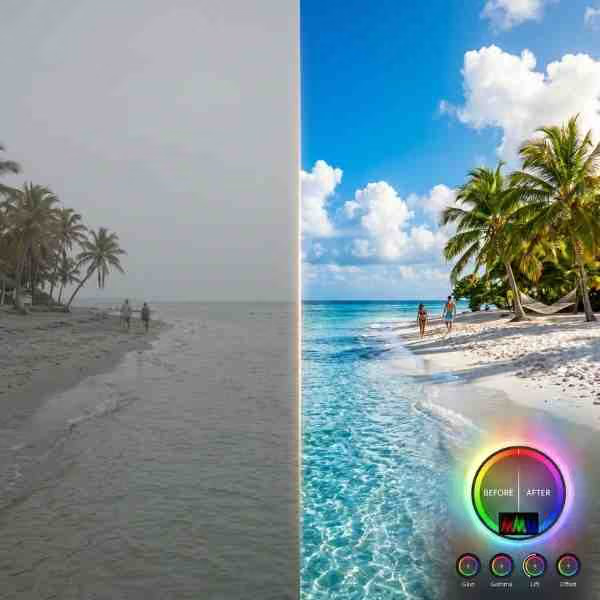
Achieve a cinematic look with this Final Cut Pro bleach bypass color preset, creating high contrast and desaturated colors for dramatic footage.
Download FREEGo Pro To DownloadDownload NOW!Download NOW
Achieve a cinematic look with a bleach bypass effect, creating high contrast and desaturated colors. Built for Final Cut Pro, Final Cut Pro Bleach Bypass gives editors a ready-to-apply color template rather than requiring a custom build from scratch.
If you're building a broader project around this color template, browse our Final Cut Pro templates for additional options to pair with it, and for music to underscore your project, Artlist and Epidemic Sound both carry a wide range of tracks well suited to most editing contexts.
Whether you're producing content on a regular publishing schedule or working on a single standalone project, Final Cut Pro Bleach Bypass is built to slot into your existing Final Cut Pro workflow without requiring you to rebuild familiar steps from scratch, giving you one less decision to make from zero on your next edit.
Every element listed above is included directly in the download, ready to apply within Final Cut Pro without needing to source additional files or plugins separately. This matters for keeping your project setup simple, since a color template that depends on several separate, hard-to-find components tends to introduce far more friction into a workflow than one delivered as a single, self-contained package like Final Cut Pro Bleach Bypass.
Delivered as a lightweight, self-contained file, Final Cut Pro Bleach Bypass adds minimal overhead to your project regardless of your specific computer's processing power, meaning even editors working on more modest hardware can apply and preview it without significant slowdown, an important practical consideration alongside the purely creative benefits this color template provides.
Not every downloadable color template earns a permanent place in an editor's toolkit, many get used once out of curiosity and never touched again. What separates a genuinely useful color template from a novelty is whether it solves a real, recurring need reliably across a range of different footage and project types, rather than only working well under very specific, narrow conditions. Final Cut Pro Bleach Bypass is built with this kind of broad, dependable usefulness in mind, a considered technical approach that holds up across a genuinely wide range of source material rather than requiring near-perfect starting footage to produce a usable result.
This distinction is worth keeping in mind when evaluating whether a specific color template belongs in your own regular workflow. The best test isn't how impressive it looks in an isolated demo clip, it's whether it continues to produce reliably strong results across the actual, sometimes imperfect footage a real editing workflow involves day to day, project after project, without requiring extensive additional correction work every single time it's applied.
The core use case this template is built for, giving footage a considered color treatment with minimal setup. Applying Final Cut Pro Bleach Bypass consistently across this kind of content helps build a recognizable, considered visual identity rather than a one-off effect used in isolation.
Creators wanting a consistent visual mood across regular uploads benefit from applying this grade consistently. Since this color template is genuinely reusable, it's worth keeping in mind as a default option any time a similar project comes up in your regular Final Cut Pro workflow.
Event videographers can use this grade as a fast starting point for a specific, considered color mood. Editors working in this specific content category benefit from the time this color template saves compared to building a similar result manually for every new project.
Independent filmmakers can use this grade as a foundation before fine-tuning further with additional grading. This use case in particular rewards the consistency a ready-made color template like this one makes genuinely practical across a larger body of work.
Vertical, social-first content benefits from a quick, consistent color treatment applied directly within Final Cut Pro. Considering how this color template fits alongside your other production choices for this specific content type helps ensure the final result feels cohesive rather than disconnected.
It's worth being honest about the actual time tradeoff a color template like this one represents. Recreating the same specific effect manually within Final Cut Pro, without the benefit of a pre-built color template, is genuinely possible for an experienced editor, but it typically involves considerably more trial and error than simply applying an already-calibrated file and adjusting from there. This is particularly true for effects involving multiple layered parameters working together, where getting the underlying balance right from scratch can take meaningfully longer than fine-tuning an already-solid starting point.
This tradeoff matters most for editors working under real time pressure, a tight publishing schedule, a demanding client deadline, where the difference between building an effect from scratch and adjusting an already-built one can be the difference between meeting a deadline comfortably and scrambling at the last minute. Final Cut Pro Bleach Bypass is built specifically to remove this time pressure from at least one recurring part of the editing process.
Head to the download page and grab the template or LUT file.
Unzip the downloaded folder into a dedicated project directory, keeping it organized alongside your other project assets.
Follow the included installation instructions to place the file into Final Cut Pro's native LUT or Effects folder.
Final Cut Pro typically needs to be restarted, or the relevant browser refreshed, before newly installed effects appear.
Select the clip you want to apply the color grade to on your timeline.
Locate the effect within your Effects browser and drag it directly onto your selected clip.
Open the Inspector panel to blend the effect's strength against your original footage.
Scrub through your timeline to confirm the grade reads well across your specific footage and lighting conditions.
Apply the same effect across every clip in your sequence for a cohesive, consistent look.
Once you're happy with the result, render and export using your project's standard delivery settings.
Following these steps in order, rather than skipping ahead to the customization stage before confirming the color template is correctly installed and appearing where expected within Final Cut Pro, avoids the most common source of frustration when working with any new template or preset file for the first time. Once you've been through this process once with Final Cut Pro Bleach Bypass, applying it to future projects becomes considerably faster, since the initial installation and familiarization step only needs to happen a single time.
No single color template, however well designed, suits every possible project equally well, and understanding Final Cut Pro Bleach Bypass's specific strengths helps clarify where it genuinely earns its place versus where a different approach might serve a project better. This particular color template is calibrated around a specific technical or stylistic choice, and recognizing this specific character helps set realistic expectations for how it will read across different genuinely different types of footage or content.
Being thoughtful about this fit, rather than reaching for the same familiar color template out of habit for every single project regardless of genuine suitability, tends to produce stronger, more considered final results over time. A quick honest check, does this specific color template's character genuinely serve what this particular project needs, is worth running before applying it by default, even for a tool as reliable and broadly useful as this one.
Most of these mistakes share a common thread, moving too quickly through the application process without taking a moment to preview and confirm the result actually suits the specific footage or project at hand. Building a habit of a quick, deliberate preview before finalizing any use of Final Cut Pro Bleach Bypass, rather than assuming the default settings will automatically work for every situation, is a small habit that meaningfully improves the consistency of your finished results over time.
The genuine value of a color template like this one tends to reveal itself over an extended period of use rather than in a single project, since the real time savings and consistency benefits compound considerably the more regularly it gets applied across an ongoing body of work. Editors who make a habit of reaching for reliable, well-tested assets like this one, rather than rebuilding similar effects from scratch on a project-by-project basis, tend to build considerably more efficient production workflows over time.
This is worth keeping in mind specifically if this is your first time using Final Cut Pro Bleach Bypass, the immediate time saving on a single project is genuinely useful, but the larger benefit comes from making this kind of ready-made color template a standard, dependable part of your ongoing editing process rather than a one-off download used once and then forgotten about entirely.
Ultimately, Final Cut Pro Bleach Bypass rewards editors who take a few extra minutes to genuinely understand what it's doing and why, rather than applying it purely on autopilot without further thought. The specific technical choices built into this color template, whatever they happen to be for this particular file, exist for identifiable reasons, and understanding those reasons, even at a surface level, meaningfully improves how effectively you can apply, adjust, and combine it with the rest of your specific project's needs.
For editors specifically looking to build genuine long-term efficiency into their Final Cut Pro workflow, treating assets like this one as tools worth understanding, rather than disposable one-off downloads, tends to compound in value considerably over an extended editing career, turning what starts as a single useful download into a genuinely dependable part of a broader, well-considered production process.
Weighing the genuine strengths and limitations of any color template before committing to it across a full project helps set realistic expectations rather than discovering a mismatch partway through an edit. Final Cut Pro Bleach Bypass is no exception, it does its specific job well, but understanding exactly where it excels and where its limitations lie helps you apply it with appropriate confidence rather than either over-relying on it in situations it wasn't built for, or underusing it out of unnecessary caution in situations where it would genuinely help.
Final Cut Pro. Check the specific download page for the exact version requirement.
Yes, directly through the Inspector panel once applied to your clip.
Yes, free for both personal and commercial projects.
It's built for broad compatibility, though always preview against your specific footage since results can vary depending on original lighting and color.
Check the specific download page, most color templates in this category are built to work natively within Final Cut Pro.
Yes, it works well as a foundation you can layer further manual correction on top of.
Final Cut Pro Bleach Bypass is a simple, genuinely useful addition to a Final Cut Pro workflow, the kind of color template that quietly saves time on a recurring basis rather than serving as a flashy, one-time feature. For creators building a regular content production schedule, having a reliable set of these kinds of assets on hand, rather than rebuilding similar effects from scratch on every new project, is a genuinely meaningful part of working efficiently without sacrificing the polish a finished project deserves. Download it, spend a few minutes getting familiar with its specific controls, and it should earn a lasting place in your regular toolkit alongside the rest of your go-to Final Cut Pro assets.
Whichever specific way you end up using Final Cut Pro Bleach Bypass, the underlying principle worth carrying forward is treating a well-built color template as a genuine part of your working toolkit rather than a novelty tried once and forgotten, since that's ultimately where assets like this one deliver their real, compounding value over an entire body of work rather than any single isolated project.
No single color template is the right fit for absolutely every project, and it's worth having a couple of genuinely different options on hand for situations where Final Cut Pro Bleach Bypass isn't quite the right match. The following are worth bookmarking alongside this download, whether you need a different stylistic direction for a specific project, complementary music and sound to round out your Final Cut Pro edit, or additional visual assets to build out a fuller production.
Affiliate Disclosure: This post may contain affiliate links. If you make a purchase through one of these links, FreeVisuals may earn a commission at no extra cost to you. We only recommend products and platforms we genuinely believe in. Read our full disclosure policy.

Download free video templates, LUTs, and presets for Premiere Pro, After Effects, DaVinci Resolve, CapCut, and Final Cut Pro.