.avif)
Freevisuals
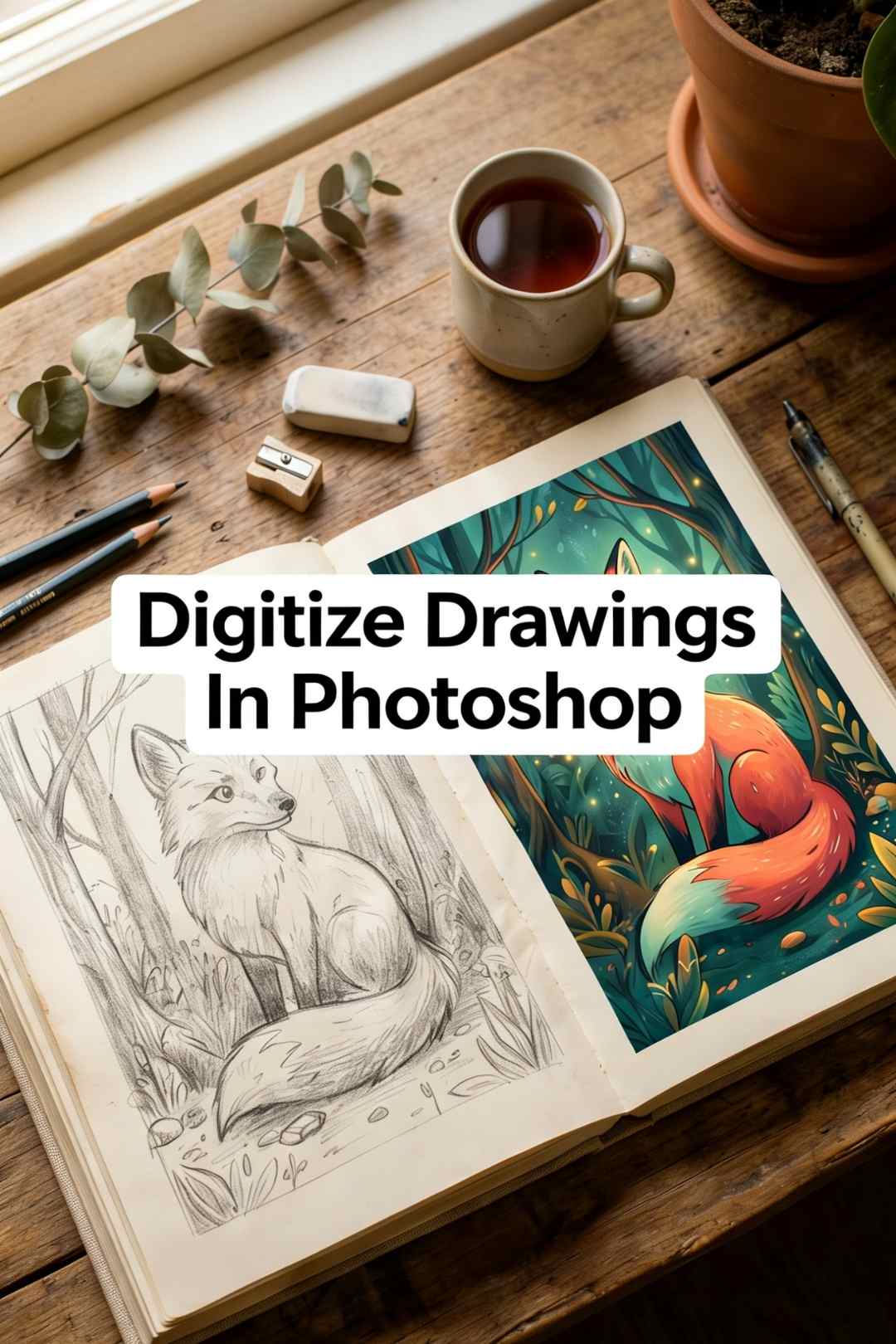
If you've spent any time watching artists on social media, you've probably noticed how effortlessly they seem to take a hand-drawn sketch and turn it into a polished, colourful digital illustration. What you're seeing is the result of digitizing , the process of scanning a physical drawing and bringing it into software like Adobe Photoshop to clean, refine, and colour it to a professional standard.
It sounds technical, but honestly once you've done it a couple of times it becomes second nature. I've been digitizing my own sketchbook work for years and the workflow I'm going to walk you through has saved me enormous amounts of time and frustration. Whether you're an illustrator wanting to sell prints, a student preparing portfolio work, or someone who just wants to preserve their drawings in a format that won't yellow and fade over time this guide covers everything you need to know.
Let's get into it.
Before jumping into Photoshop, it's worth getting your physical setup right. The quality of your scan (or photo) directly determines how much cleanup work you'll have to do in Photoshop. Do yourself a favour and get this part right from the beginning.
A flatbed scanner is the gold standard for digitizing drawings. It gives you consistent, even lighting with no shadows and lets you control the exact resolution of your scan. If you don't own one, you can usually find affordable options from Canon, Epson, or HP that do a fantastic job for illustration work.
Your smartphone camera is a solid backup if you don't have a scanner. Modern phone cameras, particularly the last few generations of iPhone and Android flagships, can capture surprisingly good detail. The key is lighting. Natural light from a window (not direct sunlight, which causes harsh shadows) works well, or a ring light positioned above the paper at a flat angle. Avoid using your phone's flash as it creates glare and uneven exposure.
Adobe Photoshop — any recent version will have everything you need for this workflow. If you're on an older version, don't stress; the core tools we're using here have been in Photoshop for a long time.
Your drawing — ideally done with a dark pen or pencil on clean white paper. The higher the contrast between your lines and the paper, the easier the whole process becomes.

This is the foundation of everything. Get this wrong and you'll be fighting the image the whole way through.
Set your scanner to a minimum of 300 DPI (dots per inch). For most purposes — web display, social media, moderate-sized prints — 300 DPI is plenty. If you're planning to print your work large, go to 600 DPI or even higher. The trade-off is file size; a 600 DPI scan of an A4 drawing will be a noticeably large file, but for print work it's worth it.
When placing your drawing on the scanner bed, press it flat against the glass. Even a slight curl or lift in the paper creates a soft shadow along the edges that you'll then have to clean up manually. If your drawing is on thicker paper or card stock, weigh it down gently with a heavy book while scanning.
Scan in greyscale if your drawing is in pencil or ink this keeps the file smaller and actually gives you cleaner results when we adjust levels later. If your drawing has colour that you want to reference, scan in RGB colour mode instead.
Save the scan as a TIFF for maximum quality, or a high-quality JPEG if file size is a concern. Avoid low-quality JPEG compression as it introduces artefacts into your linework that are genuinely painful to deal with.
Open Photoshop and go to File > Open, then navigate to your scanned file. Once it's open, the first thing to do is check your image resolution and mode settings.
Go to Image > Image Size and confirm the resolution is set to what you scanned at. If you're going to print, make sure it reads 300 DPI or above. If it came in differently than expected, you can adjust it here, just make sure "Resample" is checked when you do so for print output.
Next, if you scanned in greyscale, convert the image to RGB so you can add colour later. Go to Image > Mode > RGB Color.
Now take a look at the image and assess the overall tone. Most scans come in looking a bit flat and grey — the paper appears off-white, and the lines may look washed out compared to your original drawing. We'll fix all of that in the next step, but first do a quick check for any obvious physical debris: dust specks, smudges, or stray marks on the paper that you want to remove. Use the Spot Healing Brush Tool (shortcut: J) to click over these. Photoshop analyses the surrounding pixels and fills in the mark seamlessly. It's genuinely one of the best tools in the program for quick cleanup.
This step makes a dramatic difference and it only takes about thirty seconds. The goal is to make your lines crisp and black while pushing the paper background to a clean white, so you have a high-contrast image that's easy to work with.
Go to Image > Adjustments > Levels (or press Ctrl+L on Windows, Cmd+L on Mac).
You'll see a histogram, a mountain-shaped graph showing the distribution of light and dark tones in your image. There are three sliders underneath it: a black point slider on the left, a midtone slider in the middle, and a white point slider on the right.
Drag the white point slider (the right one) inward toward where the histogram data actually begins. This blows out the lighter tones and makes your paper background go white. Then drag the black point slider (left) inward toward the darker data to deepen your lines. Play with the midtone slider to find the right balance , you want your lines to look solid and clean without losing fine detail.
When you're happy with the result, hit OK. Your drawing should now look much sharper and cleaner than the raw scan.
Now that your lines are clean and the background is white, we can isolate the artwork by removing the background entirely. This leaves your linework sitting on a transparent layer, which is incredibly useful , you can place it over any colour, pattern, or background later without a white box around it.
First, double-click the Background layer in the Layers panel to convert it to a regular layer. Photoshop will ask you to name it, call it "Linework" or whatever makes sense to you, then click OK.
Now there are a couple of ways to remove the white background:
Option A — Magic Wand Tool: Select the Magic Wand Tool (W) from the toolbar. Click on a white area of the background. You'll see a selection appear. Hold Shift and click any white areas the initial selection missed. Once the background is fully selected, press Delete. The white areas will disappear, leaving your linework on a transparent background (shown as a grey checkerboard pattern in Photoshop).
Option B — Blend Mode trick (faster for clean line art): Set the layer blend mode in the Layers panel from "Normal" to "Multiply." This makes white areas invisible and keeps everything darker — including your lines. This isn't technically removing the background but it achieves a very similar result for colouring workflows and is often faster for clean ink drawings.
For most purposes Option B is what I actually use day-to-day. It's fast and non-destructive. But if you need a truly transparent background for export as a PNG, use Option A.
To clean up any remaining rough edges after the Magic Wand deletion, go to Select > Modify > Feather and set it to 1 pixel before deleting, which softens the edges slightly for a more natural look.
Here's where the real magic of working digitally starts to show. One of the biggest advantages of Photoshop over just drawing digitally from scratch is that you've already got your linework done, now you just need to add colour underneath it, and layers make that incredibly easy.
In your Layers panel, make sure your linework layer is at the top of the stack. Create a new layer below it by clicking the New Layer icon at the bottom of the Layers panel while holding Ctrl (Windows) or Cmd (Mac), this places the new layer below the selected one rather than above it. Name this layer "Base Colours."
You can keep creating layers as you need them — one for base colours, one for shadows, one for highlights, one for background details. This keeps everything flexible. If you mess up the shading, you can delete just that layer without touching anything else.

A general layer stack that works well for most illustration projects looks like this:
This structure keeps your linework always visible on top while the colours sit underneath — a workflow that closely mirrors how professional illustrators actually work.
With your layers set up, it's time to actually bring colour into the piece.
Colouring the base layer: Select the "Base Colours" layer and grab the Brush Tool (B). Open the Color Picker (the two overlapping squares in your toolbar) and choose your first colour. Use a hard round brush to fill in the base areas of your drawing. You can also use the Paint Bucket Tool (G) for larger flat areas, just click inside a closed shape and it floods it with colour. One thing to watch: if your linework has any gaps, the paint bucket will flood out through them. Either use the brush to close the gaps first, or just paint manually.
Adding shadows: Create a new layer above the base colours, set its blend mode to Multiply, and reduce its opacity to around 40–60%. Choose a colour that's a darker, slightly cooler version of your base colour — not black, which tends to look muddy. Using a soft round brush, gently paint shadow into the areas that would be in shade. The Multiply blend mode means this colour interacts with the colours below rather than sitting on top of them, which gives shadows a much more natural, integrated look.
Adding highlights: Create another layer above the shadows, this time set to Screen blend mode. Pick a warm off-white or light colour and very lightly brush it into areas where light would hit, the top of curved surfaces, the edges of faces, reflective spots on objects. Keep it subtle; a little goes a long way here.
Refining your linework: If you want sharper, more deliberate lines than your original scan provides, you can re-draw over the top on a new layer using the Brush Tool with a small, hard brush. Trace over your original lines to tighten them up. This is especially useful if your original pencil sketch is soft or sketchy and you want a cleaner, more graphic result.
You're nearly there. Before you export, step back from the image, look at it as a whole, and ask yourself what it's missing. A few things worth checking:
Colour balance: Go to Image > Adjustments > Color Balance or Hue/Saturation to tweak the overall feel of the colours. Sometimes scanned drawings end up with a slightly warm or cool tint that you'll want to correct.
Sharpening: If the linework feels slightly soft after all the adjustments, run a gentle Unsharp Mask , go to Filter > Sharpen > Unsharp Mask and use a low amount (around 30–50%) with a radius of 1–2 pixels.
Canvas tidying: Use the Crop Tool (C) to clean up the edges and frame your artwork the way you want.
When you're happy with everything, it's time to export. Here's a breakdown of the most common export formats and when to use each one:
Always save a PSD version of your file before exporting , this keeps all your layers intact so you can come back and make changes later. Then go to File > Export > Export As to export the flat, finished version in whatever format you need.
Even with the best setup, things can go wrong. Here are a few issues people regularly run into and how to deal with them quickly.
The background isn't coming off cleanly with the Magic Wand. This usually means there's too much variation in the tone of your paper — maybe it was crumpled, or the lighting when you scanned it wasn't perfectly even. Try adjusting the Tolerance setting in the Magic Wand options bar (a higher tolerance selects more similar colours at once). You can also try using Select > Color Range instead, which gives you more control over exactly what gets selected.
My lines look pixelated or jagged. This almost always comes down to scanning resolution. If you scanned at 72 or 96 DPI, the linework won't have enough detail. Re-scan at 300 DPI minimum. If you can't re-scan, you can try running a very gentle Gaussian Blur (Filter > Blur > Gaussian Blur, set to 0.5 pixels) which softens the jagged edges slightly but it's not a real fix for low resolution.
The colours I'm painting don't look right over the lines. Check which layer you're on. It's very easy to accidentally paint on the wrong layer in Photoshop. Also double-check that your base colour layer is actually positioned below the linework layer in the stack.
My file is enormous and Photoshop keeps slowing down. This is common when working with high-resolution scans and multiple layers. You can merge layers that you're done editing by selecting them in the Layers panel and pressing Ctrl+E (Cmd+E on Mac). Also, close any other programs running in the background to free up RAM.
A few extra things worth knowing that tend to make a real difference:
Draw with a fineliner or ink pen rather than pencil if you know you're going to digitize the work. Ink lines are darker, crisper, and require far less cleanup than graphite, which can be faint and inconsistent.
Scan on a clean scanner bed. Dust and smudges on the glass show up clearly in a high-resolution scan and can be tedious to retouch. Give the glass a quick wipe with a microfibre cloth before scanning.
Use Photoshop's History panel liberally. If you make a mistake, you can step back through your editing history rather than just hitting Undo once. Go to Window > History to open it and click back to any previous state.
If you do a lot of this kind of work, consider learning to use Photoshop Actions to automate repetitive steps like the Levels adjustment and background conversion. You can record a sequence of steps once and apply it to multiple files in seconds — a real time-saver if you're digitizing a whole sketchbook at once.
Can I digitize a drawing without a scanner? Yes a smartphone camera works surprisingly well if the lighting is good. Place your drawing on a flat surface, light it evenly from the side (not from above with flash), and shoot straight down from as directly overhead as you can manage. The result will be slightly less perfect than a scanner but very workable for most purposes.
What resolution should I scan my drawing at? For web and screen use, 150–300 DPI is fine. For printing, use at least 300 DPI, and go to 600 DPI if you're printing large format. If in doubt, scan at the highest resolution your scanner offers , you can always downscale later, but you can't add detail that wasn't captured in the first place.
Do I need a drawing tablet to colour my digitized artwork? No, a mouse works fine , it just requires more patience for detailed work. A drawing tablet like a Wacom Intuos does make the colouring feel much more natural if you draw by hand, because the pressure sensitivity lets you vary your brush strokes the way you would with a real brush. But it's by no means essential, especially when you're starting out.
What's the difference between digitizing and drawing digitally? Digitizing means taking a physical drawing and bringing it into the computer. Drawing digitally means creating artwork entirely on the computer using a stylus and drawing tablet. Many artists combine both , they prefer the feel of drawing on paper but want to colour and finish their work digitally.
Can I digitize a coloured pencil or watercolour drawing? Yes, absolutely. The process is the same , scan it at high resolution and open it in Photoshop. With coloured work you'll usually want to scan in RGB colour mode rather than greyscale. The cleanup is a bit different because you're working with more tonal variation, but the same tools apply.
Digitizing your drawings in Photoshop is one of those skills that seems complicated before you try it and then becomes completely automatic once you've done it a few times. The whole process, from scan to finished export, can genuinely be done in under an hour for a simple piece once you're comfortable with the workflow.
The seven steps we've covered give you everything you need to get clean, professional results: scanning at the right resolution, opening and preparing your image, boosting contrast with Levels, removing the background, setting up a proper layer structure, adding colour and detail, and exporting in the right format for wherever the artwork is going.
Start simple. Take one drawing, follow these steps, and see how it turns out. From there you'll start developing your own shortcuts and preferences every artist ends up with a slightly different version of this workflow that suits how they think and work.
If you found this useful, explore more of our Photoshop tutorials and free creative assets, we're always adding new tools and guides for artists and video editors alike.
.avif)
.avif)
.avif)
.avif)
%20Profile%20Pic.jpg)