Master Lumetri Color for Premiere Pro Cinematic Looks

Master the art of color grading in Adobe Premiere Pro 2025 with this in-depth tutorial from experienced editor Jack at Freevisuals.net. Learn to use the Lumetri Color panel, scopes, curves, LUTs, and advanced techniques to create stunning cinematic looks — step-by-step guide with screenshots and video references.

December 17, 2025

Join MILLIONS of users who have unleashed their true potential with Envato's new templates

Unlock Unlimited Creative Assets

The Ultimate Premiere Pro Color Grading Tutorial 2025: Master Lumetri Color for Cinematic Looks

Hey everyone, it's Jack here from Freevisuals! As an experienced video creator and editor who's been working with Adobe Premiere Pro for over a decade, I've color graded hundreds of projects — from short social media clips to full-length commercials and music videos. Color grading is one of the most powerful ways to elevate your footage from amateur to professional, setting the mood, directing viewer attention, and creating that signature cinematic feel.

In this comprehensive Premiere Pro color grading tutorial , I'll walk you through everything you need to know about mastering the Lumetri Color panel. Whether you're a beginner just starting out or an intermediate editor looking to refine your skills, this step-by-step guide will help you achieve stunning results. We'll cover basic corrections, creative adjustments, using scopes for precision, applying LUTs, advanced techniques like masking, and much more.

By the end of this tutorial, you'll be confident in color grading any type of footage in Adobe Premiere Pro. Let's dive in!

Why Color Grading Matters in Video Editing

Color grading isn't just about making your video "look pretty." It's a crucial post-production step that:

  • Enhances storytelling by evoking emotions (warm tones for nostalgia, cool tones for tension)
  • Corrects technical issues from shooting (exposure problems, white balance errors)
  • Creates consistency across shots, even if filmed on different cameras or lighting conditions
  • Gives your work a professional, polished look that stands out on YouTube, Instagram, or client deliveries

In Premiere Pro 2025, the built-in Lumetri Color tools are incredibly powerful — you often don't even need to round-trip to DaVinci Resolve for most projects. Adobe has continued to improve the panel with better performance, AI-assisted tools, and enhanced scopes.

Pro Tip from Jack: Always color grade after your edit is locked. Changing cut points later can mess up your carefully applied grades!

Setting Up Your Workspace for Color Grading in Premiere Pro

Before we touch any sliders, let's optimize your workspace.

  1. Open Premiere Pro and load your project/sequence.
  2. Go to Window > Workspaces > Color to switch to the dedicated Color workspace. This puts the Lumetri Color panel front and center, with larger Program Monitor and scopes.
  3. If you prefer custom setups, drag the Lumetri Color panel to dock it where you like. I personally keep Scopes on the right and Lumetri on the left.
  1. Enable Reference Monitor gang (in the Program Monitor settings) if you're matching shots.
  2. For accuracy, calibrate your monitor if possible and work in a dimly lit room.

Now you're ready. There are two main ways to apply Lumetri Color:

  • Clip-based: Select a clip in the timeline, go to Effects > Video Effects > Color Correction > Lumetri Color, and drag it onto the clip.
  • Adjustment Layer (Recommended): Create an adjustment layer (File > New > Adjustment Layer), place it above your clips, and apply Lumetri there. This allows global adjustments or easy copying across multiple clips.

I always use adjustment layers for most of my grading — it's non-destructive and efficient.
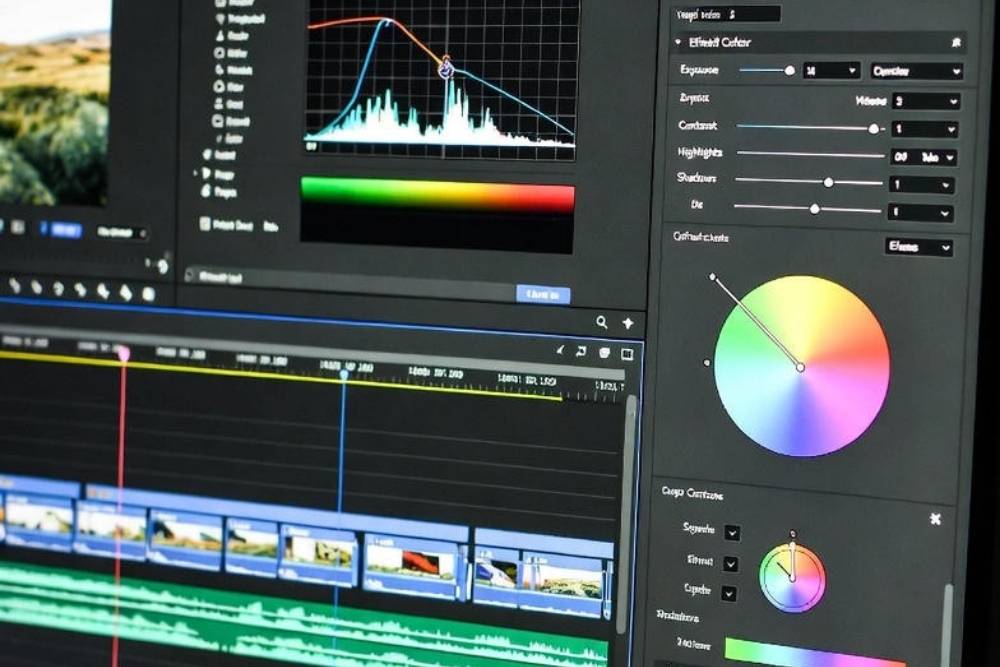
Understanding Lumetri Scopes: Your Objective Guide to Color

Scopes are essential for accurate color grading. They show data, not just what your uncalibrated monitor displays.

Open scopes via Window > Lumetri Scopes or in the Color workspace.

Key scopes in Premiere Pro:

  • Waveform: Shows luminance (brightness) levels. Ideal for checking exposure — skin tones should sit around 50-70 IRE.
  • RGB Parade: Separate waveforms for Red, Green, Blue channels. Great for spotting color casts.
  • Vectorscope: Displays hue and saturation. Skin tones fall along the "skin tone line" — use this to balance flesh tones naturally.
  • Histogram: Overall distribution of pixels across brightness levels.

Jack's Advice: Always reference scopes alongside your eyes. Start with technical correction using scopes, then move to creative looks.

Step 1: Basic Color Correction in Lumetri Color

Basic correction fixes technical issues before creative grading.

In the Lumetri Color panel, start with the Basic Correction section.

Input LUT

If your footage is LOG (flat profile like S-Log, C-Log), apply a technical LUT here to normalize it. Adobe includes many built-in ones under the dropdown.

White Balance

Use the eyedropper to click on something that should be neutral gray/white in your shot. Or manually adjust Temperature (blue/orange) and Tint (green/magenta).

Tone Controls

  • Exposure: Overall brightness.
  • Contrast: Difference between lights and darks.
  • Highlights/Shadows: Recover details in bright/dark areas.
  • Whites/Blacks: Set maximum white and minimum black points — drag while holding Alt to see clipping.
  • Saturation: Overall color intensity.

Workflow Tip: Set Blacks > Whites > Contrast > Exposure > Shadows/Highlights > Saturation.

Step 2: Creative Color Grading with Wheels and Curves

Now the fun part — creative adjustments!

Color Wheels & Match

Three wheels: Shadows, Midtones, Highlights.

  • Adjust hue, saturation, and luminance separately for each tonal range.
  • Use the "Match" feature to auto-balance colors between two frames (great for shot matching).

Curves

My favorite tool for precision.

  • RGB curve for contrast/exposure.
  • Individual Red/Green/Blue curves for color casts.
  • Hue vs Sat, Hue vs Hue, etc., for targeted adjustments (e.g., boost blue saturation without affecting skin).

Pro Technique: Create an S-curve on the RGB curve for instant filmic contrast.

HSL Secondary

Isolate specific colors for adjustment.

  • Use qualifier eyedropper to select a color (e.g., sky blue).
  • Refine with hue/sat/lum sliders.
  • Soften edges and denoise for clean keys.

This is perfect for making skies pop or correcting orange skin tones.

Step 3: Using LUTs for Quick Cinematic Looks

LUTs (Look-Up Tables) are presets that transform colors instantly.

In Lumetri > Creative > Look dropdown, browse Adobe's built-ins or import your own (.cube files).

Freevisuals Recommendation: Download free cinematic LUT packs from sites like Envato or Artlist

Apply subtly — lower the intensity slider to 50-70% for natural results.
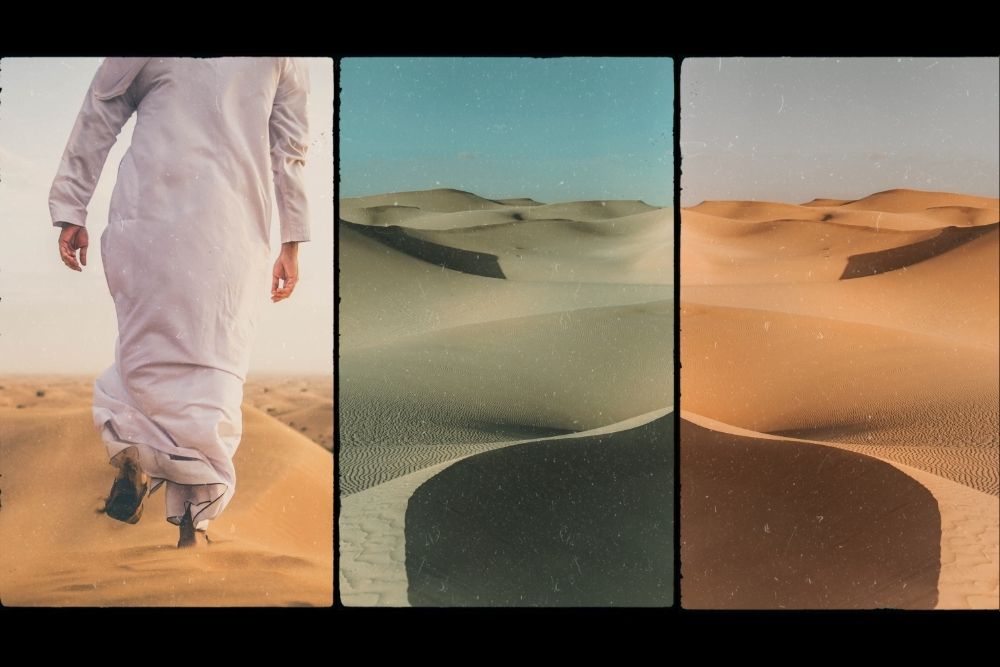
Before After Lumetri Color Grading Premiere Pro Tutorial

Step 4: Advanced Techniques in Lumetri Color

Vignette

Add subtle darkening to edges to focus attention (Creative section).

Masks and Tracking

In the effect controls for Lumetri (not just the panel):

  • Add masks to apply grades selectively (e.g., grade sky separately).
  • Use tracker for moving subjects.

Shot Matching

Copy Lumetri from one clip (Alt-drag or right-click > Copy > Paste Attributes), then tweak.

For multi-cam or interviews, use adjustment layers per scene.

HDR Grading

If working in Rec.2020/HDR, switch sequence settings and use HDR scopes/wheels (new in recent versions).

Real-World Color Grading Examples

Let's look at common scenarios:

  1. Teal & Orange Cinematic Look (Hollywood classic):
    • Cool down shadows/midtones toward teal.
    • Warm up highlights/skin tones.
    • Boost orange saturation in HSL.
  2. Vintage Film Look:
    • Lower contrast, add fade.
    • Curve tweaks for faded blacks.
    • Grain overlay (separate effect).
  3. Moody Horror:
    • Crush blacks, desaturate.
    • Push greens/blues.

Video References and Further Learning

For visual demonstrations, check these excellent YouTube tutorials:

At Freevisuals, we also have a growing YouTube channel with hands-on Premiere Pro tips — subscribe for more!

Common Color Grading Mistakes and How to Avoid Them

  1. Over-saturation: Colors look unnatural. Keep saturation under 60 unless intentional.
  2. Ignoring Scopes: Leads to banding or crushed details on different displays.
  3. Grading Flat Footage Without Normalization: Always apply input LUT first for LOG.
  4. Inconsistent Across Shots: Use comparison view and reference stills.
  5. Not Viewing on Multiple Devices: Export proxies and check on phone/TV.

Export Settings for Preserving Your Color Grade

When exporting:

  • Use H.264 or H.265 for delivery.
  • Match sequence settings.
  • For best color: Export ProRes or DNxHR master, then compress.
  • Embed color space if needed.

In Media Encoder, enable "Match Source" for most cases.

Final Thoughts: Practice Makes Professional

Color grading is an art that improves with practice. Start simple — correct, then create. Experiment on free stock footage (we have tons at Freevisuals.net!).

This Premiere Pro color grading tutorial covers the essentials and beyond for 2025. Bookmark it, try the steps on your next project, and share your results in the comments below.

If you found this helpful, check out our other Premiere Pro tutorials here on Freevisuals. What's your biggest color grading challenge? Let me know!