.avif)
Freevisuals

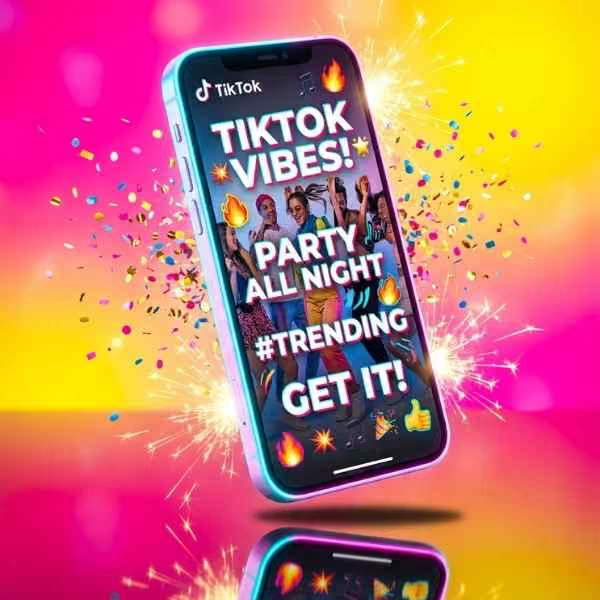
A vertical Final Cut Pro template pack designed for creating polished Instagram Stories and other social-media vertical videos. Ideal for quick promos,
Download FREEGo Pro To DownloadDownload NOW!Download
Vertical video has its own set of design rules, tight framing, punchy text, and pacing built for a thumb that might swipe away in under a second. Instagram Stories FCPX Template by LenoFX is built entirely around that format, a Final Cut Pro template designed specifically for Instagram Stories, WhatsApp Status, Facebook Stories, and any other 9:16 vertical placement, with editable duration, color, position, font, and size handled directly inside Final Cut Pro.
If you're building out a broader vertical content strategy, our Final Cut Pro templates library covers additional title, transition, and social media formats to pair with this one, and for music suited to short, punchy vertical content, Artlist and Epidemic Sound both carry upbeat, trend-friendly tracks built for exactly this kind of format.
It's tempting to assume any title or graphic template can simply be cropped or repositioned to fit a vertical frame, but a template actually designed for 9:16 from the ground up tends to look considerably more intentional than one adapted after the fact. Horizontal templates typically place key elements, a title, a logo, supporting text, across a wide frame with room to breathe on either side, exactly the space that disappears once you're working within a narrow vertical canvas. Cropping that kind of template down to fit Stories dimensions often means losing part of the composition entirely, or squeezing elements into a cramped, awkward arrangement that reads as a horizontal design forced into a shape it was never built for.
Instagram Stories FCPX Template avoids this problem by being designed for the vertical frame specifically, meaning the spacing, text placement, and overall composition are already calibrated for a 9:16 canvas rather than needing to be reworked after the fact. This matters more than it might initially seem, since vertical content now makes up the overwhelming majority of daily video consumption across Instagram, TikTok, and Snapchat, and a template that respects this format from the start consistently reads as more professional than one that's obviously been squeezed into place.
The core use case this template is built for, giving Instagram Stories content a polished, consistent visual treatment rather than relying on Instagram's built-in text and sticker tools alone.
Businesses and creators using WhatsApp Status as a marketing or communication channel can use this same template to maintain visual consistency across both Instagram and WhatsApp without building separate assets for each platform.
Since Facebook Stories shares the same 9:16 format, content built with this template translates directly across all three platforms without needing platform-specific adjustments.
Businesses announcing a new product, sale, or update can use this template's editable color and text fields to quickly produce on-brand Stories content without starting from a blank canvas each time.
Creators building a consistent personal brand across their Stories content benefit from a reusable template that keeps their visual identity consistent from post to post, rather than improvising a new look every time.
Head to the download page and grab the template through LenoFX.
Unzip the downloaded folder into a dedicated project directory, keeping it organized alongside your other project assets.
Many LenoFX templates and plugins install through a dedicated installer application, follow the on-screen prompts to install the template package directly into Final Cut Pro's Templates browser. Check the specific instructions included with your download to confirm the exact installation method for this particular product.
Final Cut Pro typically needs to be restarted, or the Titles or Generators browser refreshed, before a newly installed template appears.
Open the relevant browser panel within Final Cut Pro and locate the Instagram Stories template, previewing it against a vertical project before committing.
If you haven't already, create or switch your project to a vertical 9:16 format before dragging the template onto your timeline, so the composition displays correctly from the start.
Drag the template onto your timeline above your footage or photo, positioning it at the point where you want the Stories graphic treatment to appear.
With the clip selected, open the Inspector panel and adjust text, color, position, font, and size to fit your specific content and branding.
Trim the clip's length on your timeline so each element holds long enough to be read comfortably within the fast-paced context of Stories viewing, without lingering longer than necessary.
Scrub through your timeline to confirm timing and legibility on a vertical frame specifically, then export using settings appropriate for Instagram, WhatsApp, or Facebook Stories delivery.
Many creators and businesses maintain a presence across Instagram, WhatsApp, and Facebook simultaneously, and viewers moving between these platforms notice, consciously or not, whether a brand's visual presentation feels consistent or scattered. Using the same template across all three Stories formats, rather than improvising separate visual treatments for each platform, reinforces brand recognition in a way that's easy to overlook but genuinely affects how professional and considered a brand feels across a viewer's overall experience of it.
This matters even more for businesses specifically using WhatsApp Status as a customer communication channel alongside Instagram Stories as a broader marketing tool, since these two audiences frequently overlap. A customer who follows a business on both platforms and sees a consistent, recognizable visual style across both is more likely to register that content as coming from a considered, professional source, compared to a business whose WhatsApp updates look nothing like its Instagram presence.
Building this template into a horizontal project by mistake. Always confirm your project is set to a vertical 9:16 timeline before applying this template, since it's specifically designed and composed for that aspect ratio.
Placing key text behind platform interface elements. Instagram, WhatsApp, and Facebook all overlay their own UI elements near the top and bottom of a Stories frame, keep important text and graphics within the safe, unobstructed middle portion of the frame.
Using text sizes calibrated for a larger screen. Since Stories are viewed almost exclusively on phones, text that looks appropriately sized on a desktop preview can read as too small once actually viewed on a phone screen.
Ignoring platform-specific export requirements. Each platform has its own preferred resolution, frame rate, and file size limits for Stories content, confirm your specific export settings match your target platform before publishing.
DaVinci Resolve Tutorial: Zoom In And Out (Ken Burns Effect), useful background on animating still photos within a vertical frame if your Stories content mixes photos alongside video footage.
A single well-designed Stories template becomes considerably more valuable when it's part of a broader, repeatable content strategy rather than used once and forgotten. Many successful brands and creators build a small rotation of a few different Stories layouts, an announcement style, a behind-the-scenes style, a product feature style, all using the same underlying template with different text and color treatments, giving their Stories content variety while still maintaining an underlying visual consistency that ties everything together.
Since this template's duration, color, position, font, and size are all editable, it's worth spending some time upfront building out two or three distinct variations for your specific recurring content types, rather than starting from the default settings every single time you post. This kind of light upfront customization work pays for itself considerably over a regular posting schedule, turning a five minute task into something closer to thirty seconds once your specific variations are already saved and ready to reuse.
Each of the three platforms this template supports, Instagram, WhatsApp, and Facebook, places its own interface elements in slightly different positions within the vertical frame, profile pictures, reply fields, reaction icons, and progress indicators all compete for the same limited space near the top and bottom edges. While the platforms share a broadly similar safe zone for the central, unobstructed portion of the frame, small differences do exist between them, and a Stories graphic that looks perfectly framed on Instagram can occasionally sit slightly closer to a WhatsApp or Facebook interface element than intended.
Rather than assuming one safe zone works identically across all three platforms, it's worth previewing your finished Stories content directly within each specific app before publishing widely, particularly for any content where precise text or graphic placement genuinely matters, a sale end date, a specific call to action button placement, or a countdown timer element that needs to remain fully visible and legible regardless of which specific platform a viewer happens to be using.
As a Stories content calendar grows over weeks and months, it becomes increasingly important to keep a simple, organized record of which specific template variations you've built and where the underlying project files live, rather than rebuilding similar Stories graphics from scratch each time a comparable need comes up. Saving your customized versions of this template as their own reusable presets, clearly labeled by their specific purpose, announcement, feature highlight, testimonial, means a growing content calendar can pull from an increasingly efficient library of ready-made options rather than starting from zero with each new post.
This kind of small organizational investment compounds meaningfully over time for any creator or brand posting Stories content on a regular, ongoing basis, turning what could be a repetitive design task into a fast, familiar process that leaves more time and energy for the actual planning and strategy behind what to post rather than how to make each individual post look polished.
Final Cut Pro. Check the specific product page for the exact version requirement.
Yes, since all three platforms share the same 9:16 vertical format, content built with this template works across all of them without modification.
Yes, all four are editable directly within Final Cut Pro's Inspector panel once the template is applied to your timeline.
Most customization, text, color, position, size, is handled directly through Final Cut Pro's native Inspector controls without needing Apple Motion, though check the specific product page to confirm whether any deeper customization requires opening the template in Motion.
Check the specific license terms on the download page to confirm coverage for your intended commercial use case before using it in paid client work.
It's specifically designed for a vertical 9:16 frame, always confirm your project is set to this format before applying the template for the composition to display correctly.
Affiliate Disclosure: This post may contain affiliate links. If you make a purchase through one of these links, FreeVisuals may earn a commission at no extra cost to you. We only recommend products and platforms we genuinely believe in. Read our full disclosure policy.

Download free video templates, LUTs, and presets for Premiere Pro, After Effects, DaVinci Resolve, CapCut, and Final Cut Pro.