.avif)
Freevisuals
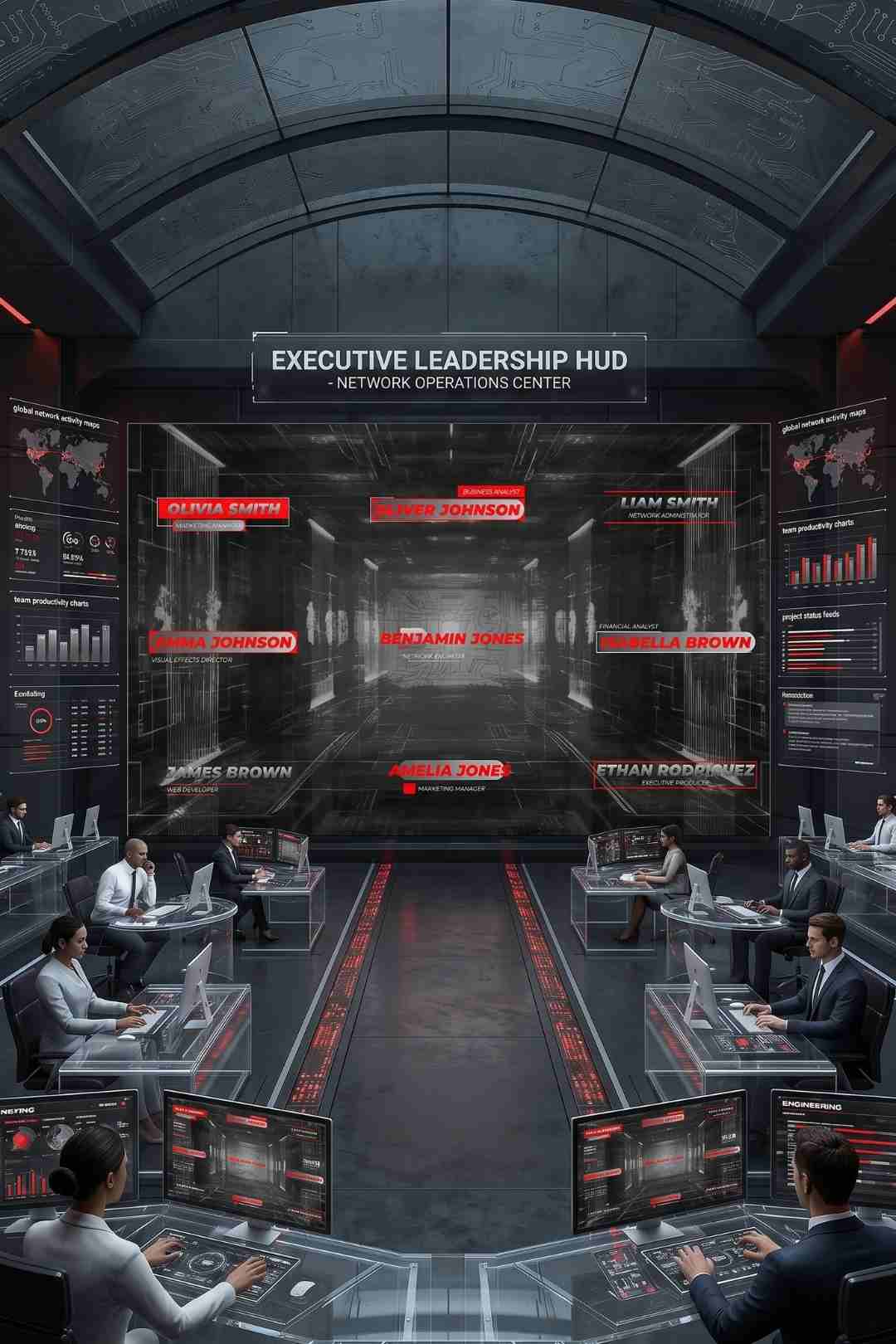
Modern Lower Thirds is a clean, professional name and title display template for DaVinci Resolve. See what it includes, how to use it, and where...
Download FREEGo Pro To DownloadDownload NOW!Modern Lower Thirds is a DaVinci Resolve template built around the simple, recurring need to display a name, title, or piece of supporting text on screen without interrupting the flow of an edit. With clean lines, solid color blocks, and smooth in and out transitions, the template introduces speakers, segments, or key information in a way that feels professional and considered rather than abrupt or distracting from the actual footage it accompanies.
This template is available through Envato Elements, and Freevisuals is an affiliate partner. Clicking through and subscribing supports Freevisuals at no extra cost to you.
Get Modern Lower Thirds on Envato Elements
Lower thirds exist to answer a simple, recurring question for a viewer, who is speaking, or what exactly am I looking at right now. This template handles that job cleanly across a genuinely wide range of content types, interviews, corporate presentations, vlogs, broadcast style content, and any video introducing multiple speakers or topics where a quick, clear visual identifier genuinely helps an audience follow along.
The template's deliberately restrained, modern visual style, clean lines and solid color blocks rather than busy, decorative detail, means it integrates naturally across a wide range of different overall video aesthetics, rather than locking an editor into one narrow visual style the way a more elaborate, heavily themed lower third template sometimes does.
Once downloaded, install the template through DaVinci Resolve's Fusion Templates system, after which it becomes available directly within your Titles browser, ready to drag and drop onto your timeline like any other native Resolve title. Position the lower third on a track above your main footage, then double click into it to update the editable text fields with your speaker's actual name, title, or whatever supporting information the specific moment calls for.
The template specifically allows you to control the time duration of the animation, both the intro and outro portions, directly within Resolve's Inspector panel, letting you adjust exactly how long the lower third takes to animate in and out independently of how long it remains static on screen in between.
This video covers building lower thirds directly inside DaVinci Resolve's Fusion page, useful background for understanding the underlying structure of a template like this one and how to extend or adjust it further.
The template's solid color blocks are built specifically to be easily recustomised, letting you swap the default palette for your own brand colors directly through Resolve's color controls rather than being locked into one fixed look. This matters considerably for any creator or business using lower thirds as part of a consistent, recognisable channel or company identity, since a lower third that already matches your existing brand palette reinforces that identity every time it appears on screen, rather than introducing a visually disconnected element into an otherwise consistent video.
Font choice also plays a meaningful role here. While the template ships with a clean, modern default typeface well suited to its overall aesthetic, swapping in your own brand specific font where appropriate helps tie the lower third even more closely to your established visual identity across other branding touchpoints, your channel art, website, or other marketing material.
It is tempting to assume a more elaborate, heavily animated lower third automatically looks more impressive than a simpler, cleaner alternative, but in practice the opposite is often true specifically for this kind of recurring, functional graphic. A lower third's job is to convey information quickly and clearly without competing for attention against the actual footage or speaker it accompanies. An overly busy or aggressively animated lower third can pull focus away from the person speaking, undermining the exact communication goal the graphic exists to support in the first place.
This template's deliberately restrained design reflects this principle directly, prioritising legibility and a professional, unobtrusive presence over flashy, attention grabbing animation. For corporate presentations, interviews, and broadcast style content specifically, where credibility and clarity matter more than novelty, this kind of considered restraint tends to serve the content considerably better than a more elaborate alternative.
For channels or businesses publishing regularly, establishing a consistent approach to when and how lower thirds appear, always introducing a new speaker the same way, always using the same general timing and duration, builds a sense of familiar, professional consistency across an entire body of content. Viewers who return regularly begin to recognise this consistent visual pattern, which reinforces a sense of polish and reliability independent of the actual content of any single video.
Maintaining a simple internal style guide noting your specific color choices, font selection, and standard timing for this template specifically removes the need to make these same small decisions repeatedly from scratch on every new video, while also ensuring consistency even if more than one person on a team is responsible for editing across different videos.
For background music with a similarly clean, professional feel suited to corporate or interview content, browse the Freevisuals free music library. If your project needs additional title or text presets beyond lower thirds specifically, the Freevisuals text and title libraries across multiple editing applications offer further free options that pair naturally with this template's restrained, modern aesthetic.
For a colour grade that complements this template's clean visual identity, the Freevisuals free LUT library includes treatments suited to corporate, interview, and broadcast style content specifically.
Since this template comes through an Envato Elements subscription, the same membership unlocks the platform's broader library of complementary title, transition, and broadcast graphic templates beyond this single lower third. Browsing Envato Elements directly for additional modern, minimal styled graphics can help you build a more complete, visually consistent on screen graphics package built around this same restrained aesthetic.
Despite how simple a lower third might seem compared to more elaborate motion graphics work, it remains one of the most consistently useful graphic elements across professional video production generally, broadcast news, corporate communications, documentary interviews, and increasingly, independent YouTube and podcast content as well. The underlying need this graphic addresses, helping a viewer quickly understand who is speaking or what they are looking at, applies just as directly to a small independent creator's interview series as it does to a major news broadcast.
This universal applicability is part of why a clean, professionally designed lower third template like this one offers genuine, lasting value rather than serving a narrow, specialised use case. Nearly every kind of talking head or interview based content benefits from having a reliable, well designed lower third solution readily available.
Building a comparable lower third manually within Resolve's Fusion page, designing the layout, animating the entrance and exit, setting up genuinely flexible text and color controls, represents real motion graphics work, even for a relatively simple looking final result. A template like this one compresses that design and technical setup work into a ready made asset, letting an editor focus their actual time on the genuinely important decisions, what text to display, when to display it, rather than the underlying mechanics of how the graphic itself is constructed and animated.
This time saving compounds considerably across a channel publishing regularly, since the same lower third gets reused dozens or hundreds of times across an active publishing schedule, each use benefiting from work that only needed to happen once during the original template design process.
Beyond their primary function of identifying speakers, well designed lower thirds also genuinely support accessibility for viewers who may have difficulty hearing names or titles spoken aloud, whether due to a hearing impairment, an unfamiliar accent, background noise, or simply watching with the sound off. Ensuring sufficient contrast between this template's text and its background color, and confirming font size remains legible across the range of devices your audience is likely to watch on, from a large desktop monitor down to a small phone screen, extends this accessibility benefit considerably further than a lower third designed without this consideration in mind.
Lower thirds typically enter an edit relatively late in the production process, once the core footage has already been selected and arranged, since their entire purpose depends on knowing exactly which moments in a finished edit genuinely need a name or title displayed. Building a habit of reviewing a finished rough cut specifically to identify every moment a lower third is actually needed, rather than adding them reactively throughout the editing process, tends to produce a more consistent, deliberate result than scattering lower thirds in somewhat randomly as you happen to think of them.
This same final review pass is also a good opportunity to confirm that every name and title displayed is spelled correctly and genuinely up to date, a detail that becomes more important the more interview or guest based content a channel regularly produces.
Keeping the actual text within each lower third concise, a name and a brief title rather than a lengthy description, helps maintain the clean, legible quality the template is specifically designed around. Lengthy text can compromise both the visual balance of the graphic itself and a viewer's ability to actually read it within the time it remains on screen.
Testing your chosen lower third against the actual footage it will appear over, rather than judging it in isolation, also matters, since a color combination that looks fine against a generic preview background can sometimes clash or become harder to read against your specific, actual footage. A quick preview directly within your timeline before finalising your color and text choices avoids this kind of late discovered mismatch.
A common mistake is leaving a lower third on screen for either too long or too short a duration relative to how long a viewer actually needs to read it. A lower third that disappears before a viewer has finished reading the name and title defeats its entire purpose, while one that lingers for an unnecessarily long time can start to feel like a stale, forgotten element rather than a deliberate, considered graphic choice.
Another mistake is using inconsistent styling across multiple lower thirds within the same video, a different color scheme or font for each individual speaker introduction, for example, rather than maintaining the same consistent template settings throughout. This kind of inconsistency reads as unpolished and can make a finished video feel less professionally produced than the underlying footage and content actually deserve.
Once a creator has settled on a specific color palette, font, and timing configuration for this template, saving that customised version as a personal preset within DaVinci Resolve means every future video benefits from that initial setup work without repeating it from scratch. For channels publishing regularly, this small upfront investment compounds considerably over a full year of content, removing one entire recurring decision point from the editing process for every subsequent video produced.
While this template works naturally within a standard horizontal video format, many channels now also publish content across vertical and square formats for platforms like Instagram Reels, TikTok, and YouTube Shorts. Confirming this template's text and color block positioning adapts cleanly to a vertical timeline, rather than assuming it will automatically reframe correctly, helps avoid an awkwardly cropped or misaligned lower third when the same content gets repurposed for a different aspect ratio. Testing the template specifically within whichever timeline format your project actually uses, before committing to a final text and color setup, confirms it reads cleanly in that specific context.
What software does this template work with?
This template is built specifically for DaVinci Resolve.
Can I customize the colors and fonts?
Yes, the template's color blocks and text fields are designed to be easily recustomised directly within DaVinci Resolve to match your own brand identity.
Can I control how long the animation takes to play?
Yes, the template specifically allows you to control the time duration of the intro and outro animation independently through the Inspector panel.
What kind of content suits this template best?
Corporate presentations, interviews, vlogs, and broadcast style content all suit this clean, professional lower third style particularly well.
Do I need an Envato Elements subscription to download this template?
Yes, this template is available through an Envato Elements subscription, which also unlocks the platform's broader library of complementary title and graphics templates.

Download free video templates, LUTs, and presets for Premiere Pro, After Effects, DaVinci Resolve, CapCut, and Final Cut Pro.