.avif)
Freevisuals
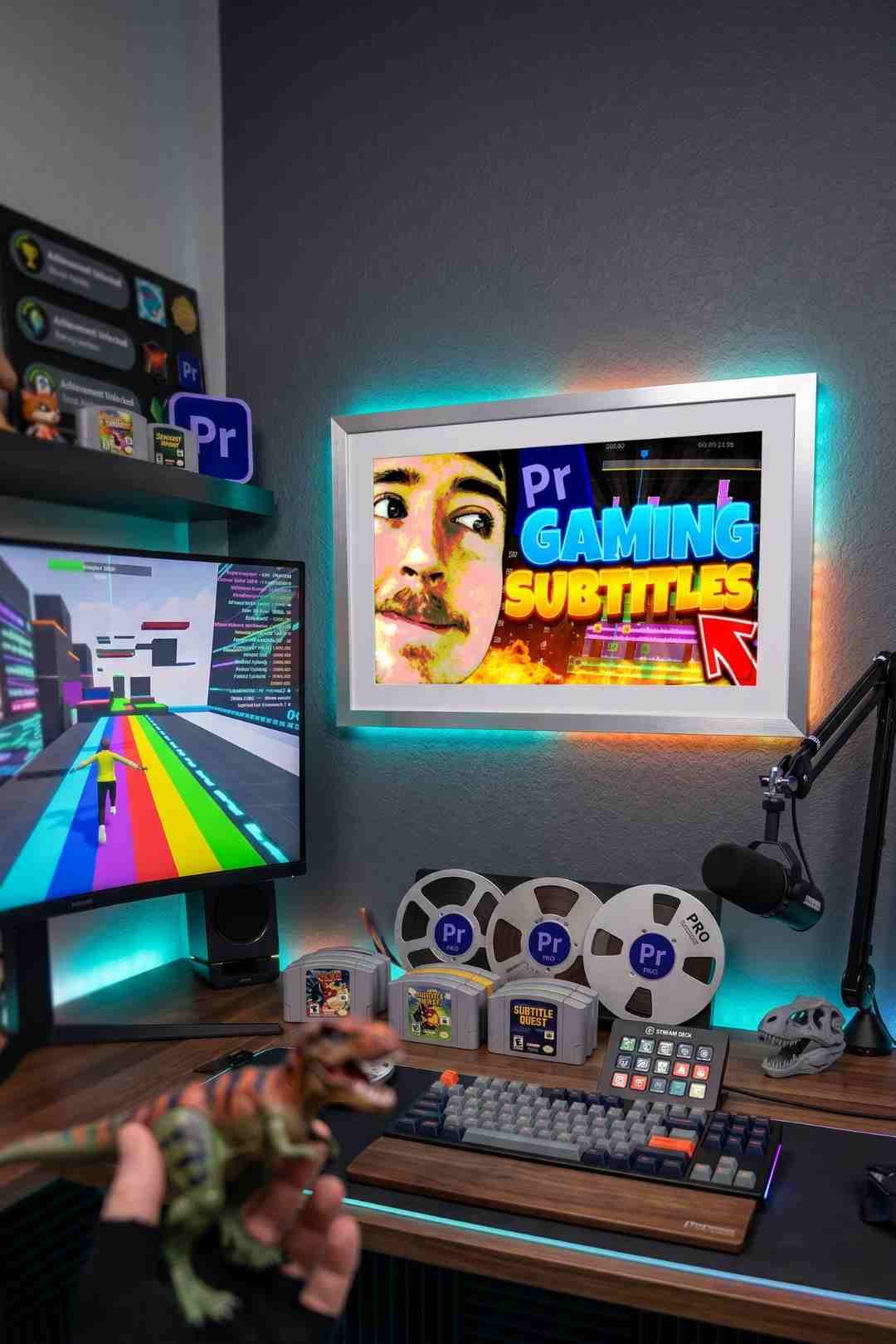
Download these free gaming inspired subtitle presets for Adobe Premiere Pro. You can use these animation effects to accentuate important messages in your
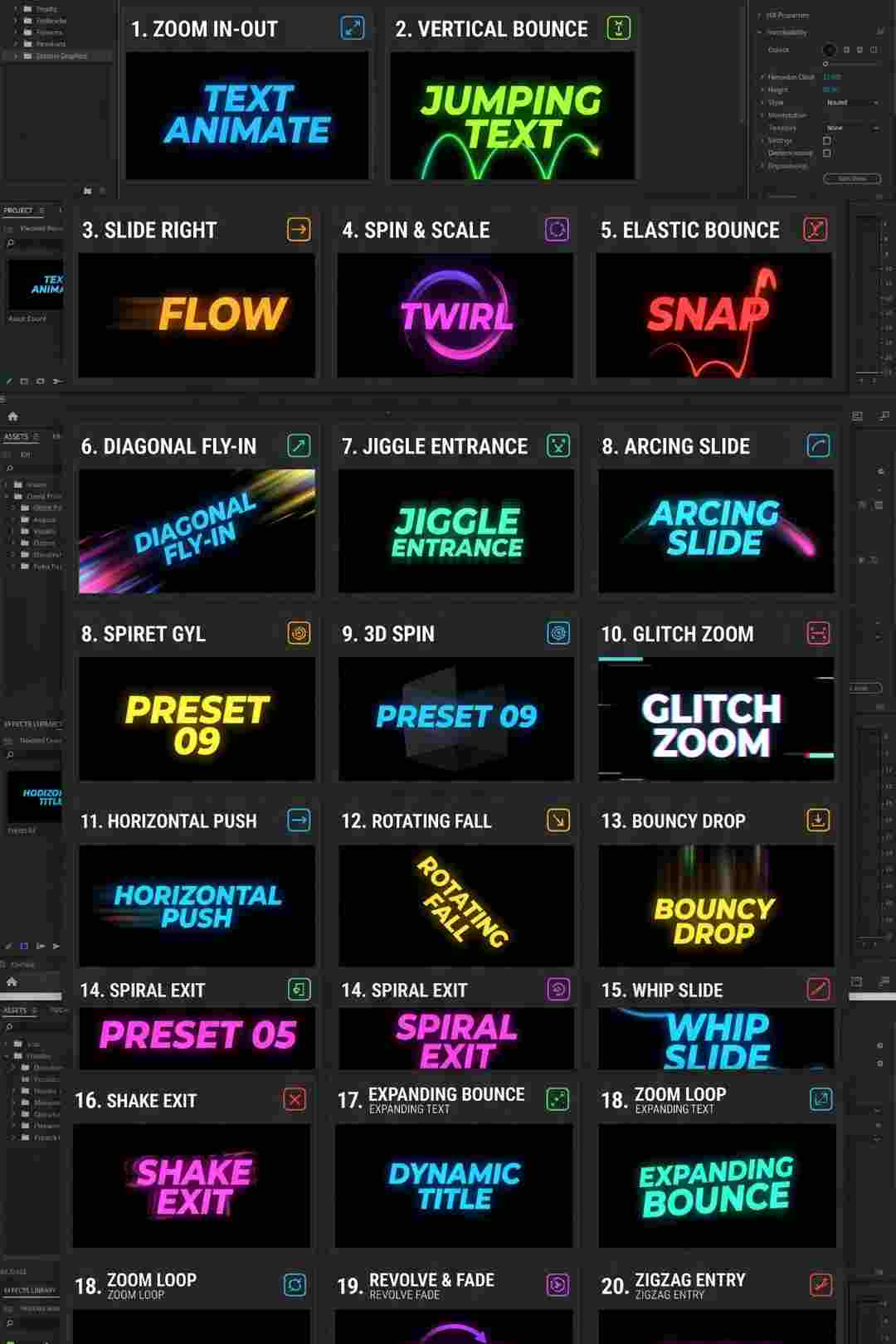
Download FREEGo Pro To DownloadDownload NOW!If you have ever watched a MrBeast video, a gaming highlight reel, or a fast paced YouTube short and noticed the captions practically jumping off the screen, you have seen exactly the kind of effect this preset pack delivers. Featuring smooth, punchy animations by creator rixzerZ, these subtitle presets are built specifically for Premiere Pro and designed to accentuate important messages exactly when you need a moment of dialogue or commentary to land harder. Gaming content in particular benefits from this style, since reaction moments, big plays, and commentary one liners all deserve a caption that does more than sit flatly on screen. This pack is completely free to download and use, including in monetised content.
Gaming videos live and die on energy. A great play, a funny reaction, a clutch moment, all of these depend on pacing and impact to actually register with a viewer scrolling through their feed at speed. Static, plain white subtitles do the job of conveying information, but they do nothing to reinforce the energy of the moment itself. Animated subtitles that pop, bounce, or punch into frame in sync with the audio give a caption the same kind of impact as the moment it is describing, which is exactly why this style became a signature look across MrBeast style content and the broader wave of creators who followed that visual language.
This matters even more specifically for gaming content because so much of it is watched with the sound off or at low volume, on a phone, in public, between classes or during a commute. A caption that animates with energy gives viewers watching silently the same emotional cue an excited voice would normally provide, which directly affects how long they actually stick around.
Using this pack is intentionally simple. Import the preset file into your Premiere Pro presets folder, the same folder where your other saved presets and effects already live. Once imported, the preset becomes available directly within Premiere Pro, ready to drag and drop onto any text layer in your timeline. From there, simply type your subtitle text, adjust timing to match your dialogue, and the animation applies automatically without needing any further manual keyframing on your part.
Because this is a true drag and drop preset rather than a manual animation you build from scratch, you can apply it across dozens of subtitle lines throughout an entire video in a fraction of the time it would normally take to animate each caption individually by hand.
Before downloading, it is worth watching rixzerZ's own video showing this exact subtitle style in action. Seeing the timing and pacing used in a real edit gives you a much clearer sense of how aggressively to time your own captions once you start applying the preset to your own footage.
While this preset works for any kind of fast paced YouTube content, it earns its place in a gaming editor's toolkit specifically because of how naturally it pairs with reaction heavy footage. A big in game moment followed by a punchy, snapping caption reading the exact line a streamer or commentator just said reinforces the moment twice, once through the gameplay itself, and once through the caption's own visual energy. This kind of layered reinforcement is part of why top gaming and reaction channels consistently outperform similar content using flat, static text.
Timing your captions to land on a beat, a punchline, or a sudden gameplay event, rather than simply appearing whenever the corresponding line of dialogue starts, produces a noticeably more polished, professionally edited feel. Watch how rixzerZ times the animation specifically against key words in the video above for a good reference point.
Once the preset is applied to a text layer, Premiere Pro's Effect Controls panel gives you access to adjust font, size, colour, and positioning without disturbing the underlying animation itself. This means you can apply your own channel's specific font choice and colour palette while keeping the punchy, energetic motion the preset is built around. Many creators specifically adjust the text colour to match their channel's branding, a bright yellow or white for high contrast against dark gaming footage being a particularly common choice.
It is worth testing your chosen colour against a few different in game backgrounds before committing across an entire video, since gaming footage varies wildly in brightness and colour palette from one game to the next, and a caption colour that reads perfectly against a dark dungeon scene might wash out completely against a bright, colourful map.
For creators producing gaming content regularly, building a consistent workflow around this preset saves considerable time compared to manually animating captions from scratch for every single video. A practical approach many editors use is auto generating a rough transcript first using Premiere Pro's built in Speech to Text feature, then manually trimming and retiming each caption before applying this preset to the cleaned up text layers. This combines the speed of automatic transcription with the visual punch of a manually applied animated preset, without needing to type out every line of dialogue by hand.
For background music to match the high energy feel this subtitle style is built around, browse the Freevisuals free music library. If your gaming content needs additional text presets beyond subtitles specifically, titles, lower thirds, callouts, the Freevisuals Premiere Pro text presets library includes further free options that pair naturally with this same energetic style.
For sound effects to layer beneath punchy caption moments, whooshes, pops, and impact sounds that reinforce the animation itself, the Freevisuals free sound effects library rounds out a complete gaming edit toolkit.
It is worth understanding why this exact style of subtitle animation became so closely associated with a particular era of YouTube content, since understanding the underlying logic helps you use it more effectively rather than simply copying a trend without knowing why it actually works. Before this style became widespread, most creators either skipped captions entirely or used a plain, static caption burned into the video with no animation at all. As short form content and algorithmically driven feeds became the dominant way people discover video content, the importance of holding attention in the first one or two seconds of any given moment increased dramatically.
Punchy, animated captions solved a genuine attention problem rather than simply following a stylistic trend for its own sake. A caption that snaps, bounces, or punches into frame draws the eye immediately, which matters enormously when a viewer might be scrolling past dozens of other videos in the same feed within seconds. This is also why the style spread so quickly beyond MrBeast specifically into nearly every category of fast paced YouTube content, gaming included, since the underlying attention mechanics apply regardless of the specific subject matter.
Beyond simply applying this preset correctly, the most effective gaming channels treat their caption style as a genuine part of their overall channel identity, consistent font choice, consistent colour, and a consistent general feel to how captions animate across every single video. This consistency helps build viewer familiarity over time, the same way a consistent intro or consistent thumbnail style helps viewers recognise your content within a crowded feed before they have even read the title.
Once you have settled on a specific font, colour, and general timing approach using this preset as your foundation, documenting these specific choices somewhere, a simple style guide, a saved Premiere Pro project template with your preferred settings already applied, makes it considerably easier to maintain this same consistent look across every future video without having to remember your exact previous settings from memory each time.
Different gaming genres often call for slightly different timing and intensity when it comes to caption animation. Fast paced competitive games, shooters, battle royales, fighting games, generally suit the punchiest, fastest version of this animation, matching the high energy nature of the gameplay itself. Slower paced content, narrative driven games, strategy games, simulation content, can sometimes benefit from a slightly calmer, less aggressive version of the same animation, since an overly punchy caption style can feel mismatched against more contemplative commentary or slower gameplay footage.
This does not mean abandoning the preset's core energy for slower paced content entirely, simply dialling back the intensity and speed slightly to better match the overall tone of the gameplay being discussed, while still benefiting from the same fundamental visual punch the animation provides over a completely static caption.
For creators who record long gaming sessions and then edit down highlights afterward, applying this subtitle preset efficiently across a large volume of selected clips matters as much as the visual quality of the animation itself. Building a habit of identifying and roughly timing your strongest commentary moments first, before going back through and applying the animated subtitle preset specifically to those selected highlights, tends to produce a faster overall workflow than attempting to caption an entire raw recording in full before any editing decisions have been made.
Beyond the stylistic and attention grabbing benefits covered throughout this post, captions of any kind, animated or static, genuinely serve viewers who are deaf or hard of hearing, viewers watching in a noisy environment, and viewers watching in a language other than the video's spoken audio if you provide translated caption text. Choosing to invest in well animated, genuinely well timed captions rather than skipping captions entirely, or relying purely on a platform's often imperfect automatic captioning, means a meaningfully larger potential audience can actually follow and enjoy your content fully.
This accessibility benefit exists entirely independent of the stylistic, attention grabbing benefits this post has focused on primarily, and is well worth keeping in mind as an additional, genuine reason to invest care into your captioning approach beyond simply following a popular visual trend.
However visually impressive an animated caption looks, a caption containing a spelling error, a misheard word, or text that does not actually match what was said in the audio undermines the professionalism the animation itself is trying to convey. Before finalising any video using this preset, reviewing every single caption against the actual audio one final time, ideally with fresh eyes after stepping away from the edit briefly, catches errors that are easy to miss when you have been staring at the same timeline for an extended editing session.
Once this preset is applied and your captions are animated within Premiere Pro, the captions become a permanent, burned in part of your exported video file rather than a separate, removable caption track. This is worth understanding clearly if your distribution plans include platforms or contexts where a separate, toggleable caption file might also be useful, since burned in animated captions cannot later be turned off by a viewer the way a standard separate caption file can. For most gaming content distributed primarily through YouTube specifically, this is rarely a practical concern, since burned in animated captions are exactly the expected, established format for this kind of content, but it is worth keeping in mind if your specific distribution plans include other platforms with different caption conventions.
Whichever specific platforms you ultimately distribute to, the underlying goal remains the same throughout, giving your gaming content the same energy and polish through its captions that the gameplay itself already delivers, rather than letting a flat, static caption undercut an otherwise genuinely exciting moment.
This subtitle preset by rixzerZ gives gaming creators a genuine shortcut to the kind of polished, attention grabbing caption style that has become a defining feature of the platform's most successful channels. Used thoughtfully, timed against real moments of impact rather than applied uniformly, and combined with accurate, well checked text, this free preset can meaningfully strengthen how your content reads, both for viewers watching with sound on and for the considerable share of your audience watching without it.
Download the preset, test it against your own footage, and start building your own consistent caption style around it today.
One of the most common mistakes is applying the exact same animation timing and intensity to every single caption throughout an entire video regardless of the actual emotional weight of each individual line. Reserve the most aggressive, punchy timing for genuinely significant moments, big plays, punchlines, reveals, and use a slightly calmer variation or timing for ordinary, transitional dialogue. Applying maximum intensity uniformly throughout an entire video actually dilutes the impact of your biggest moments, since the viewer's eye has nothing to compare them against.
Another common issue is poor contrast between caption text and background footage. Gaming footage changes brightness and colour constantly, and a caption colour chosen against one specific frame can become illegible moments later against a different scene. Adding a subtle outline, drop shadow, or semi transparent background box behind your text, available as additional adjustable parameters within most subtitle presets including this one, helps maintain legibility regardless of what is happening on screen behind the caption.
Finally, avoid leaving captions on screen for either too long or too short a duration relative to natural reading speed. Captions that disappear before a viewer has finished reading them defeat the entire purpose of adding captions in the first place, while captions that linger long after the corresponding line has finished can feel sluggish and out of sync with the pacing of a fast cut gaming edit.
Is this preset free for commercial and monetised use?
Yes, this preset pack is completely free to download and use, including on monetised YouTube videos and other commercial gaming content.
Do I need any plugins to use this preset?
No, the preset works directly within Premiere Pro's native text and effects tools, with no additional plugin required.
What kind of content suits this subtitle style best?
Gaming videos, reaction content, fast paced YouTube edits, and any video inspired by the MrBeast style of high energy, punchy captioning all suit this preset particularly well.
Can I change the font and colour of the subtitle text?
Yes, once the preset is applied to a text layer, you can freely adjust font, size, and colour through Premiere Pro's standard text controls without disturbing the underlying animation.
Who created this preset?
This subtitle animation preset was created by rixzerZ, whose own demonstration video shows the style in actual use.
Download free video templates, LUTs, and presets for Premiere Pro, After Effects, DaVinci Resolve, CapCut, and Final Cut Pro.