.avif)
Freevisuals
Winter Forest Logo is a snowy, cinematic logo reveal template for DaVinci Resolve. See what it includes, how to customize it, and how it can sharpen...
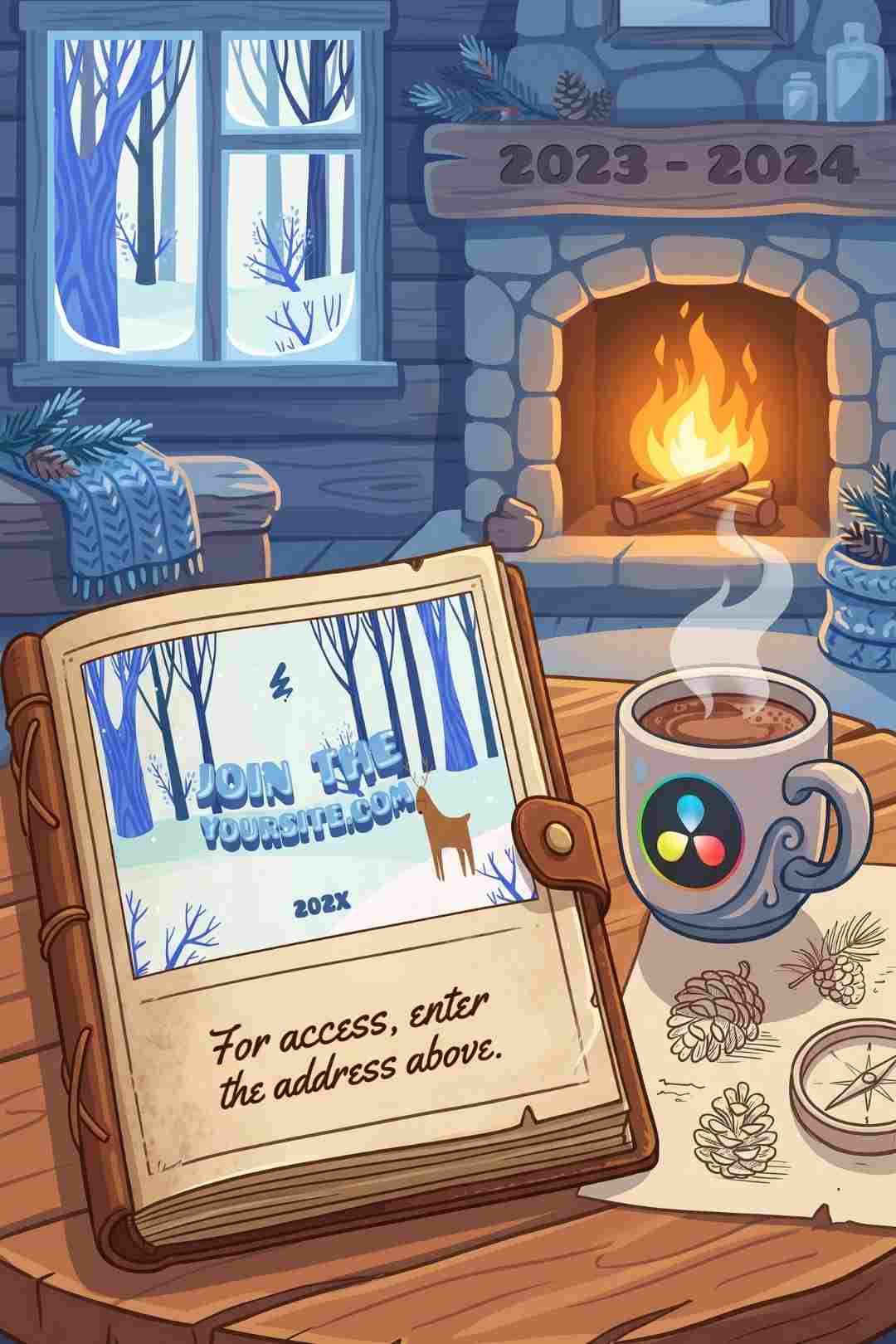
Download FREEGo Pro To DownloadDownload NOW!Winter Forest Logo is a DaVinci Resolve logo reveal template by creator BoxOfMotion, built around a cold, snowy forest aesthetic that gives a channel intro genuine atmosphere rather than a flat, generic animated badge. Falling snow, soft drifting particles, and a cool winter color palette surround your logo as it reveals, making this template a natural fit for seasonal content, outdoor and nature channels, or any brand wanting a calmer, more cinematic opening than a typical fast paced logo sting.
This template is available through Envato Elements, and Freevisuals is an affiliate partner. Clicking through and subscribing supports Freevisuals at no extra cost to you.
Get Winter Forest Logo on Envato Elements
A logo reveal sits at one of the most important moments in any video, the very first few seconds where a viewer decides whether to keep watching. Winter Forest Logo uses its snowy, atmospheric setting to make that moment feel deliberate and considered rather than rushed, which makes it particularly well suited to seasonal winter content, holiday specials, outdoor and adventure channels, and any brand whose identity already leans toward nature, calm, or a colder visual palette.
Because the template is built specifically for DaVinci Resolve's Fusion page, it integrates directly into the same software many editors are already using for color grading and finishing work, removing the need to jump into a separate application like After Effects purely to handle a single logo animation.
Once downloaded, install the template through DaVinci Resolve's Fusion Templates folder, or drag the downloaded files directly into the appropriate Resolve template directory depending on how the asset is packaged. From there, the template becomes available within your Effects Library, ready to drag directly onto your timeline like any other native Resolve title or generator.
Drop the template onto your timeline at the very start of your edit, then double click it to open the Fusion page, where your own logo image can be swapped in for the template's default placeholder. Since the template requires no third party plugins, it should open and render cleanly on any standard DaVinci Resolve installation without any additional software to install first.
Within the Fusion page, replacing the placeholder logo with your own PNG file, ideally with a transparent background for the cleanest possible result, is the first and most important customization step. From there, the template's color controls let you adjust the overall tint of the snow and particle elements, useful if your channel's branding leans toward a specific accent color rather than the template's default cool blue and white palette.
Timing can also be adjusted directly within the Fusion node graph, letting you extend or compress how long the reveal takes to play out. A shorter, snappier reveal suits fast paced content where viewers expect to reach the main video quickly, while a slightly longer reveal works well for more cinematic, slower paced channels where the opening moment is meant to set a deliberate tone.
These two videos cover working with logo animations and macros inside Fusion directly, useful background for customizing a template like this one beyond the basic logo swap.
Many creators rely on a single, year round logo animation regardless of the season or content theme, which can feel slightly mismatched when publishing a winter themed video using a generic, neutral intro. Keeping a seasonal template like Winter Forest Logo specifically for cold weather, holiday, or nature focused uploads gives a channel the flexibility to match its opening moment to its actual content, without needing to commit to a single static brand identity for every single video published throughout the year.
This approach works particularly well for channels that already publish seasonally varied content, travel vlogs moving between climates, lifestyle channels following the calendar year, or any creator producing a dedicated holiday or winter series where a matching intro reinforces the specific mood of that content.
Pairing this logo reveal with matching music and a complementary color grade across the rest of your video extends the wintery mood the template establishes beyond just the opening few seconds. For background music with the same calm, atmospheric quality, browse the Freevisuals free music library for tracks suited to seasonal or nature themed content.
For a colour grade that extends this template's cool, snowy palette across your actual footage, the Freevisuals free LUT library includes cooler, wintery treatments that pair naturally with this kind of opening sequence. If you are building a complete DaVinci Resolve toolkit beyond this single logo template, the Freevisuals DaVinci Resolve templates library and free DaVinci Resolve presets cover further free options that work alongside this paid template.
Since this template comes through an Envato Elements subscription, the same membership unlocks the platform's entire library beyond this single logo reveal, stock footage, additional templates, music, and graphics. If your winter themed content needs supporting B-roll, browsing Envato Elements directly gives you access to snowy and seasonal stock footage that pairs naturally with this logo's existing aesthetic, all under the same subscription this template comes through.
Viewers form an impression of a video's overall quality within the first few seconds, often before any actual content has been delivered. A logo reveal that looks deliberate, well composed, and visually consistent with the rest of a channel signals professionalism immediately, while a flat, static logo or an abruptly cut intro can undercut even genuinely strong content that follows it. Winter Forest Logo specifically uses atmosphere, depth, and a sense of place to do this work, rather than relying purely on fast motion or flashy effects the way many generic logo stings do.
This matters particularly for smaller or growing channels specifically, where a polished opening moment can meaningfully narrow the perceived production gap between an independent creator and a larger, better resourced team. A genuinely well composed intro is one of the most cost effective ways a smaller channel can compete visually with bigger budget content.
A logo reveal rarely exists in isolation. The most effective channel branding ties a consistent visual identity across the intro, lower thirds, end screen, and even thumbnail design, so a viewer recognises a video as belonging to a specific channel within seconds, regardless of which specific piece of content they encounter first. Using Winter Forest Logo as the seasonal centrepiece of a broader, coordinated visual identity, rather than as an isolated, disconnected element, strengthens this recognition considerably more than a strong intro used in isolation against otherwise unrelated branding elsewhere in the video.
For channels publishing seasonally, maintaining two or three coordinated template sets, one for warmer months, one for winter content like this template specifically supports, lets a channel rotate its visual identity meaningfully throughout the year while still maintaining an underlying sense of consistency in font choice, logo placement, and overall pacing across every version.
DaVinci Resolve's combination of editing, color grading, and Fusion based motion graphics within one single application removes a genuine friction point many editors face when branding work requires switching between several separate programs. Building or customising a logo reveal like this one without leaving the same software used for the rest of a project's editing and color work keeps a creator's entire branding workflow contained within one consistent environment, rather than exporting footage out to a separate compositing application purely to handle a single intro animation.
Before opening the Fusion page to begin customisation, preparing your actual logo file properly saves considerable time during the editing process itself. A transparent PNG, ideally at a resolution matching or exceeding your project's delivery resolution, gives the cleanest possible integration with the template's existing snow and particle elements. Logos with very fine detail or thin linework specifically benefit from a slightly simplified version prepared in advance, since intricate detail can become difficult to read once surrounded by the template's active particle effects.
Considering your logo's specific color palette against the template's default cool, wintery tones before you begin also helps you anticipate whether the template's color controls will need significant adjustment, or whether your existing branding already sits comfortably within a similar cool color range.
Once your logo and color adjustments are in place, exporting a test render and checking it at actual viewing size, rather than judging it purely within Resolve's preview window, confirms the template's finer particle details remain visible once compressed for upload. Particle heavy animations like falling snow are sometimes among the first detail lost to aggressive platform compression, making this final check particularly worthwhile for a template built specifically around this kind of atmospheric effect.
Testing your logo specifically against the template's default snow density and color before committing to a final export also matters, since a logo with fine detail or thin linework can sometimes become harder to read once surrounded by an active, busy particle effect. Simplifying an overly detailed logo specifically for this intro, while keeping your full detail version for other branding uses, often produces a cleaner, more legible result.
Once you have customised Winter Forest Logo with your branding once, saving your adjusted version as your own personal preset or template variant within DaVinci Resolve means future seasonal videos can reuse the same customised file directly, rather than repeating the full customisation process from scratch every time a new winter themed upload goes into production. This is particularly valuable for channels publishing a recurring seasonal series, since a consistent, already finished intro removes one entire step from the production process for every subsequent video in that series.
Keeping a dedicated folder specifically for your customised seasonal templates, separate from the original downloaded files, also makes it easier to locate and reuse your finished version quickly each time winter content season comes back around, rather than needing to rebuild your branding decisions from memory each year.
A common mistake is using a logo file with a solid background rather than a transparent one, which results in the logo appearing as a flat rectangle sitting awkwardly on top of the snow rather than genuinely integrating with the scene. Always sourcing or creating a transparent PNG version of your logo specifically for use with templates like this one avoids this visible mismatch.
Another mistake is leaving the template's default color palette unchanged when it clashes with the rest of your channel's established branding. Spending a few minutes adjusting the color controls within Fusion to better match your existing brand palette, rather than accepting the default cool blue tones regardless of fit, produces a far more cohesive result across your overall channel identity.
What software does this template work with?
This template is built specifically for DaVinci Resolve, working within Resolve's Fusion page.
Do I need any plugins to use this template?
No, the template is built to work directly within DaVinci Resolve's native Fusion tools, with no additional plugins required.
Can I change the colors of the snow and particle effects?
Yes, the template includes color controls within its Fusion node graph, letting you adjust the overall tint to better match your specific brand palette.
What kind of channels suit this template best?
Seasonal and winter themed content, nature and outdoor channels, holiday specials, and any brand wanting a calmer, more atmospheric opening than a typical fast paced logo sting.
Do I need an Envato Elements subscription to download this template?
Yes, this template is available through an Envato Elements subscription, which also unlocks the platform's broader library of stock footage, music, and additional templates.

Download free video templates, LUTs, and presets for Premiere Pro, After Effects, DaVinci Resolve, CapCut, and Final Cut Pro.