.avif)
Freevisuals
.jpg)
Free royalty free New York City skyline timelapse in HD, no copyright, no attribution, perfect for YouTube, Premiere Pro, DaVinci Resolve, and CapCut.
Download FREEGo Pro To DownloadDownload NOW!A clean, royalty free timelapse of the New York City skyline, captured at 1080p and ready to drop straight into a timeline. This clip works as an establishing shot, a transition between segments, or a moody background plate for travel content, business intros, finance and news style videos, or any project that needs the instant visual shorthand of New York without the cost or hassle of licensing premium aerial footage.
The clip is completely free to download and use, including in monetised YouTube videos, with no attribution required.
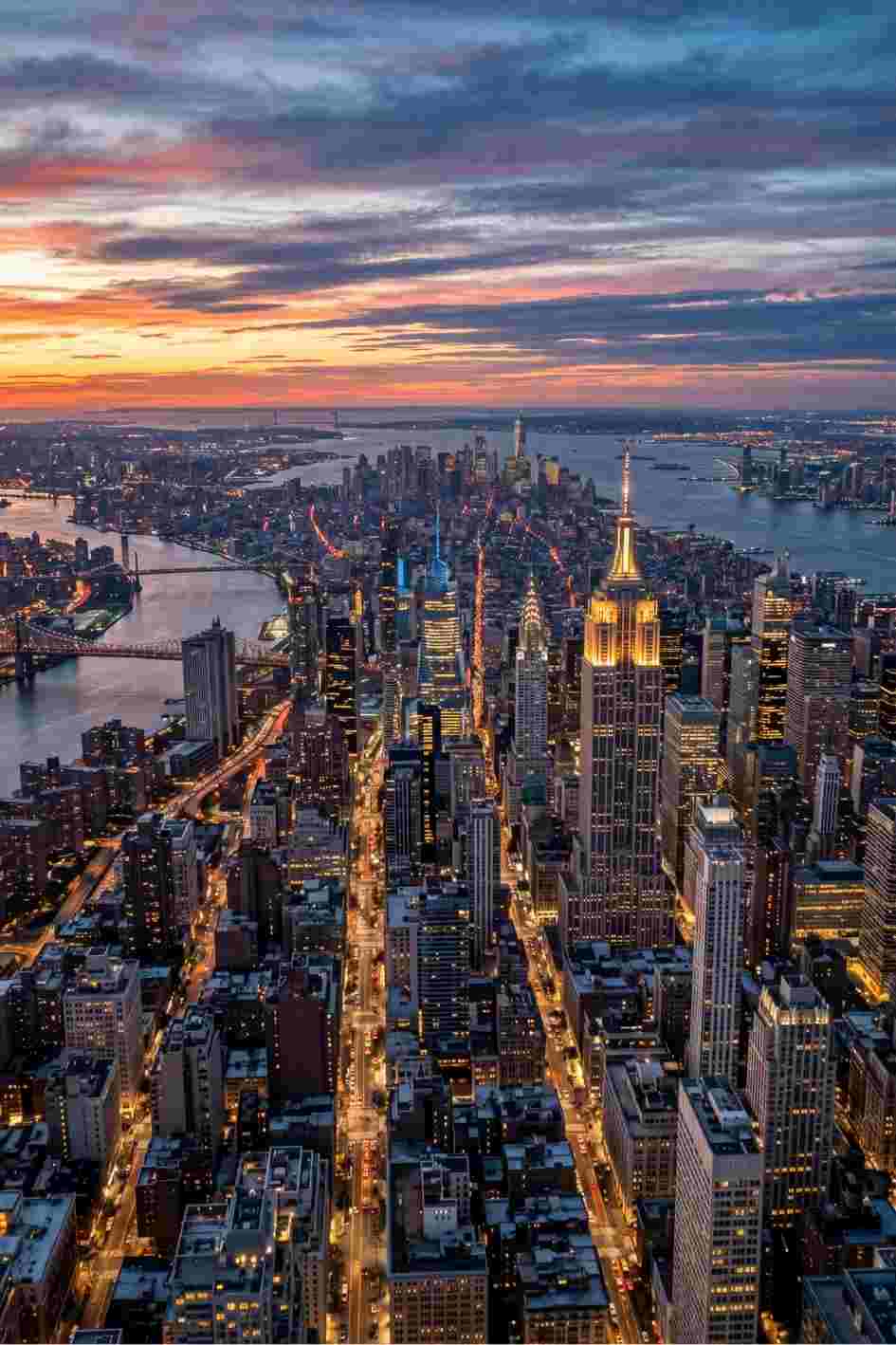
Timelapse footage of a skyline does a specific job that regular real time footage does not, it compresses the passage of time into a few seconds of visible motion, clouds drifting, light shifting, traffic streaking past in trails, and it reads instantly as cinematic regardless of what software cut it together. This particular clip works well as an opening shot for a video about New York specifically, but it also functions more broadly anywhere a project needs to signal scale, energy, or a major city setting without naming the location directly.
Common uses include intros for finance, business, and news content where a skyline implies a global or corporate setting, travel vlogs and destination guides covering New York or the US northeast, background plates behind lower thirds, titles, or talking head segments, and transition footage between two unrelated scenes in a longer edit. Because the shot is wide and the motion is slow and steady, it also holds up well underneath text heavy graphics without competing for attention.
Drag the downloaded file directly onto your timeline above or below your primary footage. Since this is a 1080p clip, if your sequence is set to 4K, right click the clip in the timeline and select Scale to Frame Size, then apply a Gaussian Blur or subtle digital noise on top if you want to disguise the resolution difference rather than risk it looking soft next to higher resolution shots elsewhere in the edit. For a cleaner colour match against your other footage, drop the clip into Lumetri Color and adjust temperature and exposure to align with your overall grade before exporting.
Import the clip into your Media Pool and place it on the timeline. On the Color page, use the Match Color tool against a reference frame from your other footage to bring the timelapse into a consistent grade automatically, then fine tune manually if needed. If you are working in a 4K timeline, apply Resolve's Super Scale under the Cut or Edit page's clip attributes to upscale the 1080p source cleanly rather than relying on a basic resize, which tends to introduce visible softness on a wide, detail heavy shot like a skyline.
Drop the clip into your timeline and use the Video inspector to confirm Spatial Conform is set to Fit if your project is a different resolution than the clip itself. Final Cut's built in Color Board or Color Wheels can quickly match this clip's colour temperature to surrounding footage. If the clip needs to sit underneath text, consider adding a subtle Gaussian blur from the Effects browser and reducing opacity slightly so titles stay legible against the skyline's detail and contrast.
Import the file and place it on your timeline. CapCut's auto colour match tool, found under the Adjust panel, can quickly bring this clip in line with surrounding footage shot on a different camera or under different lighting. For mobile-first vertical content, use Reframe or Crop to centre the most visually interesting part of the skyline within a 9:16 frame rather than simply cropping the sides off a horizontal shot, since the centre of a skyline frame is rarely where the most interesting buildings sit.
For motion graphics work specifically, this clip works well as a background plate behind animated lower thirds, kinetic typography, or a parallax title sequence. Bring the footage in, apply a Camera Lens Blur or Gaussian Blur to push it slightly out of focus as a backdrop, and layer your animated elements on top with a dark gradient overlay to improve text contrast against the skyline's varied brightness levels.
A timelapse like this rarely works alone in a finished video, it usually needs supporting audio and a colour treatment to feel complete. For background music that matches a city or corporate tone, browse the Freevisuals free music library. For ambient city sound, traffic, wind, distant sirens, to layer underneath the visual, the Freevisuals free sound effects library covers urban and ambient categories directly. For a consistent cinematic colour grade across this clip and the rest of your project, the Freevisuals free LUT library includes several treatments well suited to city and skyline footage specifically.
If you need more footage beyond this single clip, broader city and skyline libraries are available through our affiliate partners. Envato Elements offers unlimited downloads across a large stock video library including extensive New York and city skyline content, while Motion Array specifically offers 8K resolution city footage if your project needs to go beyond 1080p or 4K. For premium individual city timelapse clips without a subscription, Shutterstock and iStock both carry deep New York specific footage collections shot by professional timelapse photographers.
There is a reason so many news segments, finance explainers, and travel videos open on a city timelapse before cutting to a presenter or host. A timelapse compresses hours of real time into a few seconds of visible motion, which gives a viewer an almost instinctive read of scale and energy before a single word has been spoken. Clouds rolling past in fast motion, light shifting from day to dusk, or traffic streaking past in light trails all signal "this is a real, living place" far more effectively than a static photo or a slow pan ever could.
This is part of why a New York skyline specifically gets reused so often across business and finance content. The skyline has become a kind of visual shorthand for global commerce, ambition, and scale, regardless of whether the actual content that follows has anything to do with New York itself. A finance YouTube channel, a business podcast intro, or a corporate explainer video can all use a shot like this to establish tone within the first two seconds of a video, well before the actual subject matter is introduced.
Since this is a timelapse rather than real time footage, the motion within the frame is already compressed and energetic, which means it pairs best with a cut that does not linger too long. Most editors get the strongest result holding a clip like this for somewhere between two and five seconds before cutting to the next shot, long enough for a viewer to register the location and mood, short enough that the edit keeps moving rather than feeling static. If you are using the clip as a longer background plate behind a title card or lower third specifically, you can hold it considerably longer, since the constant subtle motion in the frame keeps it visually interesting even without a cut.
If the pacing of the timelapse itself feels too fast or too slow for your specific edit, most editing software lets you adjust playback speed directly on the clip without needing to re-render or re-export anything. Slowing the clip down slightly can give it a more contemplative, cinematic feel suited to a slower paced travel or lifestyle video, while speeding it up slightly can heighten the energy for a more upbeat intro or transition.
It is worth being upfront about what 1080p means for this specific clip and how to get the most out of it rather than fighting against it. At 1080p, this footage will look genuinely sharp and clean in any project that is also finished at 1080p, which still covers the overwhelming majority of YouTube, social media, and web video content published today. The resolution only becomes a consideration if your specific project is being finished at 4K or higher, in which case the clip will need to be scaled up to fill the frame, and how well that scaling holds up depends partly on how it is done.
Rather than relying on a basic stretch or resize, which can introduce visible softness or blockiness on a detail heavy shot like a skyline full of straight architectural lines, using your editor's dedicated upscaling tool, Resolve's Super Scale, for example, generally produces a cleaner result. Alternatively, treating the slight softness as a stylistic choice, adding a gentle vignette, a subtle film grain overlay, or placing the clip slightly out of focus behind foreground text, turns a technical limitation into something that reads as an intentional creative decision rather than a resolution shortfall.
For creators building an entire sequence or short segment specifically themed around New York, rather than using this single clip as a quick establishing shot, combining it with a small selection of complementary B-roll, street level footage, subway or transit shots, close ups of specific landmarks, creates a much richer, more layered final result than a single skyline shot repeated or held for an extended period. The skyline clip works well as the wide establishing shot that opens the sequence, with closer, more intimate footage filling in the middle of the segment before returning to a wide shot to close it out, a classic wide, medium, close, wide structure that reads as considerably more produced than a single repeated clip.
For the additional B-roll this kind of sequence typically needs, beyond what a single free clip can provide, the broader Freevisuals free stock video library includes further city and urban footage that pairs naturally with this specific clip's tone and pacing.
If you want to see how a New York skyline can be shot and treated at a higher production level than a single free clip, these two videos are worth a look before you start editing.
"New York City Skyline 2025, Manhattan Drone Footage in 4K," a 2025 aerial drone tour covering the Chrysler Building, the Empire State Building, and the newer additions to the Manhattan skyline including the Steinway Tower and Hudson Yards.
"New York Timelapse, 0 to 2026," a 2026 historical reconstruction timelapse tracing Manhattan's growth from 1600 through to its modern skyline, useful reference for understanding how the city's silhouette actually developed over time.
Is this clip really free to use commercially?
Yes. This clip is free for both personal and commercial use, including monetised YouTube videos, client work, and social media content. No attribution is required, though crediting Freevisuals is always appreciated.
What resolution is this clip available in?
This clip is available at 1080p. If your project is cut in 4K, use your editor's built in scaling or upscaling tool rather than a basic resize to keep the footage looking as clean as possible at the larger frame size.
Can I use this clip in a vertical or square video?
Yes. Since the clip is shot wide, you will need to crop or reframe it for vertical formats like Reels, TikTok, or Shorts. Most editors, including CapCut and Premiere Pro, have a built in reframe tool that handles this in a couple of clicks.
Does this clip include audio?
No, this is a silent video clip. Pair it with a track from the Freevisuals free music library or ambient sound from the free sound effects library to finish the scene.
Can I edit or colour grade this clip before using it?
Yes, you are free to colour grade, crop, slow down, speed up, or otherwise edit this clip as needed for your project.
Where can I find more New York or city skyline footage if I need it?
Beyond this free clip, Envato Elements, Motion Array, Shutterstock, and iStock all carry deeper New York and city specific stock footage libraries if a single clip is not enough for your project.
Download free video templates, LUTs, and presets for Premiere Pro, After Effects, DaVinci Resolve, CapCut, and Final Cut Pro.