.avif)
Freevisuals
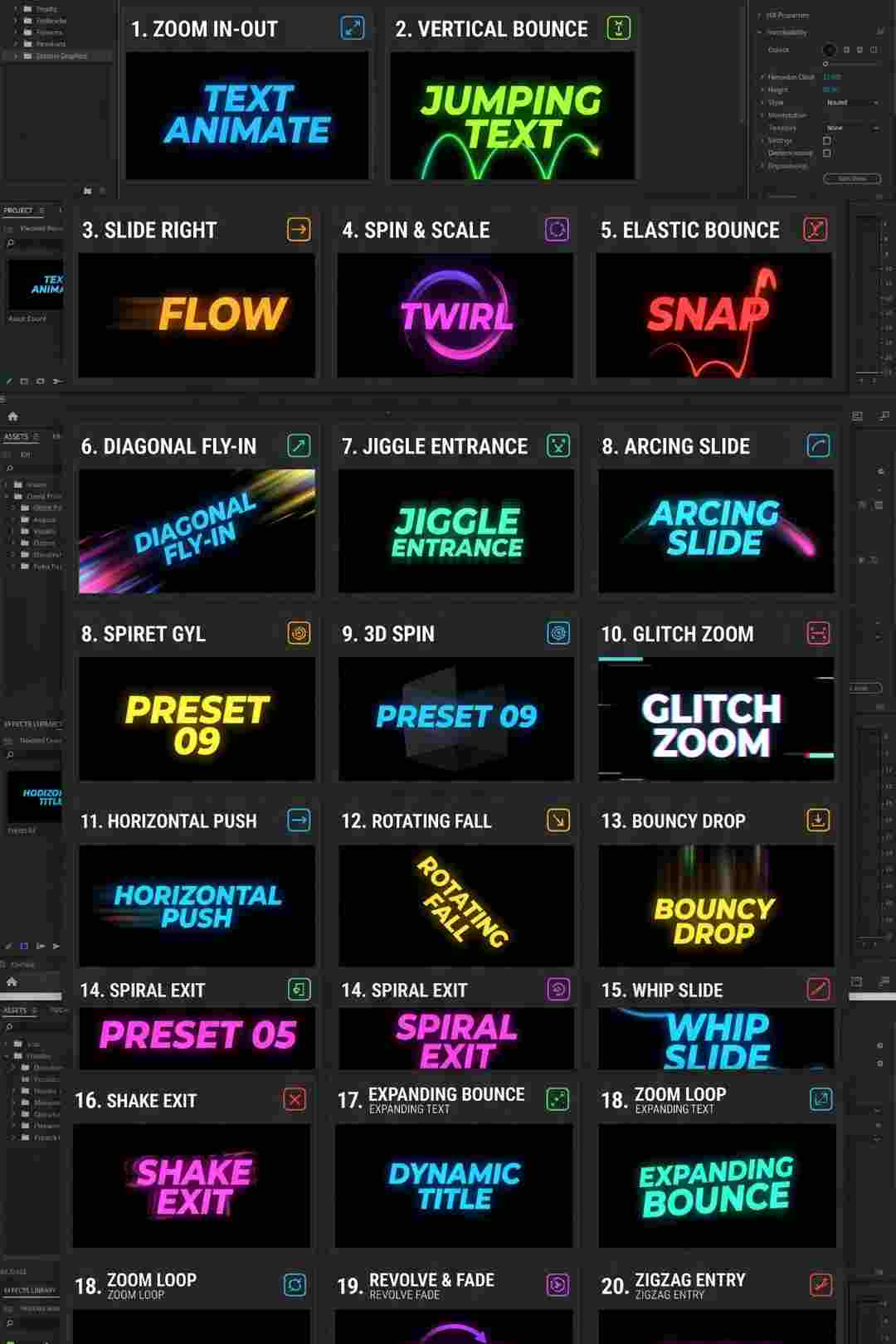
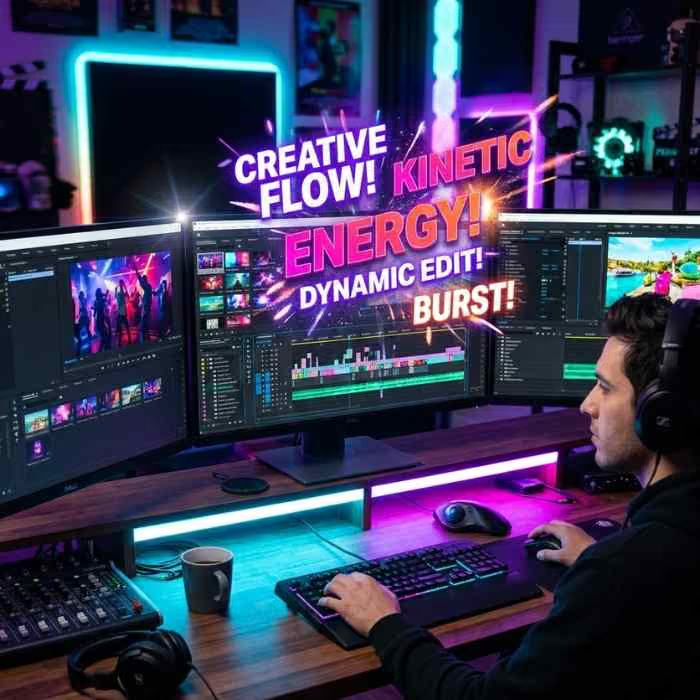
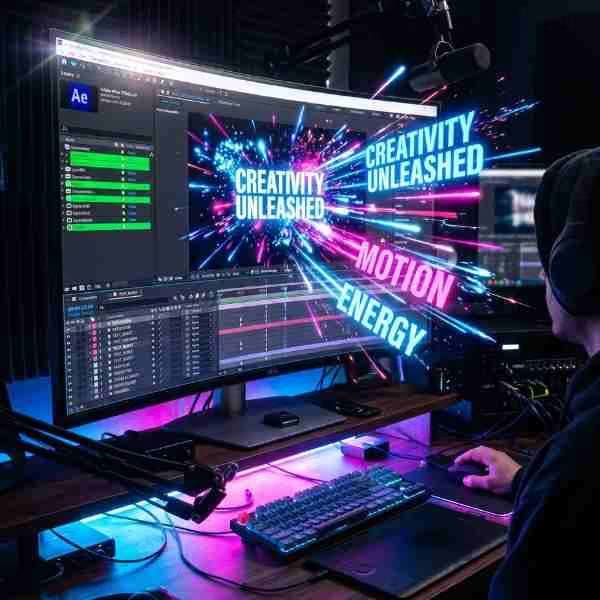
Text Titles by ToresMotion, a versatile Premiere Pro MOGRT text animation template for emphasis. Download on Artlist for flexible use.
Download FREEGo Pro To DownloadDownload NOW!Download On Artlist
Sometimes a project needs something between a full commanding title card and a small supporting graphic, genuinely versatile text that can introduce a point, emphasize a specific statement, or simply add clean typographic interest to a moment without demanding the full attention of a transitional title. Text Titles, made by ToresMotion and available through Artlist, is built specifically for this middle ground, clean, adaptable text animation delivered as a Premiere Pro Motion Graphics Template.
If you're building this into a broader project alongside other text elements, our Premiere Pro Shortcuts guide is genuinely useful here, since efficiently navigating your timeline while placing several text moments across a longer edit benefits considerably from knowing the right keyboard shortcuts. For music with the kind of clean, versatile energy that pairs naturally with adaptable text animation, Artlist carries a genuinely strong selection well suited to this exact tone.
Exact resolution, element count, and file size were not independently confirmed at the time of writing beyond the product's confirmed identity. Confirm these specific details directly on the live product page before finalizing a project around exact delivery requirements.
What separates this template from the more narrowly defined categories of lower thirds, call-outs, and full screen titles is its genuine flexibility in actual use. Text Titles can function as supporting emphasis within an ongoing scene, a statistic highlighted mid sentence, a key phrase pulled out for emphasis during narration, or as a lighter weight transitional element that doesn't demand the same full frame commitment a dedicated title card does. This versatility makes it a genuinely useful addition to a Premiere Pro toolkit already containing more specifically defined graphic types, filling the gaps those more rigid categories don't naturally cover.
Head to the Artlist download page and grab the MOGRT file.
In Premiere Pro, go to Window, then Essential Graphics, and use the Browse tab to install your downloaded template.
Browse the installed template's variations and consider which specific style suits your current moment's actual purpose.
Drag your chosen style directly onto your timeline at the appropriate moment.
Switch to the Edit tab within Essential Graphics and replace the existing copy with your specific statement, keeping it appropriately concise for the style you've selected.
Use the Edit tab's color controls to fit your specific brand palette while preserving the template's clean, versatile character.
Play back your timeline to confirm your text reads clearly and integrates smoothly with the surrounding footage or narration.
Once satisfied, export your finished sequence using your project's standard export settings.
For a genuinely useful walkthrough of building versatile text animation for use directly inside Premiere Pro, watch Create An Awesome Lower Third For Premiere Pro, which covers a broader range of text animation approaches directly relevant to understanding how this template's flexible style can be adjusted for different specific uses. This is worth watching specifically because seeing several distinct text animation approaches demonstrated together clarifies how a single underlying technique can be adapted across genuinely different on screen roles within Premiere Pro.
Highlighting a specific number or statistic mid video benefits from this template's clean, adaptable emphasis style.
Pulling out a specific quote or statement for visual emphasis during narration or interview content works well with this template's flexible design.
Content built around several sequential statements or points benefits from having a genuinely adaptable text style to draw from repeatedly.
Reinforcing key points visually alongside spoken explanation benefits from clean, unobtrusive text emphasis that doesn't compete with the actual educational content.
Emphasizing a specific brand message or value proposition benefits from text that reads as considered and professional rather than decorative.
With Text Titles added alongside Minimal Lower Thirds, Minimal Call-Outs, and Minimal Titles, this creator's product family now covers essentially every common on screen text role a typical video project needs, all installable directly into the same Premiere Pro project through Essential Graphics. Having all four available from a single, visually cohesive source genuinely simplifies sourcing text graphics for an entire project, rather than needing to search separately for each individual graphic type and risk visual inconsistency across sources.
Since this template's flexible design isn't tied to a single specific fixed layout, it genuinely adapts reasonably well to localized versions of the same content within Essential Graphics. Confirming your specific translated text still fits comfortably within the template's intended proportions before finalizing a localized version avoids the common issue where a translation runs meaningfully longer or shorter than your original language version.
Given how many different specific roles this single MOGRT can genuinely fill across a typical project, statistic emphasis, quote highlighting, transitional supporting text, brand messaging, it's worth recognizing its genuine long term value extends considerably beyond any single specific use case you might have had in mind when first installing it into Essential Graphics. Editors who initially acquire this template for one specific need often find themselves reaching for it repeatedly across genuinely different future Premiere Pro projects.
Using this template's flexibility as an excuse to skip considering its specific role in a given moment. Even though it's versatile, each specific use still benefits from deliberate consideration of pacing, positioning, and purpose.
Overusing text emphasis to the point of diminishing its actual impact. Reserve emphasis for genuinely important statements rather than applying it to every piece of on screen text throughout a project.
Ignoring how this template's styling relates to your other graphic elements. Genuine consistency with any lower thirds, call-outs, or titles used elsewhere in the same project reinforces overall production quality.
Forgetting the template is a MOGRT rather than a native project file. All customization happens through Essential Graphics directly in Premiere Pro.
As with any Artlist asset, reviewing the current license terms before using this template within paid client or commercial work is worth doing upfront, particularly for marketing and brand messaging content where licensing clarity carries genuine weight.
Text Titles rounds out ToresMotion's cohesive template family with a genuinely flexible option covering the on screen text roles the more specifically defined lower third, call-out, and title categories don't naturally address. Understanding its adaptable role, and using it thoughtfully alongside its matching family members through Premiere Pro's Essential Graphics panel, gets you the most value from this asset across whatever specific emphasis, statement, or flexible text need your project actually presents.
Minimal Titles is built specifically for full screen transitional moments. Text Titles is genuinely more flexible, suited to supporting emphasis, statistics, quotes, and other on screen moments that don't need a full frame commitment.
No, it's a Premiere Pro Motion Graphics Template, fully editable within the Essential Graphics panel.
Statistic emphasis, quote highlighting, social media content, explainer videos, and brand messaging all genuinely benefit from its flexible styling.
Reserve genuine emphasis for your most important statements rather than applying it throughout, overuse dilutes its actual impact.
Yes, and it's genuinely worth doing, since all four templates in this family share a consistent visual language that produces a more unified, professional looking finished project.
Affiliate Disclosure: This post may contain affiliate links. If you make a purchase through one of these links, FreeVisuals may earn a commission at no extra cost to you. We only recommend products and platforms we genuinely believe in. Read our full disclosure policy.

Download free video templates, LUTs, and presets for Premiere Pro, After Effects, DaVinci Resolve, CapCut, and Final Cut Pro.