.avif)
Freevisuals
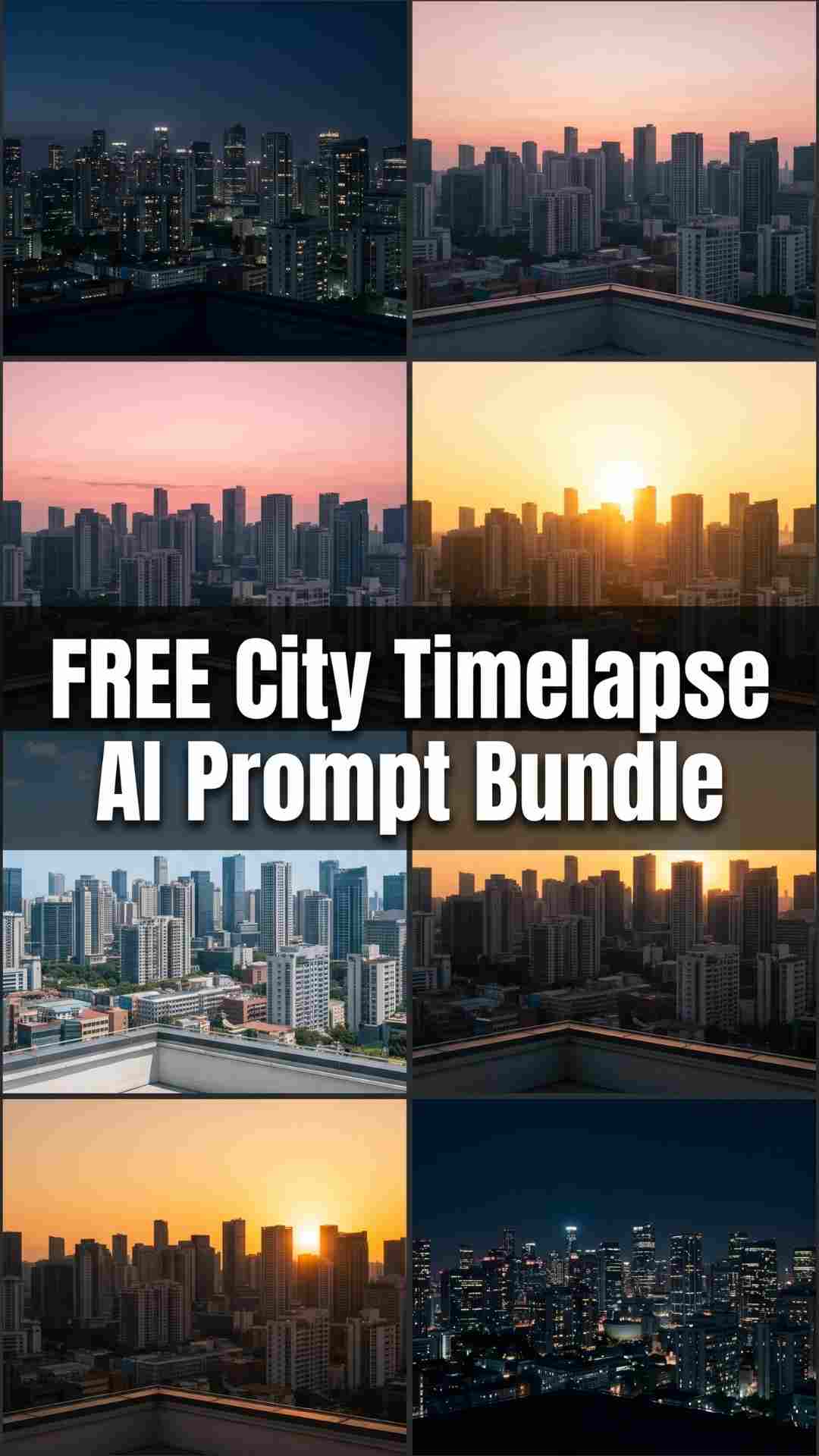
Free download: 8 AI image and video prompts to create a 60-second cinematic city timelapse. Works with Midjourney, Kling, Runway and OpenArt AI. No drone
Download FREEGo Pro To DownloadDownload NOW!The most common complaint every creator has about AI video tools is the same one. You spend time crafting a prompt, you generate something that looks genuinely cinematic, and then it stops after eight seconds. You try to extend it and the scene drifts. The buildings shift, the lighting changes inconsistently, a window moves, the whole thing falls apart visually. Anyone who has seriously tried to build a long-form AI video has run into this wall.
This free download solves that problem with a structured workflow that most creators have not tried yet: a sequence of 8 anchor-and-variation image prompts, each one a different time of day over the same city rooftop scene, each one animated individually using AI video tools, then edited together into a complete 60 to 80-second cinematic urban timelapse. No drone footage. No stock library. No expensive city permit. Just AI tools and a structured prompt sequence.
Download the full prompt pack free from Freevisuals here
The gap between 10 seconds and 2 minutes of AI video generation is enormous for practical content creation, and if you need videos longer than 15 to 20 seconds, your options narrow significantly. Even the best tools currently available have meaningful limits on clip length, and extending a clip beyond its natural generation window almost always introduces visual drift where characters, objects, and environments shift in ways that break the illusion of continuity.
Kling remains the strongest option for building structured, repeatable video formats at scale, while Seedance delivers more structured and visually consistent outputs from text prompts, especially for cinematic scenes. But even Kling at its best is generating individual clips rather than a coherent continuous sequence.
The solution that professional AI filmmakers are converging on is not to fight the length limit but to work with it. The current gold standard for high-fidelity output starts with generating keyframes in Midjourney v7 for precise art direction, then using motion synthesis tools to animate each frame, giving you full control over style, lighting, and composition at every stage. This is exactly the workflow the City at Different Times of Day prompt pack is built around.
Instead of trying to generate one long continuous video and failing, you generate eight short clips of eight to ten seconds each, all based on variations of a single anchor image that keeps the scene visually consistent, and you stitch them together in your editing timeline with cross-dissolves. The result is a coherent 60 to 80-second video that looks like a single continuous timelapse but was built in eight separate generation passes.
The download contains three sections. Part One has eight image prompts covering a full 24-hour cycle over a dense modern city rooftop viewpoint, from 3am pre-dawn through to deep night. Part Two has a matching video prompt for each of those eight images, specifying exactly what should move in the clip, what camera behaviour to use, and how to set motion intensity in each tool. Part Three is a complete editing guide covering clip order, transitions, colour grading with LUTs, music selection, and export settings for YouTube.
The total designed runtime is 68 seconds, built from eight clips averaging eight to nine seconds each.
The scene runs in this order: Pre-Dawn at 3am, First Light at 5am, Golden Sunrise at 6am, Bright Morning at 9am, Midday at 12:30pm, Golden Hour Sunset at 6:30pm, Blue Hour Dusk at 8pm, and Deep Night at midnight.
The anchor image is Shot 01, the Pre-Dawn scene. You generate this first, at the highest quality your tool allows, at 16:9 aspect ratio, at 1920 x 1080 or higher. This is your reference image for the entire sequence. Every other shot in the pack is generated using Image-to-Image mode in your AI tool with Shot 01 uploaded as the reference.
The Image-to-Image similarity slider is the key to making this work. Set it between 65 and 75 percent. Too high and the lighting and time-of-day changes do not take effect properly. Too low and the buildings, camera angle, and composition drift between shots. The 65 to 75 percent range is the sweet spot where the scene stays identical but the atmosphere and lighting change as instructed in each variation prompt.
Using start and end frames from Midjourney and then uploading them to a motion synthesis tool with an interpolation prompt to smoothly maintain character and environment consistency is now one of the most reliable workflows for producing professional multi-shot AI video. The city timelapse workflow in this pack applies exactly this principle across eight shots rather than just two.
For a practical visual example of how image-sequence timelapse workflows produce viral-level results, this tutorial demonstrates the full process clearly: How to Make Viral Timelapse Videos with AI using Veo 3.
For a step-by-step walkthrough of creating an AI timelapse from a single anchor image with variations, this tutorial covers the structural approach well: How to Create an AI Construction Timelapse from a Single Image.
Midjourney v6.1 or v7 produces the best cinematic quality for the anchor image and the variation shots. The lighting treatment and atmospheric depth at golden hour and blue hour in particular are noticeably better than other tools. Add --ar 16:9 --v 6.1 --style raw --q 2 to the end of every prompt for optimal results.
OpenArt AI is the most accessible alternative if you are not on a Midjourney subscription. Use the Image-to-Image feature, upload Shot 01 as your reference, and select the SDXL or Realistic Vision model. The Image Strength slider in OpenArt AI corresponds to the similarity control described in the pack. Set it to 0.65 to 0.75 for the right balance.
Adobe Firefly's Reference Image feature works well for the daytime shots (Shots 04 and 05) where clean photorealistic architectural rendering is the priority. For the atmospheric low-light shots at dawn, dusk, and night, Midjourney or OpenArt AIproduce more convincing results.
Leonardo AI's Image Guidance feature handles the variation workflow cleanly and produces strong results particularly for the Golden Sunrise (Shot 03) and Golden Hour Sunset (Shot 06) prompts, which require the most precise lighting colour treatment.
Google Veo 3.1 currently leads for overall cinematic quality with native 4K output, while Runway Gen-4.5 holds the top position on independent benchmarks for text-to-video generation, and Kling 3.0 is excellent for YouTube content, longer narratives, and budget projects.
For this specific workflow, the most important tool characteristic is not raw quality but visual consistency and the ability to accept an image as the first frame of the clip. Every major tool supports image-to-video generation but the motion behaviour differs significantly.
Kling AI is the recommended primary tool for this pack. Kling 3.0 is worth considering when value, motion testing, and iteration volume matter more than a premium single take, making it ideal for YouTube content and longer narrative projects. For a city timelapse where you are generating eight separate clips and need them to feel visually cohesive, Kling's consistent motion behaviour and First Frame feature produce the most reliable results across a multi-clip sequence.
Runway Gen-4 is the best choice if you prioritise camera control. The motion intensity slider gives you precise control over how much movement is introduced, which is critical for this type of footage. Set motion intensity to 2 to 3 out of 10 for the locked-off or barely-moving camera behaviour the video prompts specify. Too much motion and the buildings will shift, breaking the timelapse illusion.
Pika Labs works well for the atmospheric shots, particularly Pre-Dawn (Shot 01), Blue Hour Dusk (Shot 07), and Deep Night (Shot 08), where the motion is primarily atmospheric (drifting haze, city lights pulsing, traffic trails) rather than structural. Set motion strength to 0.5 to 1.0.
Luma Dream Machine produces clean, cinematic image-to-video results for the golden hour shots where lighting movement is the main motion element.
Every video prompt in the pack is written around the same principle: the camera should barely move, and the motion should be happening to the world, not the camera. This is what makes a sequence of AI video clips read as a continuous timelapse rather than eight separate shots.
The specific motion elements vary by time of day. The Pre-Dawn clip (Shot 01) specifies a barely perceptible camera push forward, a single set of car headlights moving on a street far below, and faint steam drifting between buildings. The Golden Sunrise clip (Shot 03) specifies the light slowly intensifying across building faces, window reflections brightening, and steam rising between buildings. The Midday clip (Shot 05) specifies heat shimmer above rooftops as the only movement, the camera locked completely still. The Deep Night clip (Shot 08) specifies a very slow push into the city, light trails from traffic, and the amber haze above the city shifting slightly.
Each of these motion specifications is chosen to be achievable within what current AI video tools can reliably produce. The prompts deliberately avoid anything that requires the AI to understand physics at a deep level: no water, no fire, no fast human movement, no complex object interaction. Atmospheric motion, light changes, and very slow camera movement are what current tools handle well. The prompts are written to play to those strengths.
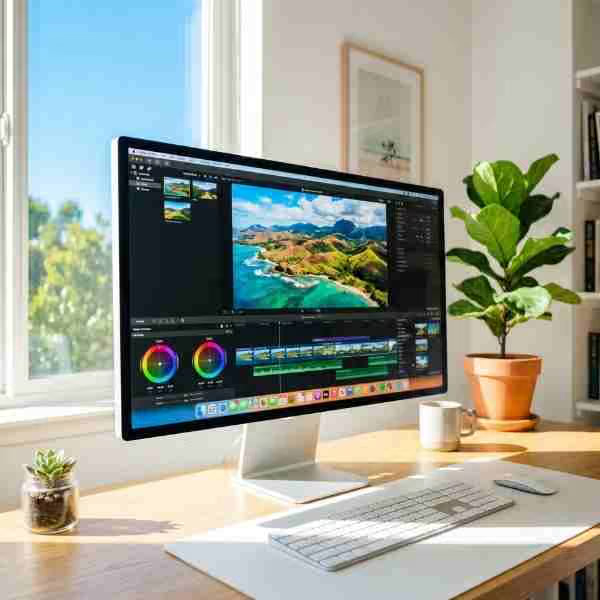
Import all eight clips into your editing timeline in chronological order. In Premiere Pro, DaVinci Resolve, or Final Cut Pro, apply a Film Dissolve or Cross Dissolve transition at 1.5 to 2 seconds between every clip. The dissolve is doing two jobs: it creates the visual sensation of time passing, and it hides any minor inconsistency between shots that the AI introduced. Without dissolves, hard cuts between shots will reveal that each clip was generated separately. With dissolves, the sequence reads as a single coherent timelapse.
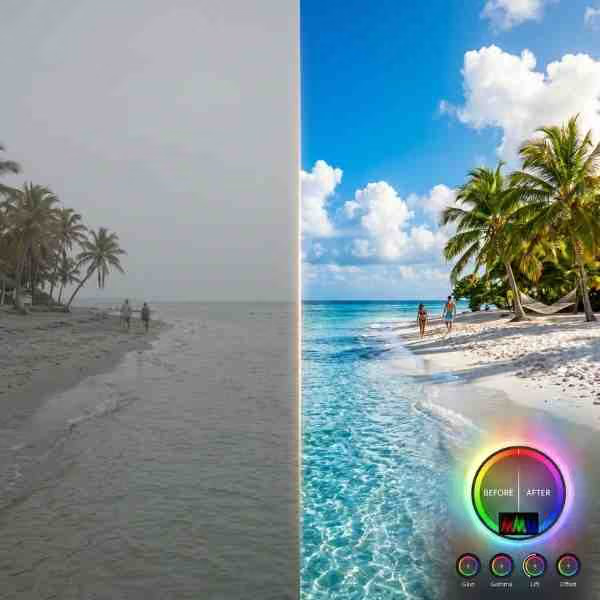
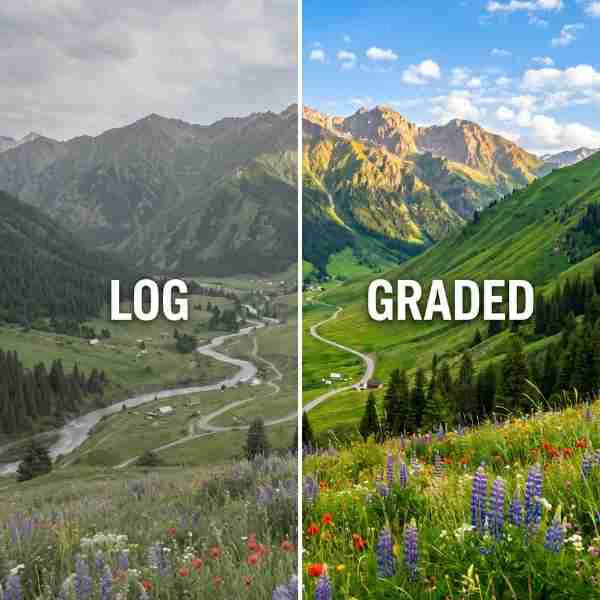
Apply a unified colour grade across the entire sequence using a cinematic LUT. The Free Mega Cinematic LUT Pack on Freevisuals includes 22 LUTs in .cube format that work in Premiere Pro, DaVinci Resolve, After Effects, and Final Cut Pro. In DaVinci Resolve, apply the LUT at the timeline level so it affects all clips equally, then adjust individual clip exposure using Lift/Gamma/Gain to match brightness between shots before the LUT is applied.
For the individual clip adjustments, the pre-dawn and deep night clips will need exposure lifted slightly to avoid them reading as too dark when played in sequence against the brighter daytime shots. The midday clip will likely need a slight warmth reduction in the highlights to prevent it looking bleached compared to the golden hour shots on either side of it.
The Free Smoke and Fog Overlay from Freevisuals works well on the pre-dawn and deep night clips to add subtle atmospheric haze in post, which helps blend the transition between the generated clip and the viewer's expectation of city atmosphere at night.
If you want to add glitch-style transition effects between specific shots, the Free After Effects Glitch Transition Presets on Freevisuals can be applied at the edit points in After Effects before exporting the final sequence.
The right music track turns a well-edited sequence of clips into something that feels genuinely cinematic. For a city timelapse, the music should be atmospheric and flowing, with no dominant melodic hook, building slowly over the duration of the video.
Prompt 05 from the Freevisuals AI Background Music Prompt Pack is designed specifically for this use case. The prompt generates sweeping orchestral pads with no melody for the first 60 seconds, no drums, and an expansive atmosphere designed to sit under cinematic aerial and landscape footage. Generate it in Suno or Udio, import it into your timeline, and set the volume to -16dB to -18dB. The music should be felt rather than heard.
For a licensed alternative that gives you clear commercial rights for a monetised YouTube channel, both Artlist and Epidemic Sound have dedicated cinematic and ambient city categories that suit this type of footage. Artlist in particular has a strong collection of orchestral and ambient tracks with downloadable stems, which lets you trim the arrangement to match your exact clip length without the music feeling like it ends abruptly.
Epidemic Sound is worth considering if you plan to use this workflow repeatedly across multiple videos. The per-channel YouTube registration means every track you use is covered retroactively across your entire upload history, which removes the copyright claim risk that comes with AI-generated music on a monetised channel.
If you use ElevenLabs for voiceover on your channel, its music generation feature produces short atmospheric pieces that work well as ambient underscores for city timelapse content, particularly for 30-second social media cuts of the longer piece.
A 60 to 80-second cinematic city timelapse is a versatile asset that works across multiple content formats, not just as a standalone YouTube video.
It works as an intro sequence for an urban-focused YouTube channel, playing before the main title card on every episode. It works as b-roll for any video that needs an establishing shot of a city environment without you needing to film one. It works as a loop for a YouTube ambient channel, alongside the lo-fi music tracks from the Freevisuals music prompt pack. It works as a background for a podcast video show, playing on a second monitor or as a video background in OBS.
For short-form repurposing, a single 10-second clip from the Golden Sunset shot (Shot 06) with a text overlay makes an extremely effective Instagram Reel or TikTok. InVideo handles the reformat from 16:9 to 9:16 cleanly and its auto-caption feature works well for text overlays on the vertical cut. CapCut is the faster option for TikTok specifically, with its own dark filter presets that complement the cinematic grade already applied to the footage.
For creators who edit primarily in Filmora, the sequence imports cleanly and Filmora's built-in LUT library includes cinematic options that work well for this type of footage, with the audio ducking feature handling the music mix automatically.
Yes, partially. OpenArt AI has a free tier that includes Image-to-Image generation, which you can use for the image prompt sequence. For the video animation step, Kling AI offers free daily credits, Pika Labs has a free tier, and Runway offers a free trial. You may not be able to complete all eight video clips on free tiers alone but you can generate the most important ones (Pre-Dawn, Golden Sunset, and Deep Night) and extend your free credits by spacing your generations over several days.
The similarity or Image Strength slider in Image-to-Image mode is the primary control. Keep it at 65 to 75 percent. Below 65 and the scene will drift. Above 75 and the time-of-day changes may not take full effect. The second factor is prompt consistency: every variation prompt in this pack includes the phrase "same rooftop view" and references the water tower and HVAC unit from the anchor image. These landmark references help the model maintain the spatial relationship between elements across shots.
Shot 06, the Golden Hour Sunset, is the most visually impactful frame in the sequence and the one most likely to be shared or used as a thumbnail. Spend the most generation credits here. Generate three to five variations and select the best one. The specific quality to look for is window reflections blazing with reflected light on the sun-facing buildings. When that effect is present the shot looks genuinely cinematic. When it is absent the shot just looks like a warm orange sky.
For a 68-second timelapse, use a track that builds gradually rather than establishing its full arrangement immediately. Tracks that open with a full orchestral swell feel long because the viewer's ear expects the music to go somewhere from there. Tracks that open with a single element, a piano note, a pad, a single string line, and build slowly, feel like they are revealing something new throughout the video. Prompt 05 from the Freevisuals music pack is specifically structured this way.
This depends on the terms of whichever AI tools you use to generate the footage. Midjourney, OpenArt AI, Kling AI, and Runway all allow commercial use of outputs on their paid tiers. Verify the specific terms of your subscription tier before using generated footage in commercial work, advertising, or client projects. For editorial and YouTube content on a personal or brand channel, paid tier outputs are generally covered for commercial use.
Generate image prompts at 1920 x 1080 minimum. If your tool allows 4K output at 3840 x 2160, use it for the anchor image and the three most visually impactful shots (Shots 03, 06, and 08). For video generation, 1080p is the practical standard currently available across most tools, with 4K available on premium tiers of Kling and Runway. Export the final sequence at 1080p for standard YouTube upload or 4K if your source material supports it.
The city timelapse pack is part of a growing library of structured AI prompt packs on Freevisuals, each one designed to help creators produce specific types of content without starting from scratch.
The 10 True Crime Cinematic YouTube Thumbnail AI Image Prompts pack gives you ready-to-use cinematic background prompts for Midjourney and OpenArt AI, covering ten different true crime content scenarios.
The 10 Cinematic Background Music Prompts for YouTube pack covers Suno AI, Udio, and ElevenLabs Music, with prompts for ten different video content types from documentary intros to gaming highlight reels.
For your editing workflow alongside the generated footage, the Free Mega Cinematic LUT Pack includes 22 LUTs in .cube format for After Effects, Premiere Pro, DaVinci Resolve, and Final Cut Pro.
The Free Smoke and Fog Overlay adds atmospheric depth to night and pre-dawn shots in your edit.
The Best After Effects Plugins Guide and the After Effects Flicker Expression Guide on Freevisuals cover the compositing techniques that work best alongside AI-generated footage.
Download the full City at Different Times of Day AI Prompt Pack free from Freevisuals
Disclosure: This post contains affiliate links. If you purchase through these links, Freevisuals may earn a small commission at no extra cost to you.
Download free video templates, LUTs, and presets for Premiere Pro, After Effects, DaVinci Resolve, CapCut, and Final Cut Pro.