.avif)
Freevisuals
Business Presentation is a professional Premiere Pro template designed to help users create engaging, clean, and modern corporate presentation videos. It
Download NOW!This is an Artlist Premiere Pro title pack for business and corporate video. The file lives on Artlist. It is not a FreeVisuals ZIP. It is not an After Effects project. The old name on this URL said After Effects. That was a filing error when the page still lived in Items. The slug is now business-presentation-premiere-pro.
Use it when a client wants a pitch recap, a quarterly update, a SaaS explainer, a board cutdown or a LinkedIn launch clip and you do not want to build type from a text layer. Swap the titles. Drop in the product footage. Match the brand colours. Premiere Pro CC and later.
The button on this page is an affiliate link. You need an Artlist plan to download. FreeVisuals Pro does not unlock this file. Free Premiere titles on this site stay in the free list on the Premiere Pro templates hub.
Premium partner template. Software: Adobe Premiere Pro. Source: Artlist. Category: Titles. Licence: Artlist terms. Not FreeVisuals Free and not FreeVisuals Pro. The button opens Artlist in a new tab.
SpecDetailNameBusiness Presentation Premiere Pro TemplateSoftwareAdobe Premiere Pro CC and laterSourceArtlist (affiliate)CategoryTitlesFile typePremiere Pro template or MOGRT as listed on ArtlistPluginsNone unless the Artlist page lists oneLicenceArtlist licence. Not FreeVisuals Free or Pro.Best used forCorporate titles, pitch videos, SaaS explainers, internal comms
A Premiere Pro title layout built for business presentation video. Text, colour and timing are edited inside Premiere. Check the Artlist product page for clip count, resolution and whether you get a .prproj, a .mogrt or both. That page is the source of truth. This FreeVisuals page is the listing and the affiliate door.
Do not import the pack into After Effects and expect a clean AE project. Do not list it as a free download. The old overview on this URL said both of those things. Both were wrong.
Business presentation titles have a job that YouTube intros do not. They have to look like they came from the same deck the sales team already uses. Big type. Short words. Colour that matches the hex in the brand guide. This pack is aimed at that job. It is a poor match if you wanted a glitch opener or a film credit roll.
If Artlist shipped a MOGRT, those controls sit in Essential Graphics. In Premiere Pro 2025 that panel is Graphics Templates and the sliders sit in Properties. If Artlist shipped a project file, you open or import the .prproj and copy the sequence into the job.
Editors cutting client decks, product launches and company stories in Premiere. Agencies that deliver a 60-second recap after a sales offsite. YouTube channels that need a clean corporate opener once a week. In-house teams that cannot spare a motion designer for every update video.
Skip it for wedding films, YouTube Shorts memes, gaming intros and After Effects-only shops. Those jobs need a different pack on the same hub or on the After Effects hub.
Put the pack on V2 above the first shot of the office, the product or the speaker. Change the company name before you send a review link. One opener used across a series reads as a show. Ten different free titles in ten videos reads as a template dump.
Hold the last card long enough to read. Corporate viewers do not skip like Shorts viewers. If the title is on screen for 12 frames, it is decoration. If it is on screen for two seconds, it is information.
Pitch recaps, feature launches, hiring films, internal comms. Keep the type large enough to survive LinkedIn compression. Do not stack a heavy teal LUT on gold brand type. If the brand book says navy and white, the titles should be navy and white.
Use the 16:9 version on the main video. If you also cut a Short, do not letterbox this title and hope. Either Artlist shipped a 9:16 version or you rebuild the words on a 1080x1920 sequence. A 16:9 corporate slate in a vertical feed looks like an export mistake.
Day-one title, speaker name, topic. Same pack, new text. Faster than a new After Effects comp for every panel. Build a spreadsheet of names first so you are not typing live on the timeline during the last hour before delivery.
Only if the pack includes a vertical layout. If it does not, cut the social version with a simple lower third from the free list on this hub instead of forcing this opener into 9:16.
Watch Adobe’s walkthrough of Motion Graphics templates in Premiere Pro if you have not installed a MOGRT this year: How to use Motion Graphics templates in Premiere Pro. That video is the install path. It is not this Artlist pack.
Adobe renamed Essential Graphics to Graphics Templates in Premiere Pro 2025. The install command still lives under Graphics and Titles. Editable sliders moved toward the Properties panel. If a tutorial says Essential Graphics and you are on 2025, you are not lost. You are on the new name for the same box.
MOGRTs still do not import like a clip. File, Import will not put a .mogrt on the timeline. Use the install command or drag into the graphics panel. That is the step most first-time installs miss.
Build a 1920x1080 timeline first. 25fps or 24fps or 30fps to match the rest of the job, not to match the template. If the template was built at 30 and your show is 25, Premiere will time-map it. Preview the open. If a snap feels late, trim the graphic, do not change the show frame rate to please a title pack.
4K sequences: scale the graphic to frame if Artlist shipped 1080 masters. Do not nest and blow it up twice. If the type goes soft, use the 1080 sequence for titles and nest that into the 4K show, or ask Artlist whether a 4K master exists.
Artlist sells music that sits under this look. Start on Artlist so picture and bed are on one licence. Epidemic Sound is the other library we send people to for corporate beds.
Need voice without a booth? ElevenLabs. Need a first draft of the whole video before you open Premiere? Invideo, then replace the tool’s titles with this pack so the account does not look generated.
This pack is one title set. If you need transitions, lower thirds or a 100-preset kit after the opener, use the premium list on Premiere Pro templates. Those rows go to Envato, Motion Array and Motion Elements. Free rows on that hub download from FreeVisuals. Pro rows download from files.freevisuals.net.
After Effects shops should use the AE hub, not this page. CapCut shops should use the CapCut hub. This item is Premiere only.
Free Premiere titles on FreeVisuals are ZIP downloads with a FreeVisuals licence. Pro templates on FreeVisuals use a Single Pass, Monthly or Yearly plan. This page is neither. Artlist owns the file and the licence.
If the client already pays for Artlist, this pack is often the cheapest way to get a corporate title set. If they have no Artlist plan, price the plan in the quote before you promise the look. Do not hide that cost in “stock we already have.”
Envato and Motion Array are the other premium doors on the same hub. Use those when you need a 300-transition kit or a MOGRT lower-third pack this Artlist title set does not include. Do not buy three partner packs for one 20-second opener.
Send a 1080p review MP4 first. Then send a Premiere project with the MOGRT already installed in the project folder. Put a readme in that folder: Artlist pack name, date downloaded, which composition you used. The next editor should not have to guess which file on Artlist this was.
If the client only has Premiere Elements or CapCut, this pack will not open. Quote a flattened ProRes of the titles instead of promising an editable project.
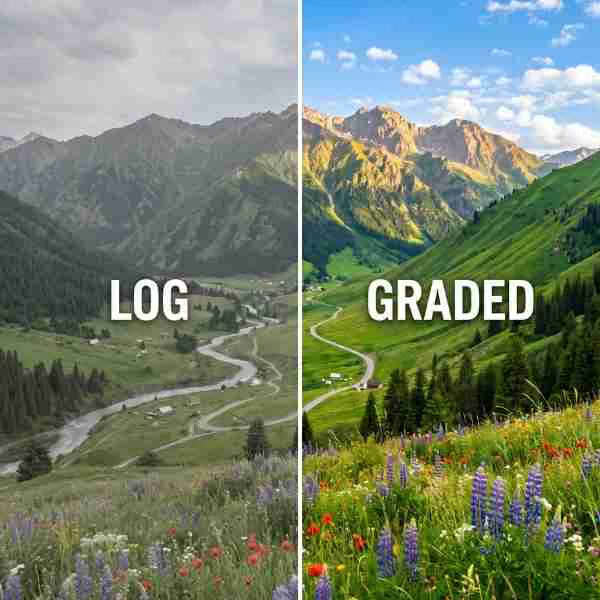
Grade the picture, not the titles, when you can. If you must put a LUT on the whole sequence, mask the titles out or apply the LUT only to V1. Corporate gold on top of a teal-orange LUT turns mud.
Warm food LUTs and grit packs from the LUT library do not belong on this opener. If the rest of the film is grit, keep the titles simple and let the picture carry the grade.
Pick one title style from the pack and reuse it. Change only the words. A channel that uses four different corporate openers in four weeks looks like four vendors. Store the edited MOGRT or sequence in the client folder so the next editor does not start from the Artlist demo again.
If the brand has a deck template in PowerPoint or Keynote, sample the hex values from that deck. Do not invent a second blue. If the deck uses a custom font you do not have, either install that font or pick the closest system font and tell the client. Do not let Premiere substitute a random serif.
The Items version of this page used the name Business Presentation After Effects Template. The body then said Premiere Pro. The overview said the licence was free. The CTA said Download FREE. None of that matches an Artlist Premiere listing.
This rewrite matches the Templates collection. Software is Premiere Pro. Affiliate Asset is on. Download Link is empty. Affiliate Link goes to Artlist. Old /item/ and After Effects slugs 301 to /templates/business-presentation-premiere-pro.
No. Premiere Pro only. Old slug and old name said After Effects. Those URLs 301 here.
No. You need Artlist. The old “free for personal and commercial use” line was wrong.
No. Pro unlocks FreeVisuals Pro files. This file stays on Artlist.
Yes. Text, colour and timing in Premiere. Media slots if the pack has them.
Usually no. Confirm on the Artlist listing before you quote a client.
Follow the Artlist licence for commercial and paid social. That is not the FreeVisuals Pro terms and not a free stock licence.
Preview on your sequence. 1080p 16:9 is the safe default. 4K and 9:16 only if Artlist shipped those masters.
Window, Essential Graphics on older Premiere. Graphics Templates and Properties on Premiere Pro 2025.
Premiere Pro templates. Free list, Pro list and premium partner list.
Use this pack when the job is a business presentation in Premiere and you want titles that already look like a deck, not a YouTube intro. Get the file on Artlist. Edit it in Premiere. Keep After Effects out of the path unless you are rebuilding the pack from scratch.
Hub: Premiere Pro templates. More partner kits: Envato, Motion Array, AEJuice for AE shops. Music: Artlist and Epidemic Sound.
Search terms this page should earn: Premiere Pro business presentation template, Artlist Premiere titles, corporate title template Premiere, Premiere Pro pitch video titles. That is why the H1 and the slug stay on Premiere Pro even though the old Items row said After Effects.
Affiliate Disclosure: Some links on this page may be affiliate links. If you make a purchase through one of these links, FreeVisuals may earn a commission at no extra cost to you. We only recommend products and platforms we genuinely believe in. Read our full disclosure policy.
Download free video templates, LUTs, and presets for Premiere Pro, After Effects, DaVinci Resolve, CapCut, and Final Cut Pro.