.avif)
Freevisuals
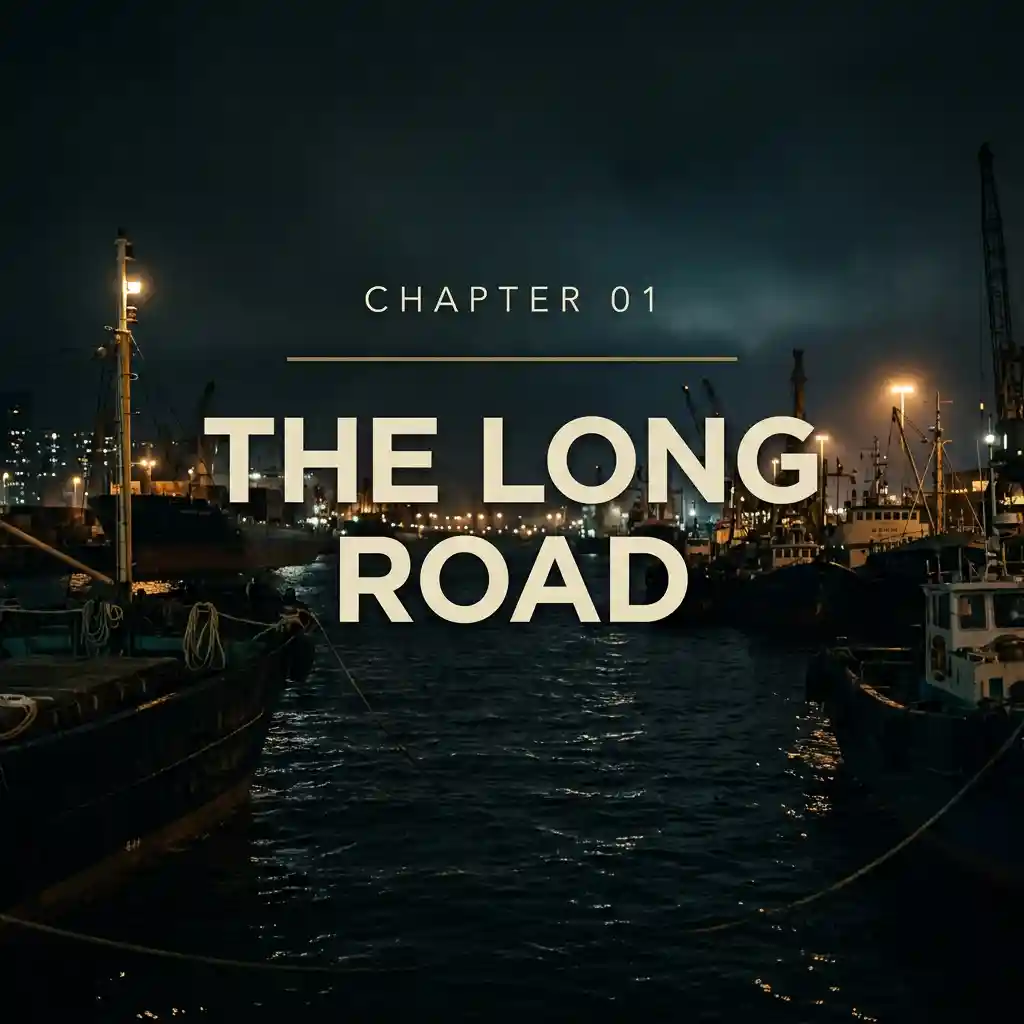
Six Fusion chapter titles for DaVinci Resolve. Chapter card, quote, location, scene slug and credits. Resolve 18 and 19. No plugin.
Go Pro To DownloadFreeVisuals Pro chapter kit for DaVinci Resolve. Six Fusion titles for documentary, travel and short film edits: chapter card, act break, quote, location and date, scene slug, and credit card. Warm off-white type. Thin brass rule. No plugin.
This is not the red creator-title pack. That one is for hooks and subscribe tags. This one is for section cards. You download the ZIP from files.freevisuals.net after a Pro Single Pass, Monthly or Yearly plan.
Six .setting titles. Copy them into the Resolve Titles folder. Restart. Drag from Effects Library > Titles. Edit the words in the Inspector. Use the chapter card at the start of a section. Use the location bug on travel. Use the credit card at the end, one clip per role.
Each file is a Fusion title. Change the words in the Edit page Inspector. Open Fusion only if you want to rebuild the layout.
Mac: ~/Library/Application Support/Blackmagic Design/DaVinci Resolve/Fusion/Templates/Edit/Titles/
Windows: %APPDATA%\Blackmagic Design\DaVinci Resolve\Support\Fusion\Templates\Edit\Titles\
If the names do not appear, the files are in the wrong folder or Resolve was still open. Titles live under Fusion/Templates/Edit/Titles, not under Macros.
Folder path walkthrough: Saving Title Templates in DaVinci Resolve via Fusion with Macros. That video is the install path. It is not this pack.
Hold a frame or a black slug for three to five seconds. Type the number in Chapter Number. Keep the title under four words. If it wraps, drop Title Size before you shrink the number.
Use once, at the midpoint. Centre it. Do not stack it on the chapter card. One section card per cut point.
One sentence. Credit is a source, a name, or FIELD NOTE. A quote that runs three lines stops reading as a title.
Place on the top line. Date under it. On 9:16, nudge both down so they clear the platform UI. Do not put a full address in Place.
Screenplay style. INT or EXT, place, time. Lower left. Leave it on for two seconds, then cut it.
Duplicate the title clip for each role. Role on top, name under the rule. DIRECTED BY, then YOUR NAME. Next clip: EDITED BY. Do not paste a full credit roll into one field.
Fusion Edit Titles. Resolve 18 and 19. Free Resolve is enough. No OFX. No paid Fusion plugin.
Timeline size follows the project. A 1920x1080 timeline and a 1080x1920 timeline both work. Check position after you switch aspect.
Default font is Open Sans. If it is missing, pick any serif or clean sans in Font. Do not leave a missing-font box on screen.
It is not a 3D logo reveal. It is not a speed-ramp transition. It is not the red subscribe pack. If you need a MotionVFX camera move or an Envato opener, use the premium list on DaVinci Resolve templates. Those open on Envato, Artlist, Motion Array, Motion Elements or MotionVFX. Partner licence, not this ZIP.
Need a hook and a subscribe tag as well: use Pro Clean Creator Titles for DaVinci Resolve. Different look. Do not mix the brass rule and the red bar in the same five seconds.
Grade the cut with a Pro LUT from Premium LUTs. Travel and doc work sits well on a warm or film-grit grade, not a neon pack.
Music under the chapter card: Artlist or Epidemic Sound. Bigger Resolve openers after this pack: Envato, Motion Array or MotionVFX.
Do not drag these .setting files into Premiere or CapCut. They are Fusion titles.
The free row on DaVinci Resolve templates has titles you can try without Pro. This pack is owned. One ZIP. Same six cards every film so the series looks like one show.
Pro Monthly and Yearly unlock this pack plus other Pro rows. Single Pass unlocks this ZIP only. Affiliate packs on the same page do not unlock with Pro.
Install the six files once. Do not recopy them from the ZIP every upload. Make a Resolve project preset with the location bug on track 3 and a chapter card at the first marker. Duplicate that project for the next film. Change only the words.
Batch one long cut, pull three Shorts, and keep the same chapter card. Change the title. Do not swap to a neon lower third mid-series.
FreeVisuals Pro. Personal and commercial use, including monetised YouTube, client work and paid social. No attribution. Do not resell the .setting files. Do not upload them to another stock site. Terms: Terms of Service.
Yes. Fusion titles do not need Studio.
No.
Yes. Switch the timeline to 1080x1920 and check position. The location bug may sit under Shorts UI if you leave the default.
Wrong folder or Resolve was not restarted. Confirm the path in the readme.
The rule is baked into the Fusion graph. Open the title in Fusion if you need a different colour. The Inspector on the Edit page changes the words and type size.
No. Fusion .setting only.
No. That pack is hook, lower third, end card and subscribe tag. This pack is chapter, act, quote, location, scene slug and credit.
Pick the chapter card and the location bug and keep them for the series. Change only the words. A film that swaps title packs every chapter looks unfinished.
Download once. Store the ZIP on your drive. When FreeVisuals revises the pack, replace the six files and keep any custom Fusion versions in a side folder.
Search terms this page should earn: DaVinci Resolve chapter title, Resolve documentary titles, Fusion quote card, film credit template Resolve. That is why the H1 stays on film chapter kit and Resolve.
Related: DaVinci Resolve templates, Premium LUTs, free DaVinci Resolve presets.
Affiliate Disclosure: Some links on this page may be affiliate links. If you make a purchase through one of these links, FreeVisuals may earn a commission at no extra cost to you. We only recommend products and platforms we genuinely believe in. Read our full disclosure policy.
Download free video templates, LUTs, and presets for Premiere Pro, After Effects, DaVinci Resolve, CapCut, and Final Cut Pro.
%20Profile%20Pic.jpg)