.avif)
Freevisuals
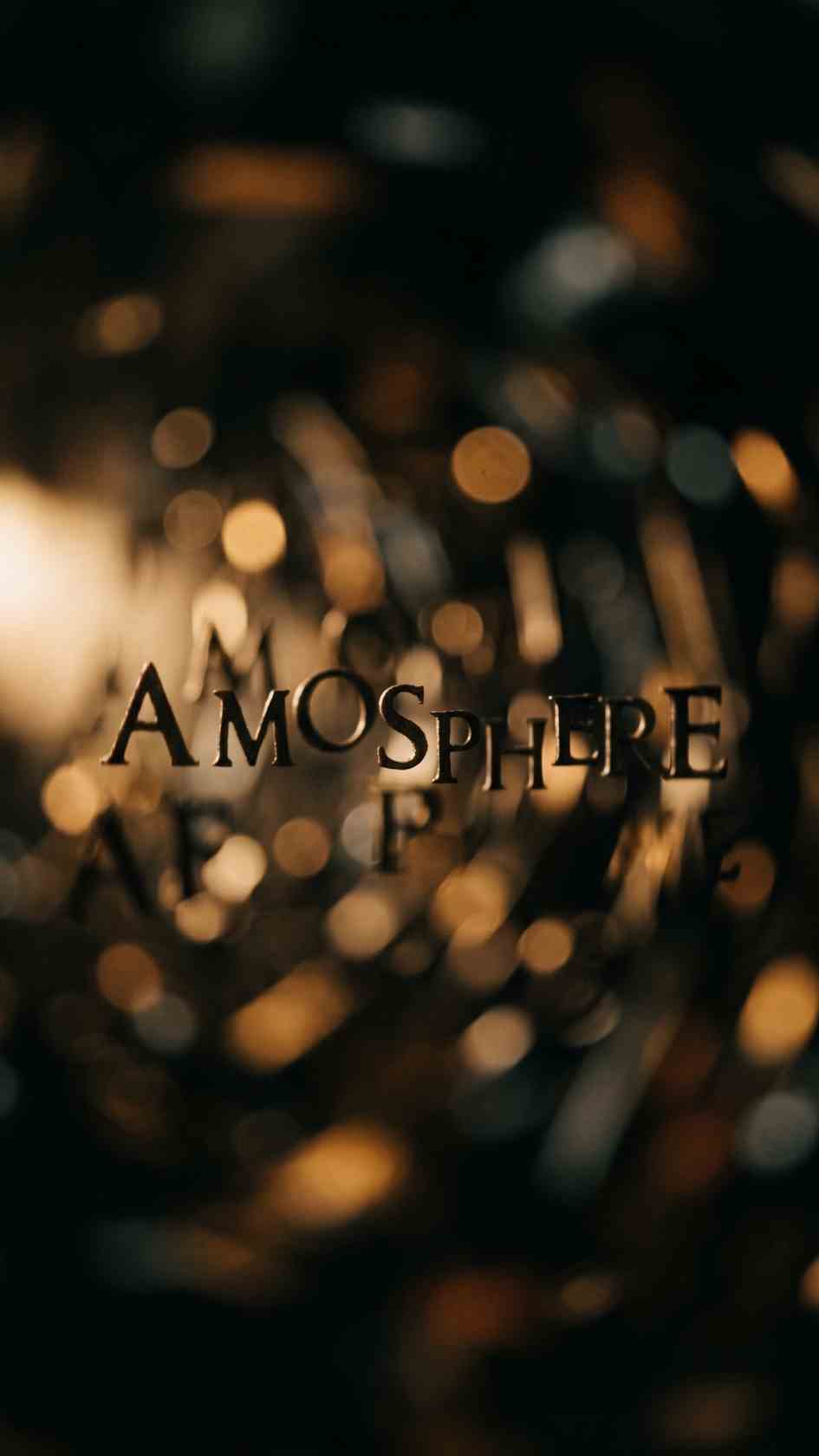
Simple Blur Text Reveal Intro, a cinematic blur based text reveal After Effects template. Free download on MotionElements for clean edits.
Download FREEGo Pro To DownloadDownload NOW!A blurred text reveal occupies a genuinely useful middle ground between a plain, static text fade and a more elaborate, attention grabbing animation, soft enough to feel understated and cinematic, distinct enough to still register as a deliberate creative choice rather than a default fallback. Simple Blur Text Reveal Intro, available through MotionElements, is built specifically around this effect, giving editors a ready made version of one of the more consistently requested text animation styles without needing to hand build the underlying blur and focus mechanics from scratch.
If you're building this into a larger opener or title sequence, our Easy Ease tutorial is genuinely worth reading, since a properly eased blur transition reads considerably more natural than one left on default linear timing. For music with the kind of calm, cinematic quality that pairs naturally with a soft blur reveal, Artlist carries a genuinely strong catalogue well suited to this exact tone.
Exact resolution, precise duration, and file size were not independently confirmed at the time of writing since MotionElements' listing pages require JavaScript to load full specifications. Confirm these specific details directly on the live product page before finalizing a project around exact delivery requirements.
The specific appeal of a blur based text reveal comes down to how closely it mimics an actual camera focus pull, a genuinely familiar visual language borrowed directly from cinematography rather than something purely native to motion graphics. When text resolves from soft, out of focus blur into sharp clarity, it reads to a viewer's eye almost identically to a camera lens racking focus onto a real subject, lending the moment a sense of intentional, considered pacing that a simple fade or slide reveal doesn't naturally carry with it.
This effect also happens to be genuinely well suited to understated, professional content specifically, since it draws attention without resorting to anything flashy or attention seeking, making it a reliable choice for projects wanting polish and restraint over high energy visual impact.
Head to the MotionElements download page and grab the project files.
Open the .aep file directly in After Effects and allow the project to fully load.
Find the primary text layer within the composition and review how the existing blur animation has been structured before making changes.
Double click into the text layer and replace the existing copy with your own, keeping your replacement text reasonably close in length to the original for the cleanest possible result.
If the default blur amount feels too subtle or too heavy for your specific footage or brand, adjust the relevant blur effect values directly within the Effect Controls panel.
Review the specific keyframe timing controlling how quickly your text resolves from blurred to sharp, adjusting if your particular project's pacing calls for something slightly faster or slower.
Use RAM Preview to confirm your finished text reveal reads clearly and at an appropriate pace before finalizing.
Bring your finished title into your main project timeline, position it appropriately, and render using your standard export settings.
For a genuinely useful walkthrough of building this exact style of blur based text reveal from scratch, watch Create Blur Text Reveal In After Effects, Easy Text Motion Graphics Animation. This is worth watching specifically because it covers the underlying mechanics this style of reveal actually depends on, applying a Blur animator to your text through the Animate menu, setting the Shape option to Ramp Up for a genuinely smooth, gradual resolve, and optionally toggling Randomize Order for a less mechanically uniform character by character reveal. Understanding this underlying technique gives you real confidence adjusting this template's existing setup, or building your own custom variation once you've worked through it.
The understated, cinematic quality of a blur reveal suits documentary and interview content wanting a considered, unhurried opening moment.
Professional content benefits from this reveal's restraint, communicating polish without resorting to anything visually loud or attention seeking.
The soft, romantic quality of a focus pull style reveal pairs naturally with wedding and event content wanting an emotionally considered opening title.
Creative professionals wanting their own reel to open with genuine polish benefit from this reveal's cinematic, deliberate pacing.
Long form content benefits from an opening title that sets a considered, unhurried tone right from the very first moment.
It's worth understanding why a blur reveal genuinely earns its place alongside the more common simple opacity fade, rather than treating the two as interchangeable. A fade communicates presence, text simply becomes visible over time, while a blur reveal communicates focus, drawing a viewer's eye specifically toward the moment of clarity in a way that feels considerably more deliberate and cinematic. For projects wanting genuine visual sophistication without the complexity of a fully custom built kinetic typography sequence, a blur reveal offers a meaningfully more polished result than a plain fade while remaining considerably simpler to build and adjust than more elaborate animation styles.
Using an excessively heavy blur that renders text briefly unreadable even at its intended peak clarity. Always confirm your text reaches genuinely full sharpness at the end of its reveal, not just a reduced blur amount.
Applying this effect to text that's already competing with a busy, high detail background. The blur reveal's understated quality reads best against a relatively calm, uncluttered background.
Rushing the reveal's timing to fit an overly tight edit. This effect specifically depends on unhurried pacing to achieve its intended cinematic quality.
Forgetting to check legibility at your actual final delivery resolution and size. Confirm the fully resolved, sharp text remains clearly readable once scaled to your genuine intended playback context.
Beyond its use as a pure opening title, a blur reveal style also works effectively as a transitional device further within a longer piece of content, marking a genuine shift in tone or topic, a chapter break within a documentary, or a moment of reflection within an interview. Using the same visual language consistently throughout a single piece of content, rather than only at the very opening, reinforces its meaning as a genuine signal to the viewer, this is a considered, deliberate moment, rather than treating it purely as a one time opening flourish never referenced again for the remainder of the video.
This kind of consistent, intentional reuse throughout a longer piece tends to produce a more cohesive, professionally considered final result than treating a specific visual effect as disposable after its first single use within an opening title alone.
A blur reveal works particularly well as the opening beat within a slightly longer title sequence, resolving into sharp focus before a secondary supporting element, a subtitle, a logo, or additional context text, appears afterward using a different, complementary animation style. This kind of layered sequencing, rather than relying on the blur reveal alone to carry an entire opening title moment, tends to produce a considerably more polished, professionally paced result than a single isolated effect used in complete isolation.
As with any MotionElements asset, reviewing the current license terms before using this template within paid client or commercial work is worth doing upfront, particularly for wedding, corporate, and brand video work where licensing requirements can carry genuine weight. Confirming your specific intended use case is properly covered protects both your own business and gives your client real confidence in the assets underlying their finished deliverable.
This is a worthwhile step to build into your regular workflow, particularly for editors working across multiple client projects where this specific template becomes a recurring part of your standard opening title toolkit.
It typically uses a Blur text animator applied through After Effects' Animate menu, with the Shape option set to Ramp Up for a smooth, gradual resolve from blurred to sharp.
Documentary, corporate, wedding, and portfolio content generally benefit most from its understated, cinematic quality.
Yes, blur intensity is typically adjustable directly within the Effect Controls panel to suit your specific text size and project needs.
Not ideally, this reveal's genuine appeal depends on unhurried pacing, so it suits calmer, more considered edits better than rapid, high tempo cuts.
Yes, it works particularly well as an opening beat within a slightly longer title sequence, followed by a complementary secondary element using a different animation style.
Affiliate Disclosure: This post may contain affiliate links. If you make a purchase through one of these links, FreeVisuals may earn a commission at no extra cost to you. We only recommend products and platforms we genuinely believe in. Read our full disclosure policy.

Download free video templates, LUTs, and presets for Premiere Pro, After Effects, DaVinci Resolve, CapCut, and Final Cut Pro.