.avif)
Freevisuals
The AEJuice Pack Manager is the one piece of software that makes the entire AEJuice library work. Every pack, every free plugin, every transition and title template you download from AEJuice runs through the Pack Manager. But most editors install it once, click around briefly, and then only scratch the surface of what it can actually do. This guide covers the full setup process, every key feature worth knowing, how to get the most out of the free packs without spending anything, and the workflow techniques that make the Pack Manager a genuinely fast tool rather than just a library browser.
If you have not yet explored the wider AEJuice ecosystem, our AEJuice review covers the full library, the I Want It All Bundle, and how AEJuice compares to alternatives like Motion Array and Envato Elements. This post focuses specifically on the Pack Manager itself , how to install it, how it works, and how to get the most out of it in a real editing workflow.
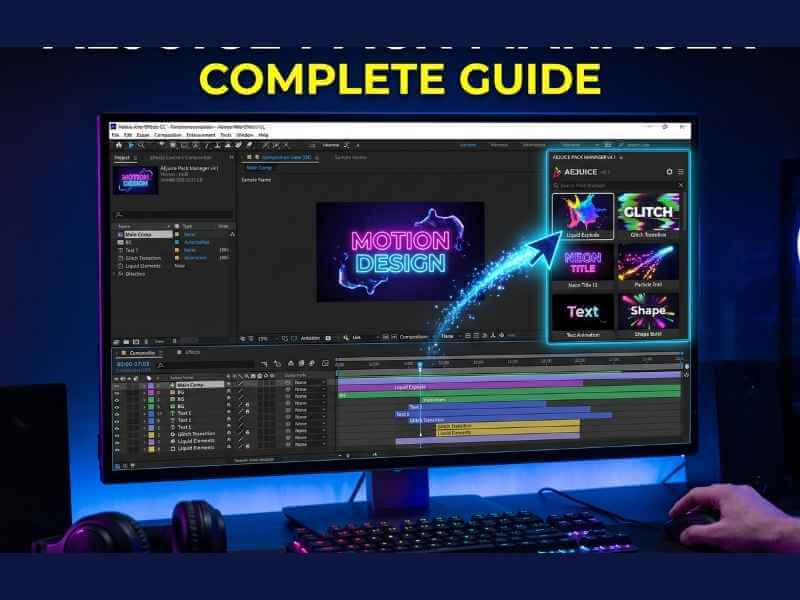
The Pack Manager is a free plugin that installs inside Adobe After Effects and Adobe Premiere Pro and acts as a browser and manager for all AEJuice content. It is a free plugin and comes with a default Starter Pack and sound effects library, as well as the ability to import and manage your own assets inside After Effects and Premiere Pro. Think of it as a dedicated panel inside your editor that gives you one-click access to every AEJuice asset you own or have downloaded for free, without ever leaving your editing software or digging through folders on your hard drive.
The Pack Manager is not just a shortcut to AEJuice's library. It also handles a set of technical tasks that would otherwise slow you down significantly: it auto-resizes animations to match your composition dimensions, it auto-installs any fonts used in text templates, and it lets you preview assets with live thumbnails before downloading or applying them. These three features alone eliminate a significant amount of friction from the standard third-party asset workflow where you download, unzip, import, resize, install fonts, and then realise the asset does not suit the project anyway.
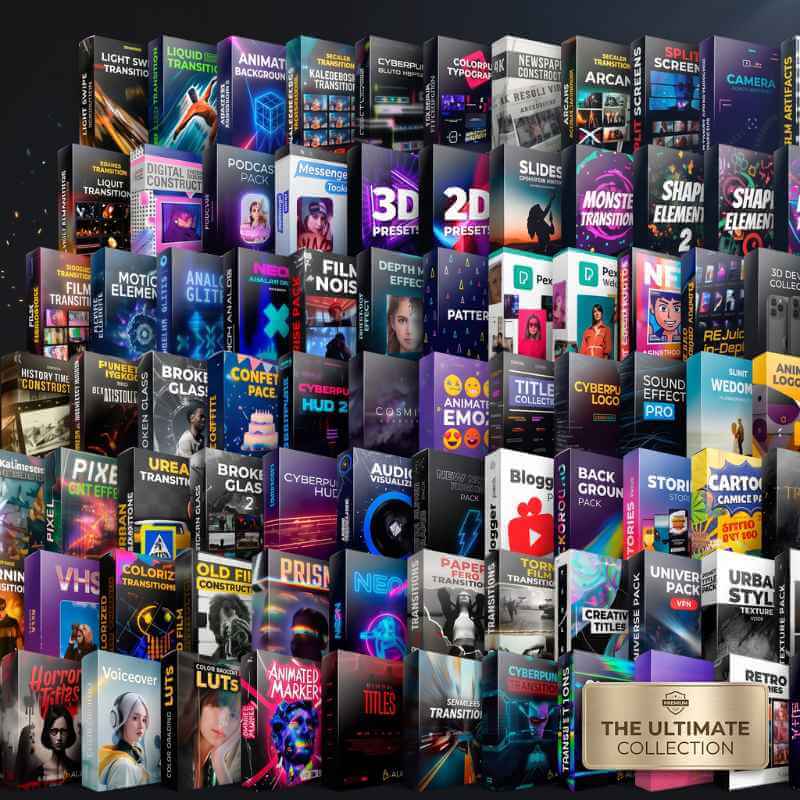
AEJuice products blend tens of thousands of animations and effects, covering icons, titles, transitions, GIFs, video overlays, Instagram stories, presets, text animations, logotypes, slideshows, and more, all with drag-and-drop functionality and customisable options. The Pack Manager is the interface through which all of that is accessed and applied.
The Pack Manager is compatible with After Effects CC 2019 and later, Premiere Pro CC 2019 and later, and Final Cut Pro. There is also a standalone version for editors who need assets outside of a specific editing application. All versions are free to download regardless of whether you have a paid AEJuice account.
Here is the official installation walkthrough before we go into the full feature breakdown:
Watch on YouTube: How to Install AEJuice Pack Manager
The installation process is straightforward but there are a few points worth knowing before you start, particularly around the order of steps and what to do if After Effects is not detected automatically.
The installer needs both applications to be fully closed before it can write to the correct plugin directories. If either is still running when you start the installer, the Pack Manager will not be detected when you reopen your editor. Force quit both applications rather than just minimising them.
Download and run the installer from the AEJuice website for Windows or macOS. Follow the installation steps, accept the terms of the EULA by checking the appropriate box, and then click Next. The installer will scan for Adobe applications automatically and present a list of detected programs. Check the boxes next to After Effects and Premiere Pro to install the Pack Manager for both simultaneously.
If you do not see your program listed, it means that it is installed in a non-standard location and you have to locate it manually. Click on Select AE folder manually, choose the file location, and press OK. On Windows the standard After Effects location is C:\Program Files\Adobe\Adobe After Effects [version]\Support Files\Plug-ins. On Mac it is /Applications/Adobe After Effects [version]/Plug-ins/. If you have moved your Adobe applications to a different drive or folder, you will need to point the installer to the correct location manually.
In After Effects, go to Window and select AEJuice Pack Manager. In Premiere Pro, go to Window, then Extensions, then AEJuice Pack Manager. If the Pack Manager does not appear under these menus, close the application and run the installer again, checking that the correct application folder was selected during installation.
The Pack Manager requires an AEJuice account to access the library, but the account itself is free. Click the account icon in the Pack Manager panel and sign in or create a new account. Once logged in, your free packs including the Starter Pack will appear in the library immediately. If you have purchased paid packs, click Refresh Purchases to load them.
Standalone version. The standalone version works without After Effects or Premiere Pro open. Click on the AEJuice icon in the taskbar or search for AEJuice Pack Manager Standalone. This is useful for previewing assets and planning your edit before opening your editing software, or for editors who work in Final Cut Pro or other applications where the Pack Manager panel integration is not available.
Once the Pack Manager is open inside After Effects or Premiere Pro, the interface has five main areas worth understanding. Knowing what each area does saves a significant amount of time compared to clicking around and discovering features accidentally.
The search bar. Searches across everything you have access to, including free packs and any purchased packs. Search is keyword-based and covers asset names, pack names, and categories. Typing "liquid" returns every liquid-style element across all your packs in one view, regardless of which specific pack each element belongs to. This cross-pack search is one of the most useful features in the Pack Manager because it means you do not need to remember which specific pack a particular asset lives in , you just search for the type of asset you need.
The category filter. Filters assets by type: Transitions, Titles, VFX, Lower Thirds, Sound Effects, Presets, LUTs, and others. Combined with the search bar, the category filter lets you narrow results quickly. Searching "neon" with the Titles filter active returns only neon-style title animations, not VFX or transitions that also happen to have neon elements.
The asset preview grid. Shows thumbnail previews of every asset matching your current search and filter settings. Clicking any thumbnail plays a short preview animation directly in the Pack Manager panel so you can evaluate the asset before downloading or applying it. This is the auto-preview feature that eliminates the download, import, and check cycle that wastes time with most third-party asset libraries.
The download and apply buttons. Once you have found the asset you want, you can either download it to your library for later use or drag it directly onto your composition timeline to apply it immediately. Drag-and-drop application is the fastest workflow for assets you have already decided to use , the Pack Manager applies the asset, auto-resizes it to your composition dimensions, and auto-installs any required fonts in a single step.
The account and settings panel. Access your account, refresh purchases, manage your personal library (covered below), and adjust Pack Manager settings including download location and preview quality. The download location setting is worth configuring early if you work across multiple drives or want to keep AEJuice assets in a specific project folder structure.
The AEJuice Starter Pack is what most editors encounter first and it is a genuinely useful set of over 100 free assets covering the most common After Effects use cases. The Starter Pack contains liquid and shape elements, liquid transitions, slides for slideshows, simple transitions, flat icons, and UI elements. Beyond the Starter Pack, AEJuice currently offers 26 free packs in total through the Pack Manager, covering additional categories that the Starter Pack does not include.
The free packs worth downloading immediately after installation, in order of practical usefulness for most content creators:
The foundation. Over 100 assets covering liquid elements, transitions, icons, and UI elements. Compatible with After Effects CC 2019 and later and Premiere Pro CC 2022 and later. Download this first , it covers the most common use cases and gives you a realistic sense of how the Pack Manager workflow feels before committing to paid packs.
26 free sound effects covering whooshes, impacts, UI sounds, and transitions. Having sound effects integrated directly into the Pack Manager alongside your visual assets means you can preview and apply audio elements from the same panel as your motion graphics, which is faster than managing audio assets separately in a different application or folder. Pair the free SFX with our own Free Whoosh Transition SFX Pack and Epidemic Sound for a complete free audio toolkit.
Generates captions automatically from your audio track inside After Effects, removing the need to manually type or sync subtitles. For YouTube, Reels, and TikTok content where captions are standard practice, this free tool saves significant time per video. The captions render as editable text layers so you retain full control over styling and positioning.
Exports compositions directly to GIF format without going through Photoshop as an intermediate step. Renders directly from After Effects with control over quality, framerate, alpha channels, and loop settings. For designers creating animated GIFs for web use, email marketing, or social media, this is one of the most practically useful free tools in the Pack Manager library. We have a full guide on exporting GIFs from After Effects using AEJuice if you want the step-by-step workflow.
Generates AI voiceover from typed text inside After Effects using a selection of natural-sounding voices. For faceless YouTube content and explainer videos, this removes the need to switch to a separate voiceover application for basic narration. For image upscaling needs beyond what AEJuice's tools cover, Magnific AI produces exceptional detail enhancement results for creators who need print or 4K quality upscaling. For higher quality AI voiceover with a wider range of voices and more natural output, ElevenLabs is the strongest dedicated option , the free tier includes 10,000 characters per month and produces noticeably more natural results for professional content.
A separate free pack from the original Starter Pack, focused specifically on visual effects elements including fire, smoke, explosions, energy bursts, and particle effects. All elements are pre-rendered with alpha channels for Screen or Add blending mode application. Compatible with After Effects, Premiere Pro, Final Cut Pro, and DaVinci Resolve. Pair these with our free Smoky Swirling Overlays and Pink Fire Embers from FreeVisuals for a complete free VFX overlay set.
To download any free pack, open the Pack Manager, click on Free Packs in the navigation, select the pack you want, and click Download. All 26 free packs are accessible without entering payment details.
Download All 26 Free AEJuice Plugins
Auto-resize is the Pack Manager feature that makes the biggest practical difference to editing speed and it is the one most editors do not think about explicitly until they have used it a few times.
When you drag an AEJuice animation from the Pack Manager onto your composition timeline, the Pack Manager automatically resizes the animation to match your composition dimensions. This works regardless of your composition size , 1920x1080, 3840x2160, 1080x1920 for vertical content, or any custom size you are working in. The animation scales proportionally and applies without any manual resize step required.
The practical implication of this is significant. If you are producing content across multiple aspect ratios , a YouTube 16:9 cut, a Reels 9:16 cut, and a square 1:1 cut of the same content , you can apply the same AEJuice assets across all three compositions without manually resizing each element for each format. The Pack Manager handles it automatically every time.
Auto-resize works on transitions, titles, lower thirds, and most other animation types in the library. The only exception is assets that are specifically designed for a fixed aspect ratio by their creator , these are noted in the individual pack documentation.
The personal library is one of the Pack Manager's most underused features and one of the most useful for editors who work on recurring projects or want a single consistent asset management system.
The personal library lets you add your own compositions, animations, and assets to a custom pack that sits alongside your AEJuice content inside the Pack Manager panel. This means the Pack Manager becomes a general asset management tool for your own work, not just a browser for AEJuice products.
Practical applications for the personal library:
Brand asset packs. Add your client's logo animations, branded lower thirds, and recurring motion graphics to a personal pack named after the client. Every time you work on that client's content, your branded assets are one click away in the same panel where you access your transitions and titles. This is significantly faster than navigating to a project folder each time.
Frequently used compositions. Any composition you build from scratch and reuse across multiple projects , a specific title card style, a recurring end screen layout, a particular transition you built , can be added to your personal library and accessed from the Pack Manager alongside your AEJuice content.
Template packs. If you use Motion Array templates, Envato Elements templates, or our own free After Effects templates, you can import frequently used templates into your personal Pack Manager library for faster access rather than importing them from disk each time.
To add an asset to your personal library, right-click the composition or asset in After Effects and select Add to Pack Manager, or drag it directly into the Pack Manager panel's personal library section.
%20(800%20x%20600%20px).jpg)
These are the specific workflow habits that make a meaningful difference to editing speed when using the Pack Manager regularly.
Use the search bar before browsing. The Pack Manager's cross-pack search is significantly faster than browsing category by category, especially once you have multiple paid packs installed alongside the free packs. If you need a specific type of asset, type the keyword and filter by category rather than opening packs one at a time. The more specific your search term the faster you will find the right asset , "liquid blue" finds a narrower result set than just "liquid."
Preview before downloading. Every asset in the Pack Manager has a thumbnail preview that plays on hover or click before any download occurs. Make it a habit to preview three to five options before deciding which asset to use rather than downloading the first result that looks approximately right. The few seconds this takes consistently produces better results than the download, apply, and undo cycle.
Keep the Starter Pack active as your foundation. The Starter Pack's liquid elements, simple transitions, and flat icons cover the most common motion graphics use cases in a style that works across almost any type of content. For editors who want access to more specialised packs without immediately committing to the I Want It All Bundle, the Starter Pack paired with two or three specific paid packs for your most common content types covers the majority of real editing scenarios.
Apply at the correct layer position. When dragging a transition from the Pack Manager onto your timeline, make sure your playhead is positioned at the cut point between two clips before applying. The Pack Manager places the transition at the current playhead position , if the playhead is not exactly at the cut, the transition will not be aligned to the edit point and you will need to manually adjust the timing afterward.
Use the Pack Manager for sound design alongside visual assets. The sound effects packs in the Pack Manager can be applied using the same drag-and-drop workflow as visual assets. Applying a whoosh or impact sound from the Pack Manager at the same time as the corresponding visual transition , both from the same panel , is significantly faster than managing audio assets separately in a different application or folder. Combine with our free sound effects collection for a broader audio library.
Save Pack Manager presets for recurring settings. If you frequently work with a specific combination of assets, Pack Manager lets you save preset configurations that restore your preferred search filters, category selections, and library views. For editors who work on specific content types regularly , YouTube tutorials, social media ads, event videos , saving a preset for each content type reduces the setup time at the start of each editing session.
Here is a video review of the AEJuice suite of products that will give a good view of their many offerings.
The free packs in the Pack Manager cover a lot of ground but the full AEJuice library runs to over 30,000 assets across 131 packs. The I Want It All Bundle gives you access to the entire paid library in one purchase rather than buying individual packs. Whether it is worth the upgrade depends on how frequently you use the Pack Manager and what types of projects you work on.
The upgrade is worth it for editors who find themselves repeatedly wanting an asset type that is not covered by the free packs , specific title styles, specialised VFX categories, or niche transition types that the Starter Pack does not include. If you are regularly buying individual packs every few months, the Bundle's one-time lifetime pricing typically works out cheaper within the first year than buying packs individually.
It is not worth it for editors who use the Pack Manager infrequently or whose content needs are fully covered by the free Starter Pack. The breadth of the Bundle is its main selling point , 30,000 plus assets across 300 categories , and that breadth only adds value if you are actually working across a wide enough range of content types to need it.
AEJuice runs regular sales on the Bundle, particularly around Black Friday and major holidays, where the lifetime price is significantly reduced from the standard price. Get 10% off any AEJuice purchase through the FreeVisuals link: Get 10% Off AEJuice.
For a detailed breakdown of what the Bundle includes and whether it suits your specific workflow, read our full AEJuice review and our guide to the top AEJuice bundles.
The Pack Manager's integrated workflow is AEJuice's main competitive advantage over other asset libraries. The comparison with the major alternatives is worth understanding before deciding where to invest your asset budget.
AEJuice vs Motion Array. Motion Array is a broader library covering templates, stock footage, music, sound effects, and plugins for Premiere Pro, After Effects, DaVinci Resolve, and Final Cut Pro on a subscription model. AEJuice is deeper on motion graphics specifically , more transitions, more animation types, more VFX options , but does not include stock footage or music. Get 2 months free on Motion Array through FreeVisuals. Read our full Motion Array review for a detailed comparison.
AEJuice vs Envato Elements. Envato Elements at $16.50 per month gives you unlimited downloads across 26 million plus files covering templates, stock footage, music, fonts, and graphics. AEJuice's Pack Manager integration gives it a workflow advantage for editors who want assets directly inside their editor rather than downloaded separately. Envato has more breadth across asset types; AEJuice has more depth in motion graphics specifically with a faster in-editor workflow.
AEJuice vs Artlist. Artlist Max covers music, sound effects, stock footage, templates, LUTs, and AI tools under one subscription. AEJuice and Artlist serve different primary needs and many professional creators subscribe to both , AEJuice for motion graphics and plugins, Artlist for music and footage. Get 2 months free on Artlist through FreeVisuals.
For a broader free asset toolkit that complements AEJuice, FreeVisuals has free After Effects templates, LUTs, overlays, stock footage, music, and sound effects across all major editing platforms. Start with our free After Effects templates, free overlays, and free LUTs alongside your AEJuice free packs for a complete free motion graphics toolkit before upgrading to any paid tier.
For editors working with Filmora or Wondershare products rather than the Adobe suite, AEJuice's After Effects and Premiere Pro specific Pack Manager is less directly relevant, though the standalone version and some compatible assets work across other editors. CapCut editors working in the mobile-first space will find AEJuice's desktop-focused library less applicable to their workflow, though some exported AEJuice assets can be imported into CapCut projects as video files.
For stock imagery alongside your motion graphics, Shutterstock and iStock are the strongest licensed stock libraries for commercial content, covering the photography and footage categories that AEJuice does not address. MotionVFX is the strongest alternative for Final Cut Pro editors specifically, with a plugin and template library comparable to AEJuice in depth but built for the Apple editing ecosystem. And for AI video creation, InVideo AI and OpenArt AI cover the AI generation categories that AEJuice does not currently include. For royalty-free music, Epidemic Sound and MotionElements both offer strong catalogues that complement an AEJuice motion graphics workflow.
These are the most common issues editors run into after installing the Pack Manager and how to fix them quickly.
Pack Manager does not appear in the Window menu after installation. This almost always means After Effects or Premiere Pro was open during installation. Close both applications completely, run the installer again, and reopen your editor. If the issue persists, check that the installer was given administrator permissions on Windows or that you confirmed the security prompts on Mac.
Assets are downloading but not appearing in the timeline when dragged. This usually means the Pack Manager panel lost focus within After Effects. Click directly on the composition window to make it the active panel, then try dragging the asset again. The Pack Manager needs the composition to be the active focused window for drag-and-drop application to work correctly.
Auto-resize is not working and assets are applying at the wrong size. Check the Pack Manager settings panel for the auto-resize toggle and confirm it is enabled. If auto-resize is enabled but still not working, the issue may be that the asset you are applying has a fixed non-scalable design , check the individual pack documentation to confirm whether auto-resize is supported for that specific asset type.
Purchased packs are not appearing after logging in. Click the account icon in the Pack Manager panel and select Refresh Purchases. If the packs still do not appear, log out, close the Pack Manager panel, reopen it, and log in again. In rare cases a full reinstall of the Pack Manager resolves persistent authentication issues.
The Pack Manager is crashing After Effects on launch. This is almost always a conflict with another plugin installed in the same After Effects plug-ins folder. Try disabling other third-party plugins temporarily by moving them out of the plug-ins folder and restarting After Effects to confirm whether the Pack Manager launches correctly in isolation. If it does, reintroduce the other plugins one at a time to identify the conflict.
Yes. The Pack Manager plugin itself is completely free to download and use. It comes with the free Starter Pack containing over 100 assets and access to 26 free packs in total. A free AEJuice account is required to access the library but no payment details are needed for the free tier.
The Pack Manager works with Adobe After Effects CC 2019 and later, Adobe Premiere Pro CC 2019 and later, and Final Cut Pro. A standalone version is available for accessing assets outside of a specific editing application. It is not natively compatible with DaVinci Resolve or CapCut, though exported AEJuice assets can be imported into those editors as standard video files.
After installing the Pack Manager and creating a free AEJuice account, the Starter Pack appears automatically in your library. If it does not appear, click Refresh Purchases in the account panel. The Starter Pack is available to all accounts with no purchase required.
Yes. All AEJuice assets, including the free packs, are licensed for commercial use covering client work, monetised YouTube videos, social media content, and advertising. No per-project licence tracking is required.
The Pack Manager is the free plugin that manages and delivers AEJuice content inside your editor. The I Want It All Bundle is a paid product that unlocks the full AEJuice library of 30,000 plus assets across 131 packs. The Pack Manager is free regardless of whether you purchase the Bundle. The Bundle gives you access to a much larger content library through the same Pack Manager interface. Get 10% off the Bundle through FreeVisuals: Get 10% Off AEJuice.
Once an asset is downloaded to your local machine, it is available offline. The initial download requires an internet connection, and browsing the full library in the Pack Manager panel requires connectivity. Downloaded assets are stored locally and can be applied to projects without an internet connection after the initial download.
Right-click any composition in After Effects and select Add to Pack Manager, or use the personal library section in the Pack Manager panel to import assets from your local drive. The personal library is available to all users regardless of paid plan status and is one of the most useful features for editors who work on recurring projects or have existing custom asset libraries.
By default, downloaded assets are stored in a dedicated AEJuice folder within your system's application support directory. You can change the download location in the Pack Manager settings panel to point to a different drive or folder. Changing the download location is recommended for editors working with large asset libraries on systems where the main drive has limited space.
Get Started with AEJuice
Download the free Pack Manager and the Starter Pack to start using AEJuice inside After Effects or Premiere Pro at no cost. When you are ready to unlock the full library, get 10% off any AEJuice purchase through the FreeVisuals link.
Download Free AEJuice PluginsGet 10% Off AEJuiceFree After Effects Templates
.avif)
.avif)
.avif)
.avif)