.avif)
Freevisuals
Final Cut Pro's magnetic timeline makes assembly genuinely fast, but building titles, transitions, and lower thirds from scratch every single project still eats considerable editing time. Free templates solve exactly this, pre built, customizable Motion files you drop into your timeline and adjust rather than animate from zero. This guide covers exactly where to find genuinely good free templates, how installation actually works, and how to tell a well built free template from one that'll cause more frustration than it saves.
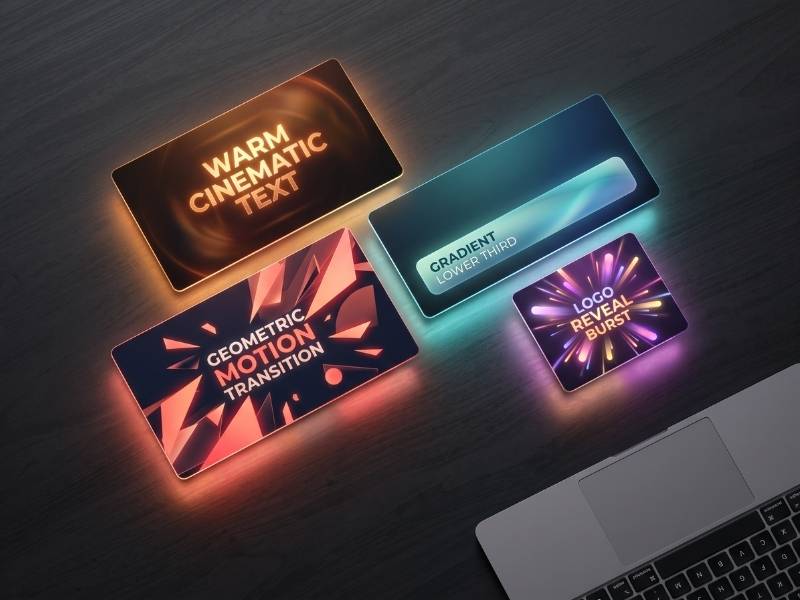
Free Final Cut Pro templates cover titles, transitions, lower thirds, intros, and slideshows, sourced from Motion Array, MotionVFX, Envato Elements, and Mixkit specifically, without requiring any paid subscription to access. This guide covers the strongest free sources, the exact folder structure Final Cut Pro requires for installation, common installation mistakes, and how free templates connect naturally to a paid plugin stack once your specific needs grow beyond what free options cover.
A Final Cut Pro template, more precisely called a Motion Template, is a pre built project file created in Apple's companion app Motion, containing customizable, published parameters you can adjust directly inside Final Cut Pro without ever opening Motion itself. Templates fall into four distinct categories that Final Cut Pro recognizes separately, Titles for text based overlays, Transitions for scene changes, Generators for backgrounds and full screen elements, and Effects for filters applied directly to existing clips. Understanding this categorization matters practically since it determines exactly where a specific downloaded template needs to be installed for Final Cut Pro to recognize it correctly.
Motion Array maintains a genuinely large, dedicated free template category specifically for Final Cut Pro, spanning slideshows, animated typography, social media templates, and logo reveals, all clearly organized and searchable rather than mixed in with paid content requiring a subscription to even preview. The site's filtering lets you narrow specifically by Final Cut Pro version compatibility, genuinely useful given how template compatibility can vary across different Final Cut Pro releases, and its interface makes browsing considerably more efficient than digging through a general search engine for scattered individual template downloads.
You can browse Motion Array's full template library, including both free and paid options, directly through this link.
MotionVFX's free offerings are considerably smaller in raw quantity compared to Motion Array's broad category, but what's available consistently reflects the same cinematic polish the company built its reputation on across its full paid catalog. mVertical specifically stands out among their free tools, converting landscape footage into vertical format for TikTok, Reels, or Shorts with three background options, cloning, blurring, or mirroring, a genuinely practical free tool for editors repurposing long form content into short form clips without paying for a dedicated conversion tool.
mExtension is also worth installing even before browsing MotionVFX's paid catalog, it's a dedicated Final Cut Pro extension providing direct, in app access to browse and preview both free and paid MotionVFX assets without leaving your timeline, considerably more convenient than switching between Final Cut Pro and a separate browser tab every time you want to check what's available. Explore MotionVFX's full catalog, including their free tools, directly through this link.

For a genuinely practical walkthrough of actually using motion templates once you've downloaded them, watch How To Use Motion Templates In Final Cut Pro. This is worth watching specifically because understanding how to properly save, organize, and apply templates within your actual project makes every free template covered in this guide considerably easier to work with in practice, rather than just downloading files and guessing at the workflow.
Envato Elements operates primarily as a subscription service, but genuinely worth knowing about specifically for its rotating selection of free Final Cut Pro templates offered each month at no cost, accessible simply by creating a free account without any subscription commitment required. This gives you a genuine, no risk way to test premium quality templates and get a real sense of whether a full subscription would be worth it for your specific ongoing needs, rather than committing to a paid plan before confirming the platform's actual template quality matches what you need.
Since the specific free selection changes monthly, checking back regularly rather than assuming a one time visit covers everything available genuinely pays off over time, particularly for editors building out a template library gradually rather than needing everything at once. Browse Envato Elements' current offerings, including free monthly picks, through this link.
Mixkit maintains a dedicated Final Cut Pro template section covering a genuinely solid range of practical basics, YouTube specific assets like subscribe notification bars and channel branding bars, lower thirds with broadcaster style text, simple logo reveal animations, and clean scene transitions. What genuinely differentiates Mixkit from most other sources covered in this guide is accessibility, no account creation is required at all, and downloads carry no watermark, making it a genuinely frictionless starting point specifically for editors who want to grab a template and start using it immediately without any signup step first.
MotionElements maintains a dedicated free section specifically for Final Cut Pro and Apple Motion templates, and what sets it apart from more Final Cut Pro exclusive sources is genuine cross platform compatibility, many templates work across multiple editing platforms rather than being locked specifically to Final Cut Pro alone. This is genuinely useful for editors who occasionally work across more than one editing platform, or who want assets that remain usable even if their primary software choice changes down the line.
This is genuinely the part that trips up new editors most often, and understanding it properly upfront avoids a considerable amount of frustration. Final Cut Pro looks for templates in a specific location, your Movies folder, inside a folder specifically named Motion Templates. If this folder doesn't already exist on your system, typically because Apple's companion app Motion has never been installed, you'll need to create it manually.
Open Finder, navigate to your Movies folder, and create a new folder named exactly Motion Templates.localized, the .localized extension is genuinely essential, it tells Final Cut Pro specifically to recognize and display this folder's contents inside its own interface, and this extension will disappear from view once the folder is created, this is entirely normal and not a sign anything went wrong. Inside that Motion Templates folder, you then need four further subfolders, also using the .localized extension, named specifically Effects.localized, Generators.localized, Titles.localized, and Transitions.localized, corresponding to Final Cut Pro's four recognized template categories.
Once this structure exists, installing any individual template becomes considerably simpler, download and unzip your chosen template, identify which of the four categories it belongs to based on its file extension, and drag the entire folder containing that template's Motion file and supporting assets into the matching subfolder. Restart Final Cut Pro afterward if a newly installed template doesn't immediately appear, this refreshes the app's awareness of your Motion Templates folder's current contents.
A frequent mistake involves misspelling or mistyping the required .localized extension on either the main Motion Templates folder or its four subfolders, Final Cut Pro is genuinely strict about this exact naming, and even a small typo prevents the app from recognizing the folder at all. Another common issue involves placing a template's individual files directly into a subfolder rather than the entire containing folder, templates typically include supporting assets alongside the main Motion file itself, small.png and large.png preview images, sometimes a dedicated Fonts or media folder, and moving only the Motion file itself while leaving these supporting assets behind can cause a template to appear broken or fail to preview correctly.
Forgetting to restart Final Cut Pro after installing a new template is a final common, easily fixed mistake, the app doesn't always detect newly added files while already running, and a simple restart resolves this in the overwhelming majority of cases without requiring any further troubleshooting.
For editors just starting to build a free template library, prioritizing a handful of genuinely versatile categories first gets you the most practical value before exploring more specific, niche options. Lower third templates are worth grabbing early specifically, since they're used across nearly every content type, interviews, tutorials, vlogs, and having a clean, professional option ready to go saves considerable time compared to building text overlays manually for every single project. A solid transition pack, even a small one covering basic fades, wipes, and slides, genuinely improves the perceived polish of your editing considerably more than most editors initially expect, since transitions are one of the most immediately noticeable elements viewers subconsciously register.
YouTube specific templates, subscribe bars, channel branding elements, and end screen templates, are genuinely worth prioritizing if you're building content specifically for that platform, since they directly support viewer actions, subscribing, watching another video, that meaningfully affect channel growth. Logo reveal templates round out a genuinely solid starter set, giving your content a consistent, recognizable opening across every video without needing a custom animated intro built from scratch for each individual project.
Free templates genuinely cover a considerable amount of what most editors need starting out, but it's worth recognizing honestly when your specific needs have outgrown what free sources reasonably offer. If you're finding yourself repeatedly searching for a specific style or effect that free sources simply don't have a genuinely good version of, or if you need a large, cohesive set of matching templates for a consistent brand identity across many videos rather than a handful of unrelated individual downloads, this is typically the point where a paid plugin stack, MotionVFX's paid packs specifically, genuinely starts paying for itself through the considerable time saved building a consistent, professional look manually with what free sources alone provide.
Since Final Cut Pro categorizes templates into four distinct types, understanding what genuinely separates them helps you both find the right template faster and correctly diagnose installation issues when something doesn't appear where expected. Titles specifically are text focused overlays, animated text reveals, lower thirds, and credit rolls, designed to sit on top of existing footage rather than replace it entirely. Generators, by contrast, create content from nothing, solid color backgrounds, animated patterns, or full screen graphic elements that don't require any underlying footage at all, genuinely useful for intro screens, outro cards, or any moment where you need a standalone visual rather than an overlay on existing video.
Transitions specifically govern how one clip changes into the next, wipes, dissolves, and more elaborate animated scene changes, applied at the junction between two clips on your timeline rather than to a single clip in isolation. Effects, the fourth category, modify existing footage directly, color adjustments, stylistic filters, and distortion effects that alter how a clip already on your timeline actually looks, rather than adding new visual elements on top of or between clips. Recognizing which category a specific creative need actually falls into before searching genuinely speeds up finding the right template, since browsing a source's Transitions section for something that's actually a Generator, or vice versa, wastes real time.
Not every free template is built to the same standard, and developing a genuine eye for quality before downloading saves you from installing something that ultimately causes more frustration than it saves. Checking a template's stated Final Cut Pro compatibility version before downloading is a genuinely important first step, older templates built for a significantly earlier Final Cut Pro version can occasionally behave unpredictably or fail to render correctly on current software, particularly ones that haven't been updated in several years.
Reading actual user reviews or comments where available, rather than relying purely on a template's preview thumbnail or demo video, gives you a considerably more honest sense of real world performance, preview footage is often shot under ideal conditions that don't necessarily reflect how a template actually performs with your own specific footage. Checking whether a template includes genuinely adjustable parameters, rather than a rigid, essentially fixed design with only superficial customization options, matters considerably for how much real creative flexibility you'll actually have once you start using it on an actual project rather than just admiring its preview.
As you accumulate templates from multiple different free sources over time, a genuinely organized Motion Templates folder structure becomes considerably more important than it might seem when you're just getting started with only a handful of downloads. Creating clearly named subfolders within each of the four main category folders, organized by source, by project type, or by visual style depending on what genuinely matches how you actually think while searching for the right template mid edit, saves considerable time scrolling through an increasingly long, undifferentiated list as your library grows.
Renaming individual template files to something genuinely descriptive, rather than leaving them with generic, sequential names like Title 01 or Transition 03 that don't actually describe what the template does or looks like, is a small habit that pays off considerably once you're choosing between dozens of installed options rather than just a handful. Periodically reviewing and removing templates you've genuinely never used, rather than letting every single download accumulate indefinitely, also keeps your actual working library focused and fast to navigate rather than bloated with options you never actually reach for in practice.
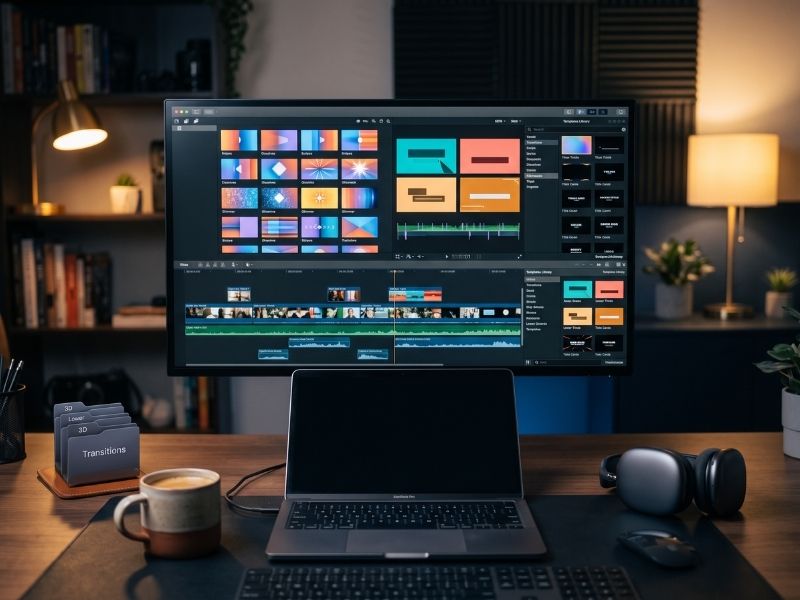
Once a template is properly installed and dragged onto your timeline, Final Cut Pro's Inspector panel is where the genuine customization work happens, published parameters specifically exposed by the template's original creator appear here, letting you adjust text, color, timing, and various other settings without needing Motion itself or any deeper technical editing skill. It's genuinely worth scrolling through every available parameter a template exposes rather than assuming the default settings are your only option, well built templates often include considerably more adjustable detail deeper in the parameter list than what's immediately visible at first glance.
For templates specifically involving text, checking font compatibility before relying heavily on a specific template is worth doing early, some templates require particular fonts that may not be installed on your specific system by default, and Final Cut Pro will typically flag this with a missing font warning, resolved simply by installing the specific font, often included in a dedicated Fonts folder alongside the template's other downloaded assets.
Since free templates come from several genuinely different sources with their own distinct visual styles, MotionVFX's more cinematic aesthetic differs meaningfully from Mixkit's simpler, more utilitarian look, deliberately choosing templates that share a genuinely coherent visual language matters if brand consistency across your content is a real priority rather than an afterthought. Rather than grabbing whatever specific template looks appealing in isolation, considering how a title template's font and animation style will actually sit alongside your chosen transition style and any lower thirds you're using together in the same project produces a considerably more polished, professional feeling final result than mixing dramatically different visual styles within one video.
This is particularly worth considering specifically for channels or brands publishing regularly, where viewers subconsciously build an expectation around your specific visual identity over time, a consistent template style across every upload reinforces genuine brand recognition in a way that constantly varying, mismatched template styles simply can't replicate regardless of how good any single template looks on its own.
A genuinely underused technique worth knowing, applying your own consistent color grade across footage before dropping in a free template, rather than treating the template's default appearance as fixed, considerably improves how well a free template actually blends with your specific content. Since free templates are built to look reasonable across a wide range of unknown footage by their original creators, they're rarely optimized specifically for your particular camera, lighting setup, or color style, applying your own grade first, then adding the template on top, genuinely closes that gap and makes even a simple free title or transition feel considerably more custom built for your specific project rather than an obviously generic download.
Our own free LUTs library pairs particularly well with this approach, apply a consistent look across your footage first, then layer free Final Cut Pro templates on top for titles, transitions, and lower thirds, giving you a genuinely cohesive final result built almost entirely from free resources without sacrificing a professional, intentional look.
While the overwhelming majority of free Final Cut Pro templates from established sources like Motion Array, MotionVFX, and Mixkit are genuinely cleared for commercial use without additional licensing fees, it's worth actually reading each specific source's stated license terms before using a free template in client facing or heavily monetized commercial work specifically, rather than simply assuming every free download automatically carries identical commercial rights. Some smaller, less established free template sources scattered across the wider web carry more restrictive terms, personal use only, or requiring attribution specifically, that are easy to overlook when a template is simply free to download with no obvious licensing information immediately visible.
For genuinely important client work specifically, sticking to well established, reputable sources with clearly stated commercial licensing terms, rather than an obscure, unfamiliar site offering a free template that looks appealing but provides no clear licensing information, is a reasonable, low effort precaution that avoids a genuinely awkward situation with a client down the line over unclear usage rights.
Yes, the overwhelming majority of free templates from Motion Array, MotionVFX, Mixkit, and MotionElements specifically are cleared for commercial use, though checking each individual source's specific license terms before publishing is always a reasonable precaution.
Most commonly, either the Motion Templates folder structure has a naming error, missing the .localized extension, or you simply need to restart Final Cut Pro for it to detect the newly added files.
No, Motion Templates are specifically designed to be used and customized entirely within Final Cut Pro itself, Motion is only needed if you want to build or deeply modify a template's underlying structure yourself.
Mixkit, specifically because it requires no account signup and carries no watermark, letting you download and start using a template immediately with zero friction.
Check the template's file extension after unzipping, this determines whether it belongs in your Effects, Generators, Titles, or Transitions subfolder specifically.
Free Final Cut Pro templates genuinely cover a considerable range of what most editors need, titles, transitions, lower thirds, and YouTube specific assets, sourced from Motion Array's broad selection, MotionVFX's consistently polished free tools, Envato Elements' rotating monthly picks, and Mixkit's frictionless, no account downloads. Understanding Final Cut Pro's exact required folder structure upfront avoids the most common installation frustrations, and recognizing honestly when your specific needs have genuinely outgrown free options is exactly when a paid plugin stack starts earning back its cost through real time saved.
Affiliate Disclosure: This post may contain affiliate links. If you make a purchase through one of these links, FreeVisuals may earn a commission at no extra cost to you. We only recommend products and platforms we genuinely believe in. Read our full disclosure policy.
.avif)
.avif)
.avif)
.avif)