.avif)
Freevisuals
We've covered InVideo's individual features, its version updates, and how it stacks up against Canva and Pictory elsewhere on the site, but one thing we haven't done yet is walk through the actual process of building a finished, publishable video with InVideo from a completely blank starting point. This post fills that gap directly, a genuine start to finish workflow covering everything from what to prepare before you even open the platform through to exporting a video that's actually ready to publish, along with the specific mistakes that separate a usable first draft from one you'll spend an hour fighting with.
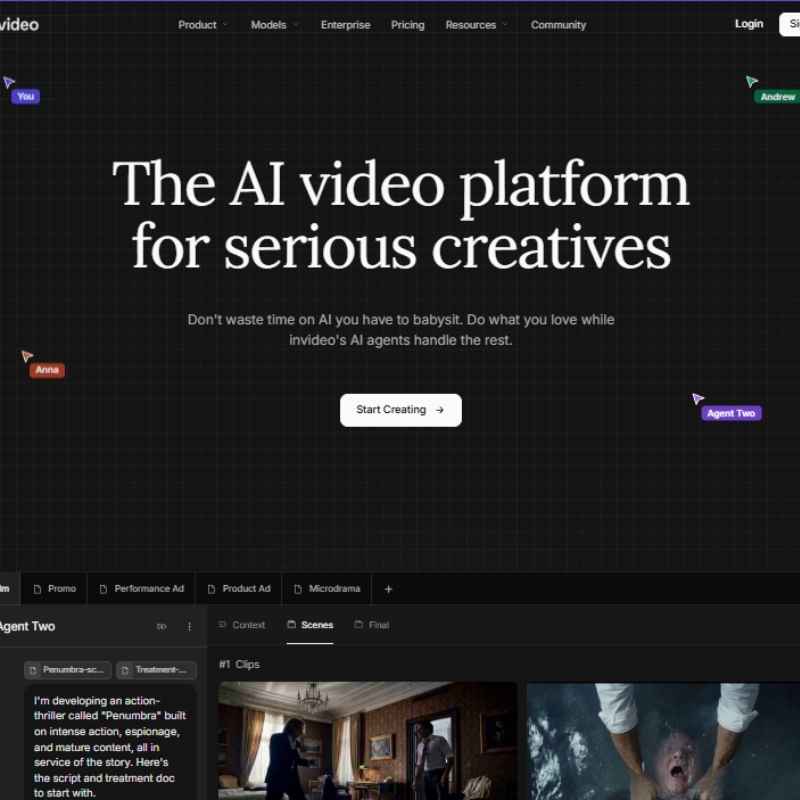
InVideo AI turns a short text prompt into a complete first draft video, script, stock footage, voiceover, music, and text overlays all generated automatically, which you then refine using a natural language command interface called the Magic Box rather than a traditional timeline editor. This post covers the two distinct products InVideo now offers, exactly what to prepare before you start, a full step by step walkthrough of the generation and editing process, a deep look at Magic Box commands and structured Workflows, current 2026 pricing, and the specific mistakes that separate a genuinely usable first draft from one that needs far more manual correction than necessary. It includes a real, current video walkthrough and answers to the questions creators ask most often before diving in.
Before doing anything else, it's worth clearing up a genuinely common point of confusion, since InVideo actually operates two distinct products under the same brand name, and mixing them up leads to real frustration. InVideo AI is the newer, prompt driven product this guide focuses on, where you describe the video you want in plain language and the platform generates a complete draft automatically. InVideo Studio is the older, traditional template based editor with a genuine timeline, closer in spirit to a simplified version of Premiere Pro or CapCut, where you build a video manually from pre made template pieces. These are genuinely separate products with separate pricing structures, and most new users in 2026 are steered toward InVideo AI specifically, since it represents where the company's ongoing development effort is concentrated. If you haven't tried either product yet, signing up for InVideo directly is the fastest way to see which one actually fits your workflow. This guide walks through InVideo AI's workflow specifically, though several of the underlying principles, particularly around preparation and export settings, apply equally well if you end up working within InVideo Studio instead.
The single biggest factor separating a genuinely usable first draft from one requiring extensive manual correction isn't anything you do inside the platform itself, it's how much preparation you've done before you even start typing a prompt. Spending ten minutes gathering the right information upfront routinely saves considerably more time than that during the editing phase. If you haven't created an account yet, our guide to accessing InVideo's free plan walks through getting set up before you start gathering the specifics below.
Start with your actual script or brief. This doesn't need to be a polished, finished script, even a single detailed paragraph describing what the video should cover works perfectly well, since InVideo AI can expand a rough brief into a full structured script on its own. What matters more is specificity, a vague prompt produces a vague, generic draft, while a detailed one produces something considerably closer to what you actually had in mind on the first attempt.
Next, gather your brand assets if this is genuinely branded content rather than a purely personal project. This means your logo saved as a PNG with a transparent background, your specific brand colors as hex codes rather than a vague description like blue, and the name of any font your brand consistently uses elsewhere. Having these ready to paste in immediately, rather than needing to pause mid workflow to dig them up, keeps your momentum going through the actual creation process.
Finally, get genuinely clear on your specific goal before you start, since this single decision affects several downstream settings automatically. Are you making a fifteen to thirty second vertical clip for Instagram Reels or TikTok, a ninety second landscape explainer for a website homepage, or a longer form YouTube video running several minutes? This choice determines your aspect ratio, your pacing, and reasonably influences how InVideo AI structures the script itself, since a thirty second script needs to hit its point immediately while a five minute video can afford a more gradual build.
With your preparation done, open InVideo AI and you'll land on a dashboard with a prompt box front and center. This is where you type your video topic, and the level of detail you include here genuinely determines how much editing you'll need to do afterward. A vague prompt like make a video about coffee produces a generic, unfocused result. A detailed prompt like create a sixty second Instagram Reel about the three most common mistakes home baristas make when brewing pour over coffee, upbeat and encouraging tone, aimed at coffee enthusiasts in their twenties and thirties gives InVideo AI genuinely enough specific direction to produce a first draft that requires meaningfully less correction.
Include your target audience, your intended platform, and your desired tone directly within the prompt itself rather than leaving these as afterthoughts to fix later. InVideo AI uses this information to inform not just the script content but also which stock footage it selects, how the voiceover is paced, and even which specific background music track it chooses from its library, so front loading this detail genuinely changes the quality of what comes back.
Once you submit your prompt, InVideo AI generates a complete first draft within a few minutes, arriving fully assembled with a structured script, relevant stock footage pulled from a library exceeding 16 million clips, a matching AI voiceover, background music, and text overlays all already in place. This draft opens in what InVideo calls Theatre mode, essentially a clean preview player showing your video as a finished piece rather than an editable timeline.
Before touching anything, watch the entire draft through once from start to finish without interrupting yourself to fix things as you notice them. This matters more than it might initially seem, since jumping straight into editing the first thing you notice often means you end up making several small, disconnected edits rather than identifying the two or three genuinely significant changes that would improve the video the most. Watching the full draft first gives you a genuine sense of overall pacing, tone, and whether the underlying structure actually works, information that's considerably harder to judge accurately once you're deep into fixing individual scenes.
For a genuinely current, complete demonstration of this entire process from a fresh account, watch InVideo AI Tutorial For Beginners, How To Generate Videos Using InVideo AI, which walks through the platform from initial prompt through to a finished, exported video. This is worth watching specifically because seeing the actual dashboard, the prompt box, and the Magic Box interface demonstrated live clarifies exactly where each specific control lives, considerably faster than reading a written description of screen locations that can shift slightly between platform updates.
Once you've watched your full draft and identified what genuinely needs changing, click Edit And Download to exit Theatre mode, which reveals the Magic Box directly beneath your video player. This is InVideo AI's core editing interface, and understanding how it actually works is the single most important skill for using this platform efficiently, since it replaces the traditional timeline editing most video tools rely on with a natural language command system instead.
The Magic Box accepts plain English instructions rather than requiring you to manually click into a timeline and drag clips around. Typing delete scene three removes that specific scene entirely. Typing change the voiceover accent to British, or change the voiceover to a warmer, more conversational tone, regenerates just the narration without touching your visuals. Typing mute the audio on scene two, add an intro, or change the background music to something more upbeat each targets a specific, isolated element of your video without requiring you to understand any underlying timeline structure at all. This command based approach is genuinely what makes InVideo AI accessible to creators with zero traditional editing background, since there's no timeline to learn, no keyframes to understand, and no layer stack to manage.
It's worth developing a habit of making one deliberate, focused edit at a time rather than issuing several commands in rapid succession, then reviewing the actual result before moving to your next change. This lets you confirm each specific edit landed the way you intended before building further changes on top of it, rather than discovering three edits later that an early instruction produced an unexpected result you now need to untangle from everything built on top of it since.
A specific Magic Box capability worth knowing about directly involves changing your video's aspect ratio after the fact, genuinely useful when you've generated a video in one format but realize you need it in another. Clicking into the Magic Box and typing a command specifying your desired aspect ratio, landscape or portrait specifically, lets InVideo AI adjust your existing video's framing accordingly, rather than requiring you to start an entirely fresh generation from scratch for a different platform. This is particularly useful for creators repurposing a single core video concept across multiple platforms, a landscape YouTube version and a vertical Reels or TikTok version built from the same underlying content, without needing to write and generate two completely separate prompts.
While InVideo AI's automatic stock footage selection handles the large majority of scenes competently, genuinely branded content usually benefits from swapping at least some AI selected clips for your own actual footage, product shots, real customer testimonials, or genuine behind the scenes material specific to your business. InVideo AI supports uploading your own media directly and replacing specific scenes within your generated draft, letting you blend AI generated structure and pacing with your own authentic visual content rather than relying entirely on stock footage throughout.
This hybrid approach genuinely produces the strongest results for branded or business specific content, using InVideo AI's speed and structure to handle the overall video architecture, then selectively replacing the scenes where authentic, specific visuals matter most, your actual product, your actual team, your actual location, rather than accepting generic stock footage across every single scene simply because it's the fastest path to a finished video.
Beyond the open ended prompt box, InVideo AI offers a separate feature called Workflows specifically, structured forms built around a particular video type, YouTube automation content, animated films, faceless videos, promotional ads, and dozens of other specific formats. Rather than writing a fully open ended prompt from scratch, selecting a relevant Workflow presents you with a guided form asking for the specific details that particular video type actually needs, your audience, your platform, your desired visual appearance, before generating.
This structured approach genuinely helps for video types with well established conventions the open prompt box might not automatically account for. The YouTube automation Workflow specifically, for instance, is built around the growing practice of launching a channel and publishing AI generated videos to earn ad revenue without ever appearing on camera, and selecting this Workflow guides you through the specific niche selection and pacing decisions that particular content format benefits from, rather than requiring you to know and specify all of this manually within an open text prompt.
For creators wanting a presenter style video without actually filming themselves on camera every time, InVideo AI's avatar capability lets you generate a digital version of yourself from a short reference clip, then use that avatar to deliver scripted content across future videos without needing to record fresh footage each time. This works particularly well for consistent, recurring content formats, a weekly update series or a recurring educational format, where recording genuine on camera footage for every single episode isn't practical, but maintaining a consistent, recognizable presenter still matters for audience connection and brand recognition.
InVideo AI's voiceover generation supports more than 50 languages, and the underlying voice model is genuinely designed to reflect the emotional tone of your actual script content rather than reading everything in an identical flat, neutral delivery regardless of what's actually being said. For creators specifically targeting audiences beyond their own native language, generating a version of the same core video with a voiceover regenerated in a different language, through a simple Magic Box command, provides a genuinely fast path to reaching a broader audience without needing to record entirely separate narration sessions or hire additional voice talent for each specific market.
Once you're genuinely satisfied with your video after working through your edits, exporting is handled directly through the same interface, with your specific export settings, resolution and aspect ratio specifically, worth double checking against your actual intended platform before finalizing. A video destined for YouTube benefits from confirming you're exporting at the highest resolution your specific plan tier supports, while content bound for Instagram Reels or TikTok specifically needs vertical framing confirmed before export rather than assuming your generated draft's default orientation already matches what you actually need.
It's worth noting that InVideo AI's shortest supported video length is fifteen seconds, worth knowing if you're specifically trying to generate an extremely brief teaser or bumper clip, since anything shorter than this floor simply isn't supported by the platform's current generation capabilities.
InVideo AI offers a genuine free plan, providing roughly ten minutes of AI generation per week and up to four exports, though these free exports carry a visible InVideo watermark, making the free tier genuinely useful for testing the platform's workflow and output quality before committing financially, but not suitable for actually publishing finished, professional content. Paid plans, which remove the watermark entirely and provide considerably more generation minutes alongside access to premium stock media through an iStock partnership, start at approximately 17 to 28 dollars a month depending on your specific billing commitment and which current promotional pricing is active, with annual billing generally providing a meaningfully lower effective monthly rate than paying month to month.
For creators genuinely uncertain whether InVideo AI's specific workflow and output quality suits their particular content needs, working through the free tier's limited weekly generation allowance across a real project first, before committing to a paid plan, remains the most reliable way to confirm genuine fit ahead of any financial commitment.
For creators publishing on any kind of regular schedule, a weekly YouTube upload, a daily short form clip, a recurring client deliverable, building a reusable prompt template genuinely speeds up your production considerably compared to writing a fresh, fully detailed prompt from scratch every single time. Once you've found a specific prompt structure that reliably produces drafts requiring minimal correction for your particular content type, saving that exact structure, with placeholder sections for the specific topic, audience detail, and tone that change from video to video, turns your prompt writing process into something closer to filling in a form than composing fresh instructions each time.
This kind of template also helps maintain genuine consistency across a series or channel, since a prompt structure that consistently specifies the same underlying tone, pacing philosophy, and audience framing produces videos that feel like they belong to the same coherent series, rather than each individual video reading as though it emerged from a completely separate, disconnected creative process. Building this template early, even before you've published your first several videos, and refining it slightly based on what actually needed correcting in your early drafts, compounds into meaningful time savings across a genuinely active publishing schedule.
InVideo AI's voiceover generation has genuinely improved considerably in how naturally it handles emotional tone and pacing, but it's worth having realistic expectations about where it excels and where it still falls short of a genuine human recording. For explainer content, product overviews, and simple informational narration, AI generated voiceover performs convincingly well, often indistinguishable from a competent human voiceover artist to a casual viewer. For content specifically depending on genuine emotional nuance, a deeply personal story, comedic timing dependent on subtle vocal inflection, or content where your own actual voice is already a recognized, established part of your personal brand, AI generated voiceover tends to fall meaningfully short of what a genuine human recording delivers, however technically competent the underlying synthesis has become.
Recognizing which category your specific content actually falls into before committing to AI voiceover throughout an entire video saves you from discovering only after publishing that a particular piece genuinely needed your own authentic voice to land the way you intended. For borderline cases, recording your own voiceover for just the specific emotional high points within an otherwise AI narrated video, then using InVideo AI's voiceover for the more simple informational sections, often produces a genuinely stronger result than committing fully to either approach across an entire piece.
For freelancers and agencies using InVideo AI specifically for client deliverables, it's worth building revision rounds into your actual project timeline deliberately rather than assuming your first generated draft will require only minor Magic Box adjustments before client approval. Client feedback frequently touches on aspects Magic Box handles considerably less cleanly than the core generation process itself, subtle brand tone adjustments, specific messaging changes requiring genuine strategic thought rather than a simple command, or feedback that fundamentally reconsiders your original creative direction rather than refining it.
Communicating clearly with clients upfront about which kinds of revisions are genuinely fast to implement through Magic Box commands, and which kinds of feedback would actually require a substantially fresh generation or a manual finishing pass outside InVideo AI entirely, sets realistic expectations before a project begins rather than discovering this distinction mid project when a client's feedback turns out to require considerably more rework than either party initially anticipated.
A frequent mistake involves submitting an intentionally vague prompt and expecting the editing phase to compensate for missing detail, when a more specific, considered prompt upfront genuinely produces a first draft requiring meaningfully less correction than starting vague and fixing everything afterward. Another common issue involves issuing many rapid, disconnected Magic Box commands without reviewing each specific result before moving to the next edit, occasionally compounding an early unexpected result into something considerably harder to untangle several edits later.
Skipping the initial full watch through of your generated draft, jumping straight into fixing the first thing you notice rather than first understanding your video's overall pacing and structure, is another avoidable mistake, since this piecemeal approach tends to produce a series of disconnected small fixes rather than addressing the two or three changes that would genuinely improve the finished video the most. Relying entirely on AI selected stock footage for genuinely branded, business specific content, rather than swapping in at least some of your own authentic visuals, is a final common oversight, since generic stock footage across every single scene can undermine a brand's specific, authentic visual identity even when the underlying video structure and pacing are otherwise genuinely strong.
InVideo AI genuinely excels at producing a fast, structurally sound first draft, but it's worth thinking about where it fits within a broader, more considered production workflow rather than treating it as a complete, standalone solution for every piece of content you create. For high volume, lower stakes content, social media clips, quick explainers, YouTube automation channels specifically, InVideo AI's speed and automatic structure genuinely represents the most efficient path from idea to published video. For genuinely high stakes, brand critical content, a flagship product launch video or a piece specifically meant to represent your brand's core visual identity, using InVideo AI to rapidly prototype and test different script directions and pacing options, then finishing the actual production in a more traditional editing environment with fuller manual control, often produces a stronger final result than relying on InVideo AI's automated output alone for the piece that genuinely matters most.
For creators who want fuller manual control after using InVideo AI to rapidly prototype a video's structure and pacing, our own Premiere Pro templates library and After Effects templates library are both worth exploring for finishing touches beyond what InVideo AI's own editing tools provide. Our free LUT library is also worth pairing with any footage you swap into your InVideo AI project for a consistent color treatment. For properly licensed music beyond InVideo AI's built in library, Artlist and Epidemic Sound both carry genuinely strong catalogues worth considering for a more polished final soundtrack. To try the actual workflow covered throughout this guide directly, InVideo is worth exploring firsthand.
InVideo AI generates complete videos from text prompts using artificial intelligence. InVideo Studio is the older, template based editor with a traditional timeline. They're separate products with separate pricing, and most new users in 2026 start with InVideo AI specifically.
No, InVideo AI is specifically designed for creators without editing experience. The Magic Box's natural language command system replaces traditional timeline editing entirely, meaning most users can produce their first video in under five minutes.
Genuinely detailed. Including your specific audience, intended platform, and desired tone directly within your prompt produces a first draft requiring meaningfully less correction than a vague, general prompt.
Yes, InVideo AI supports uploading your own media and swapping it directly into specific scenes within your generated draft, letting you combine AI generated structure with your own authentic footage.
Roughly ten minutes of AI generation per week and up to four exports, though free exports include a visible watermark. Paid plans starting around 17 to 28 dollars a month remove the watermark and provide considerably more generation capacity.
Yes, using a Magic Box command specifying your desired landscape or portrait orientation adjusts your existing generated video accordingly, without needing to start a completely fresh generation from scratch.
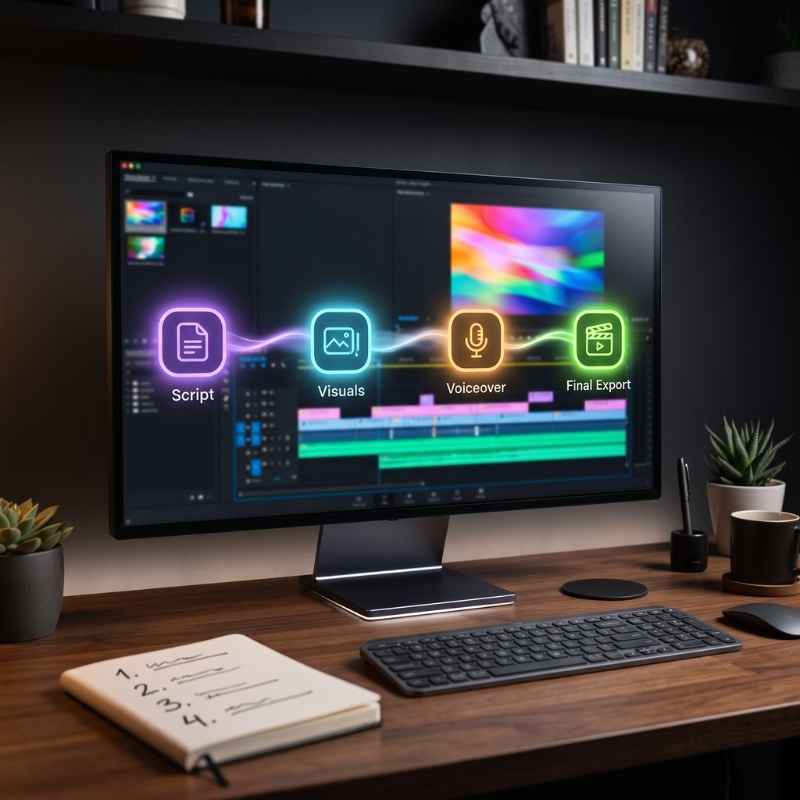
InVideo AI's real strength lies specifically in how quickly it takes a rough idea from a blank prompt box to a structurally complete, watchable first draft, script, footage, voiceover, and music all assembled automatically in minutes rather than hours. Getting genuinely efficient results depends less on any specific advanced feature and more on the preparation you do before you even start typing, a specific, detailed prompt, your brand assets ready to go, and a genuinely clear sense of your target platform and audience. Combined with a deliberate, one edit at a time approach through the Magic Box rather than rapid fire disconnected commands, this workflow turns InVideo AI from a novelty into a genuinely efficient part of a real content production process.
.avif)
.avif)
.avif)
.avif)