.avif)
Freevisuals
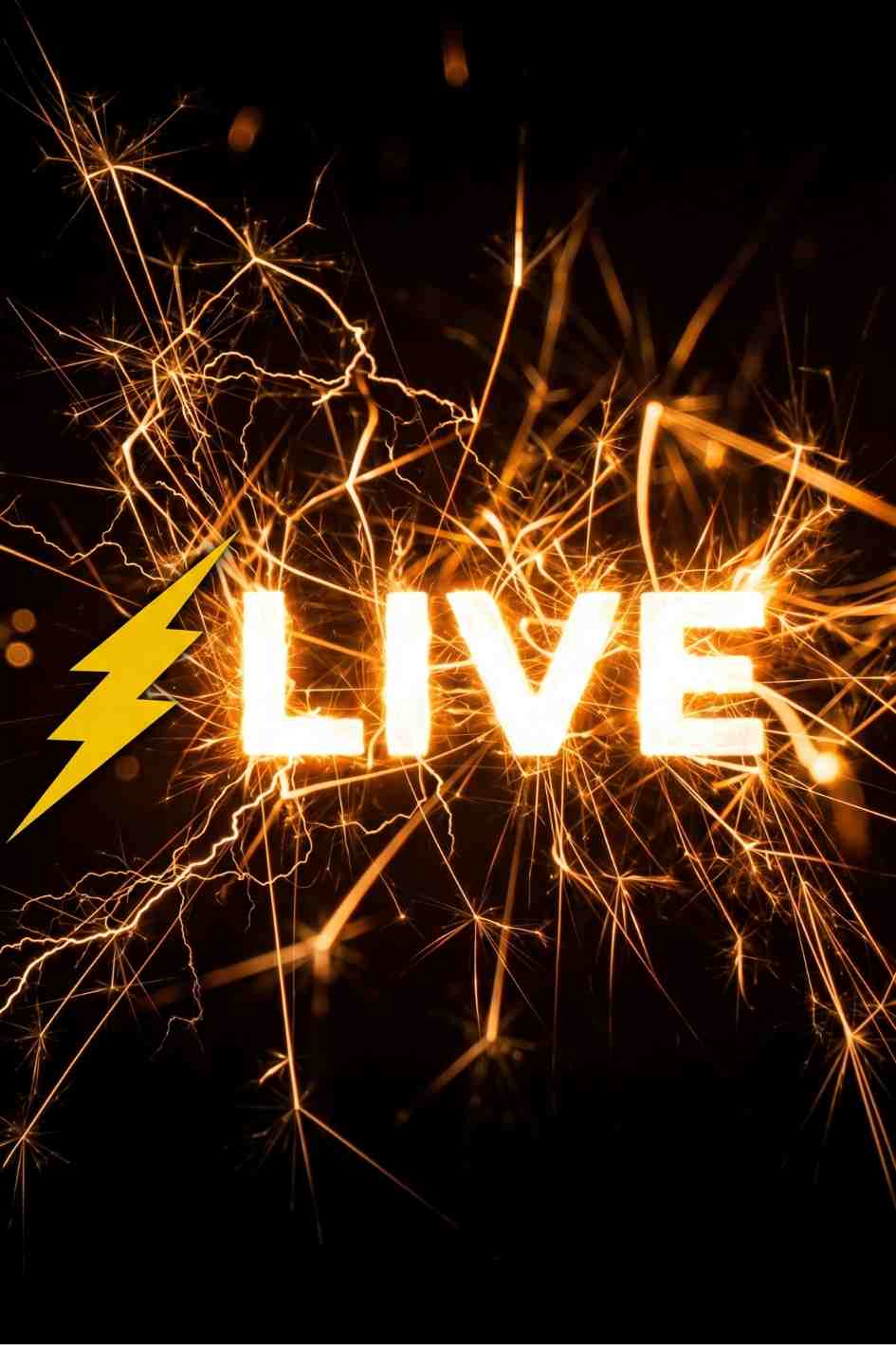
Create stunning intros with the Blinking Title Text Adobe Premiere Pro Template , featuring customizable, dynamic text animations. Easily edit in Premiere
Download FREEGo Pro To DownloadDownload NOW!A flashing title is one of the fastest ways to grab attention the moment a video starts. Rather than a text box quietly fading in, this template snaps your title onto screen with a flicker, strobe, and reveal effect, the kind of bold, high energy title treatment that suits music videos, sports content, gaming channels, and anything that wants its opening title to feel like an event rather than an afterthought.
This is one of several free title templates in our Premiere Pro templates library, alongside cinematic title cards, minimal text reveals, and broadcast style lower thirds if a flashing effect isn't quite the tone your project needs. If you want music to match the energy of a flashing title reveal, Artlist and Epidemic Sound both carry high energy, electronic, and trap style tracks that pair naturally with this kind of punchy title effect.
The Flashing Title Text template gives you a pre-built flicker and flash reveal animation for on screen text, designed to work directly inside Adobe Premiere Pro. Like the rest of our free title template collection, it's built to be fully customisable, change the fonts, colours, size, and timing directly inside Premiere Pro without needing any additional plugins.
The core effect is a rapid flash or strobe style reveal, your title text flickers on screen a few times before settling into a stable, readable state, giving the title moment a sense of impact and urgency rather than a smooth, calm entrance. This style of title effect has become a recognizable staple across gaming intros, sports highlight reels, trailers, and high energy YouTube content specifically because it mimics the visual language of a camera flash or strobe light, instantly reading as exciting and attention grabbing.
Gaming YouTube channels, Twitch highlight reels, and esports tournament recaps can use this template for channel intros or key moment call outs, the flash effect matches the high energy, fast paced visual language already common in gaming content.
Sports content, match recaps, and athlete highlight reels benefit from a title treatment with impact, a flashing title before a key play or final score reveal adds a sense of drama appropriate to the content.
Music video editors and trailer cutters can use this template for artist name reveals, song titles, or key dramatic beats where a calm fade in title would undercut the energy already established by the music or pacing.
Event announcement videos, product launch countdowns, and hype style promotional content can use a flashing title to reinforce a sense of urgency and excitement around an upcoming date or release.
Fast paced short form content for Instagram Reels, TikTok, and YouTube Shorts benefits from a title that grabs attention within the first second, which is exactly what a flash reveal is built to do.
Head to the download page and grab the template file.
If the download arrives as a zipped folder, extract it to a location you'll remember, ideally a dedicated project assets folder.
Open Adobe Premiere Pro and go to Window, then Essential Graphics, to open the panel where Motion Graphics Templates (MOGRTs) are installed and managed.
Click the Install Motion Graphics Template icon at the bottom of the Essential Graphics panel, then navigate to your downloaded file and select it. The template will appear in your Essential Graphics panel, ready to use.
Drag the flashing title template from the Essential Graphics panel onto your timeline, positioning it wherever you want the title moment to appear, typically at the start of a video, a scene change, or a key highlight moment.
With the template selected on your timeline, the Essential Graphics panel will show editable text fields. Click into the text field and replace the placeholder copy with your own title text.
Use the colour controls in the Essential Graphics panel to adjust the text and any accent colours to fit your channel or project's existing visual identity.
Adjust the duration of the flash effect and how long the title holds on screen once it settles, a faster flash suits high energy content, while a slightly slower reveal can still read as punchy without feeling rushed.
Play the sequence back with your intended background music or footage to confirm the flash timing feels synced and intentional rather than arbitrary.
Once you're happy with the result, export using your project's standard delivery settings.
Flash and strobe style title reveals borrow directly from a visual language audiences already associate with excitement and impact, camera flashes at events, strobe lighting at concerts, and the rapid cut flicker used in movie trailers to build tension. When a title uses that same flickering, rapid-fire reveal, it taps into those existing associations almost instantly, which is part of why this style has become such a common choice for gaming, sports, and music content specifically, genres where energy and excitement are core to the viewing experience.
There's also a practical attention grabbing benefit. On platforms where viewers decide within a second or two whether to keep watching, a title that flickers and strobes onto screen is simply harder to scroll past than one that quietly fades in. The visual movement itself catches the eye, which is valuable real estate in the opening moments of any piece of content competing for attention in a crowded feed.
A flashing title rarely works best as a completely isolated element, it tends to land hardest as the punchline of a short build up rather than the very first thing a viewer sees with no lead in at all. A brief moment of static or dark screen, a sound effect cue, or a quick series of fast cuts leading into the flash gives the effect something to pay off, rather than just appearing cold at the very start of a timeline.
If you're building a fuller channel intro around this title effect, our best transition templates roundup covers glitch and digital style transitions that pair naturally with a high energy flash title, useful if you want the cuts leading into your title to carry the same punchy energy as the text reveal itself. Pairing the visual flash with a matching whoosh, impact hit, or riser sound effect underneath your music track also significantly strengthens the sense that something important just happened on screen, rather than the flash feeling like a purely visual, disconnected effect.
Using this effect for calm or serious content. A flash and strobe title works against the tone of documentary, corporate, or emotionally serious content, save it for genuinely high energy projects where the effect matches the material.
Overusing the flash effect throughout a single video. If every title and lower third in a video uses the same flash reveal, the effect loses its impact fast. Reserve it for genuine standout moments rather than every piece of on screen text.
Ignoring viewers sensitive to flashing content. Rapid flash and strobe effects can be uncomfortable or triggering for some viewers, including those with photosensitive epilepsy. If you're publishing broadly, consider the intensity and frequency of the flash, and check platform guidelines around flashing content where relevant.
Skipping a test export before finalizing. Flash effects can sometimes look different once compressed by a delivery platform compared to how they preview inside Premiere Pro, always check a test export before publishing.
Because this template relies on rapid flickering movement, it's worth being thoughtful about how and where it's used, particularly for content published to a broad public audience. The World Wide Web Consortium's accessibility guidelines generally recommend avoiding content that flashes more than three times per second, since rapid flashing can trigger seizures in viewers with photosensitive epilepsy. Most title flash effects, including this style, are brief and infrequent enough within a normal video to fall well within safe limits, but if you're customizing the timing to make the flash faster or more frequent than the default, it's worth keeping this guidance in mind.
For platforms like YouTube, TikTok, and Instagram, there's currently no blanket requirement to label flashing content, but some creators choose to add a brief content note for viewers who are sensitive to this kind of effect, particularly if the flash appears repeatedly throughout a longer video rather than as a single brief title moment at the start.
How To Edit A Motion Graphics Template Step By Step, a general walkthrough of installing and customizing a MOGRT title template, directly applicable to this one.
Yes, it's available as a free download directly from FreeVisuals.
No, it works as a standard Premiere Pro Motion Graphics Template (MOGRT), no additional plugins required.
Yes, colour controls are available in the Essential Graphics panel, letting you adjust the text and effect colours to match your project.
Most free title templates on FreeVisuals are compatible with Adobe Premiere Pro CC 2019 and later. Check the specific download page to confirm the exact version requirement for this template.
Check the specific license terms on the download page to confirm coverage for your intended commercial use case before using it in paid client work.
Generally yes, since the effect relies on movement and contrast rather than small text detail, though it's worth previewing on an actual mobile device if your content is primarily viewed on smaller screens.
Affiliate Disclosure: This post may contain affiliate links. If you make a purchase through one of these links, FreeVisuals may earn a commission at no extra cost to you. We only recommend products and platforms we genuinely believe in. Read our full disclosure policy.

Download free video templates, LUTs, and presets for Premiere Pro, After Effects, DaVinci Resolve, CapCut, and Final Cut Pro.