.avif)
Freevisuals
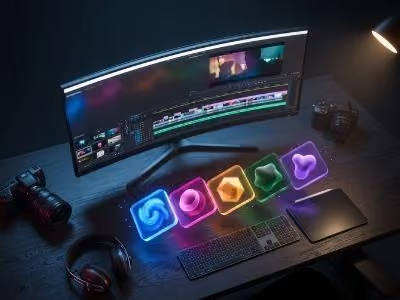
DaVinci Resolve earned its reputation as a colourist's tool long before it became one of the most downloaded free video editors on the planet. That free version is genuinely capable, full colour grading, a real Fusion compositing page, and audio tools that used to require a separate program entirely. The part that still trips people up is speed. Building a title from scratch in Fusion, animating a lower third node by node, or designing a transition that actually looks intentional takes real time, and time is the one resource most creators do not have enough of. This is exactly the gap templates are built to close, and the right mix of free, premium, and Pro DaVinci Resolve templates can take a project from raw footage to a finished, polished video in a fraction of the time building everything manually would take.
For sound design and music to pair with the final edit, Epidemic Sound and Artlist both clear tracks for commercial use across YouTube and social platforms, which matters just as much to the finished product as the visual template itself.
Resolve's biggest strength, its node based Fusion compositing system, is also what makes building graphics from scratch slower than in a timeline based tool like Premiere Pro. A simple animated lower third in Fusion might involve a dozen connected nodes just to get text sliding in with a background shape and a drop shadow. None of that is difficult once you understand it, but it is slow, and slow is expensive when you are trying to publish consistently. A template collapses all of that node work into something you drag onto your timeline, type new text into, and move on from.
This matters even more once a channel or client workload scales up. A single creator making one video a week can afford to spend an afternoon building a custom intro. A creator publishing daily Shorts, or an editor handling multiple client channels, cannot. Templates are what let output scale without editing hours scaling at the same rate, which is the entire economic case for using them rather than treating them as a shortcut for beginners only.
Free templates are the right starting point for almost every creator, not because they are lesser, but because they remove the single biggest barrier to actually finishing a video: a blank timeline. A free lower third title template gives a talking head video instant credibility the moment a name and title appear on screen instead of nothing at all. For channel branding, a free social media intro template solves the problem of every video starting cold, giving viewers a consistent two or three seconds of branding before the content begins.
Text treatment is one of the most frequently reused elements across any channel's output, and a free overlay text effect handles exactly that without needing to rebuild a kinetic text animation every time a new key point needs emphasis on screen. For editors who want a more traditional, broadcast-style look rather than a modern animated one, the classic lower thirds macro delivers that more restrained aesthetic as a single drag-and-drop macro rather than a manual build.
Background and motion elements round out a free template library well. An animated background macro gives a podcast clip, an interview setup, or a quote graphic genuine movement behind the subject rather than a static colour fill, which on its own noticeably increases how polished a simple talking head video feels. And for anyone building out a full channel identity rather than a single video, the 9 free elegant titles pack gives enough variation to cover an intro, a mid-roll section break, and an outro without repeating the exact same title style across an entire video.
None of these require a plugin unless the specific download page states otherwise, and all of them are cleared for commercial use, including monetised YouTube channels, with no attribution required. That matters for anyone treating a channel as a real business rather than a hobby project, since licensing uncertainty is exactly the kind of thing that becomes a real problem later if it is not sorted out from the first upload.
Free templates solve the blank timeline problem, but they share one unavoidable limitation: everyone downloading from the same free library has access to the exact same assets. For a hobby channel or a creator just starting out, that overlap rarely matters. For a channel that has grown a real audience, or for client work where a production company's visual identity needs to stand apart from every other YouTuber using the same free intro, that overlap becomes a real liability. This is the point where premium templates earn their cost.
Premium DaVinci Resolve templates on Freevisuals are sourced from established motion graphics marketplaces, primarily Envato, Motion Array, Motion Elements, and MotionVFX, and licensed directly through those partners rather than through a Freevisuals Pro plan. A film grit transition template brings a tactile, analog texture to scene changes that would take real Fusion skill to replicate from nothing, while a set of speed ramp transitions gives action, sports, or fitness content the kind of punchy, high-energy cuts that generic free transitions rarely match.

For a more refined on-screen identity, modern lower thirds cover the kind of clean, contemporary look that corporate and brand video work typically calls for, and a pack of diverse camera movement presets adds subtle parallax and motion to otherwise static graphics, a detail that separates a template that looks animated from one that looks genuinely cinematic. Narrative and film projects have their own dedicated option in a set of dramatic movie title templates, built for the kind of weighty, cinematic text treatment a short film or trailer needs rather than a YouTube explainer.
Niche-specific kits exist too, which is where premium templates genuinely save the most time relative to their cost. A stylish animated promo template is built specifically for fashion and lifestyle content, while a full cooking toolkit bundles ingredient callouts, step counters, and recipe card graphics that would otherwise need to be designed individually for a food channel. A social media icons pack covers the small but constant need for animated follow and subscribe prompts, and seasonal or branded work is covered by options like a winter forest logo reveal or a set of trend-driven liquid glass titles, both sourced through Envato.
Vertical and mobile-first formats get dedicated coverage as well, with a vertical Instagram stories template built specifically for the 9:16 frame rather than a horizontal template awkwardly cropped down. For anyone needing another layer of light and atmosphere over existing footage, a second volume of wipe light overlays rounds out the premium collection.
Because these are sourced from external marketplaces, the licence that applies is each partner's own commercial licence rather than a Freevisuals Pro pass, which is worth understanding before purchase, particularly for any client-facing or resale use case. For deeper coverage of what each of these marketplaces actually offers beyond this specific DaVinci Resolve category, the Envato review and Motion Array review both go into real detail on pricing, catalogue size, and licence terms.
Separate from both the free library and the partner-sourced premium templates sits Freevisuals' own Pro tier, unlocked through a Single Pass, Monthly, or Yearly plan rather than redirecting to an external marketplace. Pro-gated templates and asset packs are built and hosted directly by Freevisuals, which means the licence terms are Freevisuals' own commercial licence rather than a third party's, and new Pro assets get added to the DaVinci Resolve category alongside the existing free and premium rows over time. For a creator who has outgrown the free tier but does not need the scale of a full Envato Elements or Motion Array subscription, a single Pro pass covering just the specific asset needed is often the more cost-effective middle option between the two.
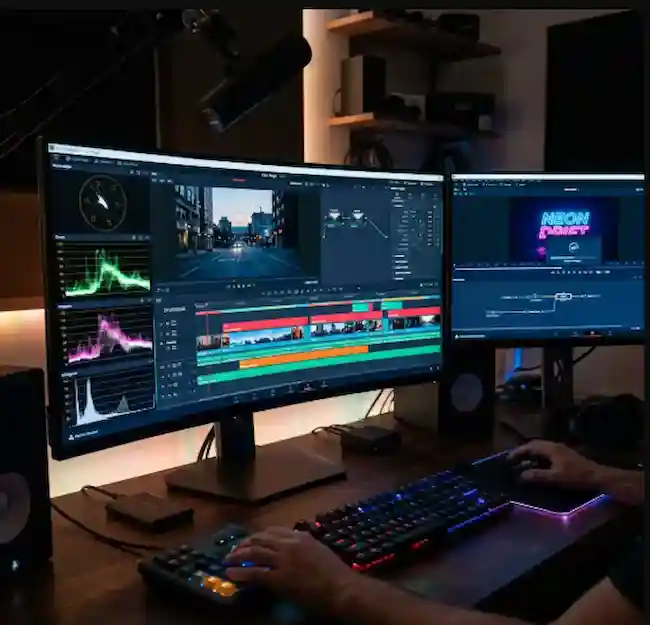
The practical workflow is close to identical regardless of which tier a template comes from. After downloading a template, open Resolve and bring it into the Media Pool from the Edit page, dragging the file directly from wherever it was downloaded. Fusion-based templates specifically should be opened and reviewed on the Fusion page first, since this is where the actual node structure lives and where text, colour, and timing changes are made, while simpler macros and generators typically expose their adjustable parameters directly through the Inspector panel on the Edit page without needing to open Fusion at all.
Once a template is in the Media Pool, placing it on the timeline works the same as placing any other clip, drag it above or alongside your footage and trim it to the length needed. Transitions are the one category that behaves slightly differently, since these need to sit directly between two clips on the timeline rather than as a standalone clip, allowing Resolve to blend from one shot into the next using the transition's own animation. Colour grading presets and LUTs, meanwhile, are applied entirely differently, through the Color page gallery rather than the timeline, which is worth knowing since dragging a colour preset onto a timeline the way you would a title template simply will not work.
Customisation is where most of the actual time saving happens, and it is also where most beginners either over-customise or under-customise a template. The Inspector panel on the Edit page, or the node inspector when working inside Fusion, exposes text content, font, colour, and animation timing for nearly every template without needing to touch the underlying node structure at all. Changing these surface-level properties is what keeps a template feeling appropriately branded to a specific channel rather than looking like a stock asset lifted directly from a marketplace page, and it rarely takes more than a minute or two per element once you know where to look.
The video below walks through exactly this kind of project template setup inside Resolve, specifically aimed at cutting the setup time that normally eats into the start of every new edit.
Watch on YouTube: How To Easily Create Project Templates In Resolve In 5 Minutes
For editors who want to go further and understand the macro and Fusion template system at a deeper level rather than just applying presets, the video below covers Resolve's template and macro workflow directly, including how custom parameters and external media get handled inside a saved template.
Watch on YouTube: Templates and Macro Workflow in Resolve
The creators who save the most time with templates are rarely the ones who download the single most popular asset and move on. They are the ones who build a small, deliberately chosen library covering the handful of elements they reuse on nearly every video, one reliable lower third, one intro, a couple of transition styles, a title treatment, and then lean on Resolve's own organisational tools to keep that library instantly accessible rather than buried in a downloads folder.
Power Bins are the specific feature built for exactly this. Enabling Power Bins under the View menu creates a bin of assets available across every Resolve project rather than just the one currently open, so a logo, an intro, or a favourite transition only needs to be imported into the Media Pool once, ever, rather than re-imported at the start of every new edit. Combined with saving a custom project preset that already has your usual timeline resolution, frame rate, and render settings configured, a new video project can go from a blank Resolve window to ready-to-edit in under a minute rather than the ten or fifteen minutes many creators lose to repetitive setup on every single project.
Colour consistency across a template library matters more than it might initially seem. A title template graded for a bright, high-key look will visually clash with footage carrying a darker, moodier grade, even if both elements are individually well designed. Keeping a consistent LUT or colour preset applied across both the footage and any background elements in a template, rather than treating colour grading as a final step disconnected from template selection, is what makes a video feel like one cohesive piece of content rather than several mismatched elements stitched together.
The single most common mistake in template selection is choosing based on how impressive a template looks in its own preview video rather than how it will actually look embedded inside a finished edit. A highly stylised, heavily animated title template might look spectacular on its own, but dropped into a calm, conversational vlog, it can feel jarring and inconsistent with everything around it. Matching the energy level of a template to the actual content it will sit inside, calm and clean for interviews and tutorials, punchy and fast for action or comedy content, elegant and restrained for brand and corporate work, does more for a finished video's quality than almost any other single decision in the editing process.
This is also where the three tiers genuinely complement rather than compete with each other. A channel might use free lower thirds and intros for the bulk of its regular upload schedule, reach for a premium Envato or Motion Array template for a specific higher-stakes video, a sponsored collaboration, a milestone celebration, and use a Freevisuals Pro asset for something that needs to stay consistently available and directly licensed without redirecting through a third party. None of these choices are mutually exclusive, and the creators getting the most value out of DaVinci Resolve templates tend to be the ones mixing all three deliberately rather than committing entirely to just one tier.
For anyone building out a broader editing toolkit beyond DaVinci Resolve templates specifically, the guide to the best DaVinci Resolve plugins covers the tools that extend what templates alone can do, and the honest guide to the best free video editing software is worth a read for anyone still deciding whether Resolve is the right base to build this template workflow around in the first place.
A solo YouTuber publishing weekly long-form content has genuinely different needs from a social media manager cutting daily vertical content for a brand, and the right starting template library looks different for each. A solo creator benefits most from investing time upfront in one really solid intro and lower third combination, then treating everything else as optional, since the same handful of elements will appear in nearly every upload for months or years. Consistency matters more than variety at this stage, since a recognisable, repeated visual identity is part of what makes a channel feel professional rather than improvised.
A social media manager or agency editor working across multiple client accounts has the opposite priority. Volume and speed matter more than any single template being perfect, since the same editor might need a dozen different visual identities across different client brands in a single week. This is where leaning more heavily on the premium marketplace tiers, particularly larger bundle packs from Envato or Motion Array that include many colour and style variations of the same template, pays off more than it would for a single-channel creator, since one purchased bundle can realistically cover several different client aesthetics without needing a separate purchase for each.
Educational and tutorial creators sit somewhere between these two. Clarity usually matters more than visual flair, since the goal of a lower third or title card is to reinforce information rather than compete with it for attention. A clean, legible template with minimal animation, rather than the most visually elaborate option available, tends to serve this kind of content better, and this is often where free templates genuinely outperform flashier premium alternatives rather than simply being a cheaper fallback option.
A few issues come up often enough across free and premium templates alike that it is worth knowing the fix before they turn into a frustrating afternoon. Text that appears in the wrong font once a template is opened on a different machine almost always comes down to a missing font file rather than a broken template, and the fix is simply installing whatever font the template's documentation lists before reopening the project, since Resolve has no way to substitute a missing font automatically the way some other software attempts to.
Templates that appear to do nothing when dragged onto the timeline are often Fusion-based templates being treated like a simple video clip rather than opened on the Fusion page first. If dragging a template onto the timeline produces a blank or static result, opening that same clip directly on the Fusion page usually reveals the actual animated node structure sitting underneath, ready to be previewed and adjusted from there rather than from the Edit page timeline alone.
Colour mismatches between a template's background elements and your own footage are rarely a template fault at all. Most templates are built and previewed against a neutral, evenly lit sample background specifically so the template looks correct regardless of whose footage it eventually sits behind. Once your own colour grade is applied to the surrounding footage, a background element inside the template may need a small manual adjustment, usually just a Hue or Saturation node tweak inside Fusion, or a simple Lift Gamma Gain adjustment if working with a simpler macro, to sit comfortably alongside the rest of the graded image rather than looking visibly separate from it.
Performance slowdown is the last common issue, particularly on older machines running several heavily animated Fusion templates in the same timeline. Rendering a cache for the affected clips, right-clicking the clip and selecting Render Cache Color or Fusion Output depending on the specific type, converts the live, calculation-heavy template into a flat video file for playback purposes, restoring smooth scrubbing and playback without needing to simplify or remove the template entirely.
Do I need the paid Studio version of DaVinci Resolve to use these templates?
Most templates work fine in the free version of Resolve. Where a specific template genuinely requires Studio, the individual download page states this clearly rather than leaving it as a surprise after download.
What is actually different between the free, premium, and Pro template tiers?
Free templates are hosted directly by Freevisuals and free for commercial use with no attribution. Premium templates redirect to an external marketplace such as Envato or Motion Array and use that partner's own commercial licence. Pro templates are also hosted directly by Freevisuals but require an active Single Pass, Monthly, or Yearly Pro plan to download.
Can I use these templates on a monetised YouTube channel?
Yes, free and Pro Freevisuals templates are cleared for commercial use including monetised channels. Premium partner-sourced templates follow that partner's own licence terms, which are generally commercial-friendly but worth checking on the specific product page before use in client work.
Why does my template look different once I apply it to my own footage?
Templates are usually designed and previewed against neutral or brightly lit sample footage. Once applied over your own grade or lighting conditions, text contrast and background visibility can shift, which is usually fixed with a small manual adjustment in the Inspector rather than a flaw in the template itself.
How many templates do I actually need to get started?
A small, deliberately chosen set, one lower third, one intro, a transition style, and a title treatment, covers the vast majority of a typical channel's needs. Building a library gradually around what gets reused most on your specific content tends to save more time than downloading a large number of templates upfront and never using most of them.
.avif)
.avif)
.avif)
.avif)